Introduction
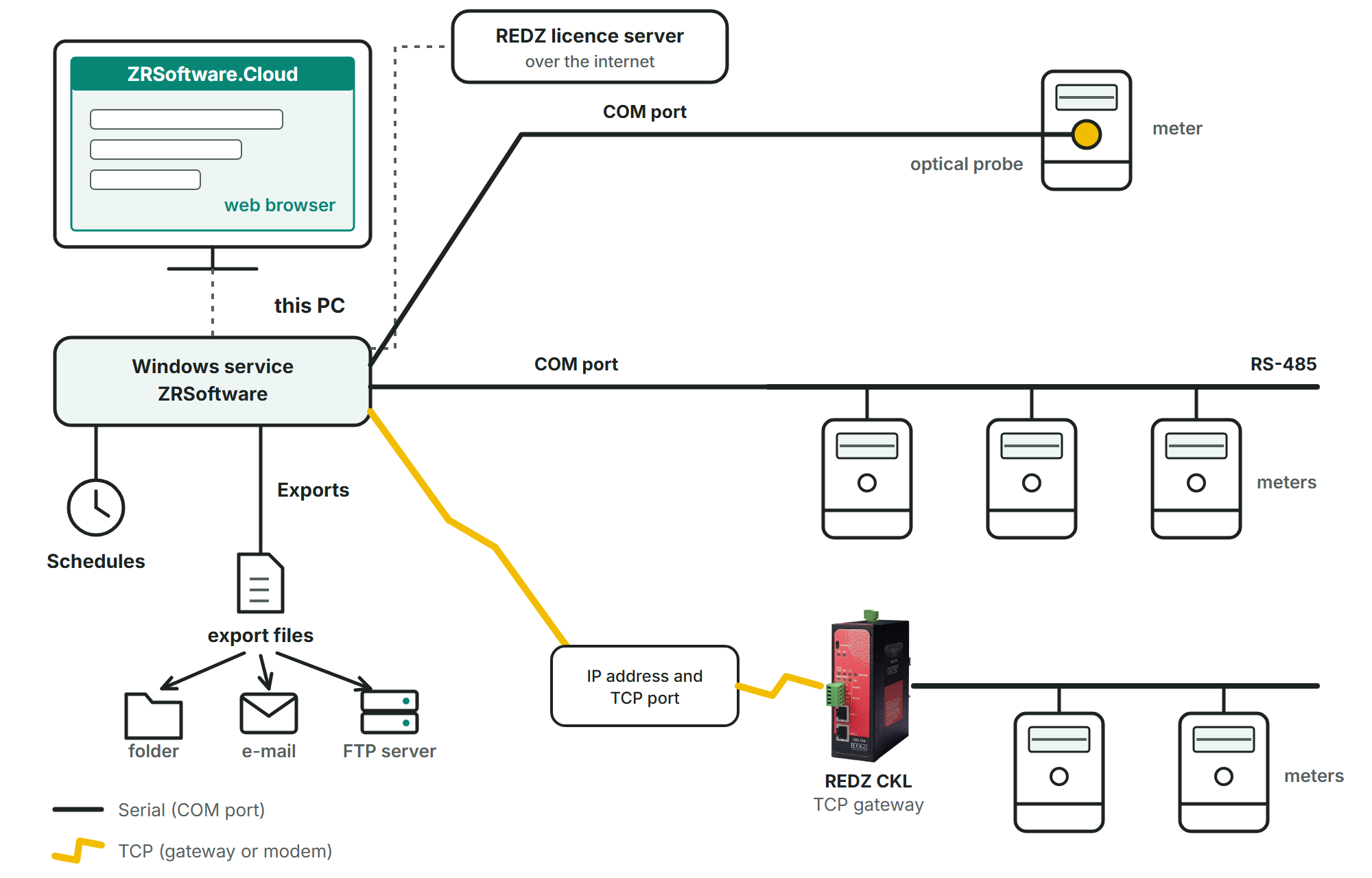
ZRSoftware.Cloud reads electricity meters and keeps their values on this PC. It runs as a Windows service (ZRSoftware.Cloud, service name ZRSoftware), and you work with it in a web browser on the same PC, at http://127.0.0.1:5080 or at the port chosen in the setup (see Installation and first start).
The service runs and reads the meters on its schedules also when nobody is signed in to Windows and no browser is open, as long as the licence allows it (License). When the trial or the licence ends, meters are not read and automatic exports do not run; your data stays, and you can still look at it and, as far as the licence includes these parts, analyse it and export it by hand. When the licence server says that the licence was withdrawn or moved, or that it does not know it on this PC, meters are still read for seven days and then stop; a copy of a virtual PC stops at once.
What you do with it
- Connect the meters through a communication line: an optical probe or an RS-232 / RS-485 connection on a COM port of this PC, or a TCP gateway or modem (Communication lines).
- Keep a list of the meters, sort them into groups and choose many of them at once (Meters and groups).
- Read a meter's registers and its load profile, and follow the bytes exchanged with the meter (Reading meters).
- Look at the load profile in steps from 15 minutes to a day, split the energy into tariff zones, and combine meters in formulas and reports (Analysis, Tariffs, Formulas & reports).
- Let the service read the meters on schedules and, on its own, write export files into a folder, e-mail them or upload them to an FTP server (Schedules, Exports).
- Bring in meters and lists from an Excel file, or the meters, readings and lists of ZR Software 7 (Import).
- Keep the program up to date: the Updates card of Settings shows whether a new version is out and offers to download and install it, unless it came out after the licence's maintenance ended. An admin, or REDZ support during a support session, can download and install an update. The versions come from REDZ's licence server (see Settings).
Appendix: supported meters lists the meter types that have been read on real meters with the program's meter drivers.
Who may do what depends on the user's role; Users describes the roles. What the pages offer also depends on the licence (License).
An admin activates the licence on the License page: online, with a licence key or a licence request sent to REDZ, or, on a PC without internet access, with a licence file from REDZ or your partner. On a virtual PC the licence is activated online only (see License).
When you need help, an admin can send a support bundle to REDZ support, or let REDZ support work in the program for 4, 12 or 24 hours, from the Support page (see Support). While a REDZ support session runs, a green window at the top right of every page says until when REDZ support is connected; there an admin can chat with REDZ and end the session. REDZ support works with the rights of an Admin. It cannot change or test the mail settings, its own account or the support session, and it cannot reset the password of the last enabled Admin; only an import of a ZR Software 7 database during the session, also a copy that REDZ support uploads, can still set that database's mail server, with user name and password, when none is set here and the licence includes Exports and e-mail. Jobs & events gets a row with the source REDZ support for each change REDZ support makes or tries to make, and for each file or reading trace it takes, also when it saves the chart as a picture or prints a page; a refused or failed change is a warning, and what was typed, for example a password, is not in the row. Pages that REDZ support only looks at leave no row.
This manual
This manual describes version 1.0.0. Names of buttons, boxes and pages are printed in bold as the pages show them.
Installation and first start
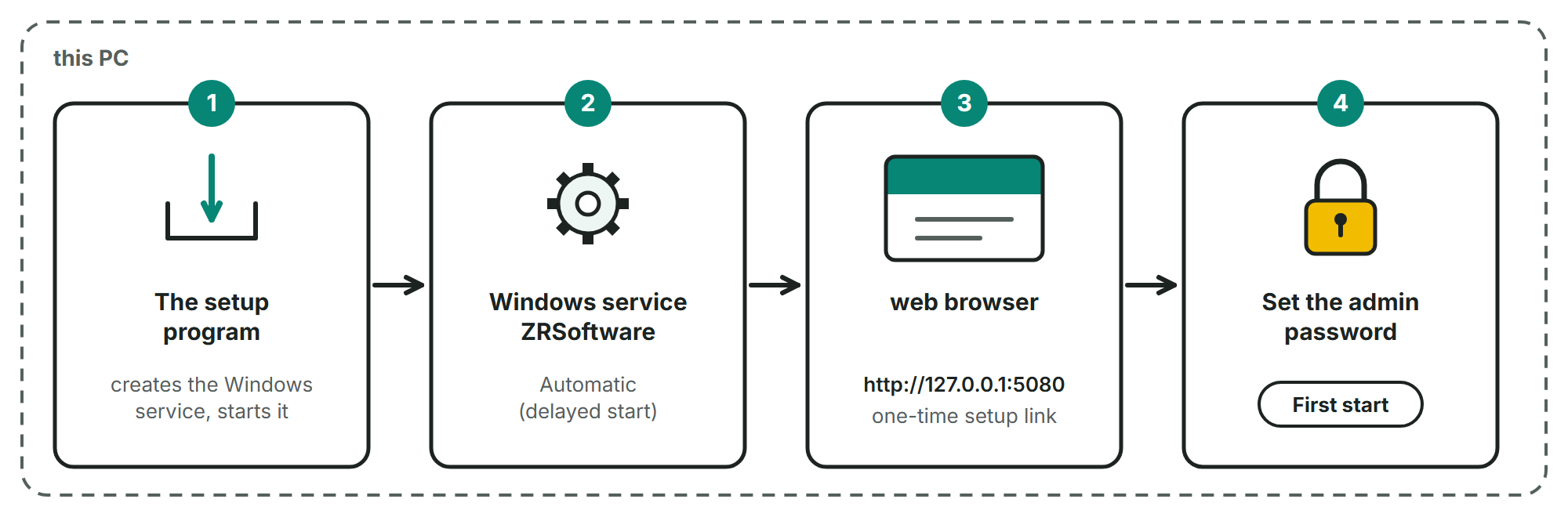
ZRSoftware.Cloud has two parts: a Windows service that reads the meters and keeps their data on this PC, and the pages you work with in a web browser on the same PC. The setup program installs the service and starts it; after that you open the pages at http://127.0.0.1:5080.
What the PC needs
- A Windows version that .NET 10, which the program is built on, supports on x64 PCs: Windows 11 versions 24H2, 25H2 and 26H1; Windows 11 23H2 and Windows 10 versions 21H2, 1809 and 1607 only in the editions Microsoft's .NET 10 list names; Windows Server 2016, 2019, 2022, 23H2 and 2025, and Windows Server 2012 and 2012 R2 with Extended Security Updates.
- On a 32-bit Windows the setup stops with the message "ZRSoftware.Cloud needs 64-bit Windows."
- A Windows account with administrator rights to run the setup.
- Nothing else to install first: the runtime the program needs is inside the program file.
- A web browser on the same PC.
The setup program
Run ZRSoftware_Setup_1.0.0.exe. It shows four pages: a welcome page, Options, the installation itself with a list of what it does, and the Finish page.
Note
If Windows shows a warning when you start the setup program you downloaded from redzsoftware.com/zrsoftware-cloud/ (opens in a new tab), confirm that you want to run it.
The setup does not ask for a folder. The program goes to C:\Program Files\REDZ\ZR Software. The data (database, backups, logs) goes to the folder REDZ\ZR Software in the ProgramData folder of Windows, which is C:\ProgramData\REDZ\ZR Software when Windows is on drive C. The Options page shows both folders.
On the Options page you can change the port the pages answer on. The default is 5080. A value outside 1 to 65535 is refused with "The port must be a number from 1 to 65535." If you change the port, use it in the address instead of 5080.
If ZR Software 7 is installed on the PC, the setup does not change or remove it. The setup looks for its database and, when it finds it, offers it later on the Import page and in the first start steps (see Import).
During the installation the setup creates the Windows service, starts it and waits up to 90 seconds for it to answer. If the service does not answer, the setup stops with a message that gives a code and points to the details list and the Windows event log.
If the installation fails for another reason, the setup takes back what it made and says that nothing is left installed. The data folder and the file setup.log in it stay.
What the setup does with the service (creating, starting and stopping it, the update task, the folder rights, the database copy and the result) is also written to the file setup.log in the data folder.
The Finish page
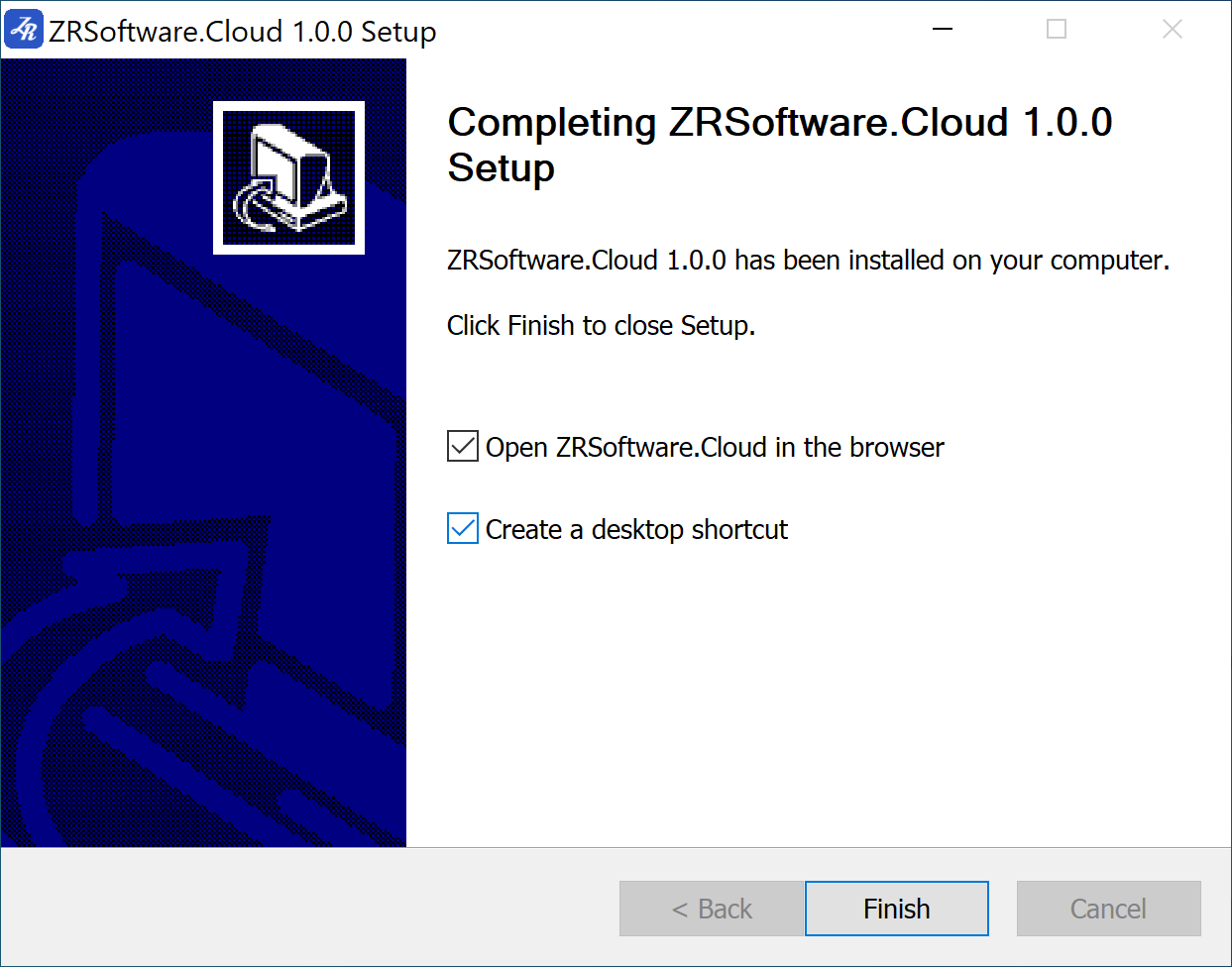
The Finish page has two ticked boxes: "Open ZRSoftware.Cloud in the browser" and "Create a desktop shortcut". Leave them ticked unless you have a reason not to.
On a new installation the first box opens a one-time setup link in your default browser. With it you set the admin password at once, without looking up the one-time password. The link works once, for 15 minutes, and only on this PC. When there is no admin waiting for a password (for example after an upgrade), the box opens the plain address http://127.0.0.1:5080 instead.
The shortcut is placed on the desktop of every user of the PC, has the name ZRSoftware.Cloud and opens the pages in the browser.
The Windows service
| Item | Value |
|---|---|
| Service name | ZRSoftware |
| Display name | ZRSoftware.Cloud |
| Account | NT SERVICE\ZRSoftware (the service's own account) |
| Start | Automatic (delayed start) |
| After a crash | Windows starts it again after one minute for the first two crashes; the count starts again after a day without a crash |
The pages open at http://127.0.0.1:5080, or at the port chosen on the Options page. The service runs and reads the meters on its schedules also when nobody is signed in to Windows.
The setup also adds the task REDZ\ZRSoftware Update to the Windows Task Scheduler. It runs every 5 minutes with the Windows account SYSTEM and does nothing until an update is asked for on the Updates card in Settings (see Settings). An admin, or REDZ support during a support session, can download and install an update. A successful upgrade makes the task again, and removing the program deletes it.
The setup gives the data folder its own permissions, not the ones of the ProgramData folder. Only the service, Windows itself and programs started with administrator rights can open the data folder; other Windows users of the PC cannot.
First start
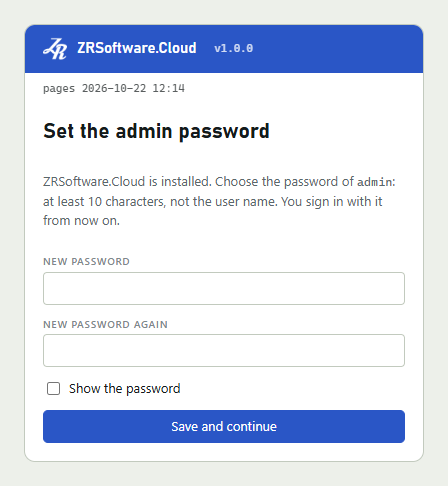
When the browser opens with the setup link, the page Set the admin password asks for the password of the user admin. Type it in New password and again in New password again, then click Save and continue. The password needs at least 10 characters and must not be the user name. You are signed in as admin, and from now on you sign in with this password.
Tick Show the password to see what you type in both boxes.
If the link was already used or is older than 15 minutes, the page says "The setup link is used or expired. Sign in as admin with the one-time password." How to do that is described in Signing in and the window.
After the password, the page First start opens with the first start steps. It opens by itself when an admin signs in, as long as there is no communication line and the steps were not closed.
| Step | What you do |
|---|---|
| Password | Nothing more: your admin password is set. Other users are added on the Users page. |
| Licence | From the first start on this PC the program runs as a 30-day trial until a licence is loaded or activated. The License page is shown below the step (see License). |
| Old database | Only when ZR Software 7 was found. The Import page for its database is shown below the step (see Import). |
| Line | Add the line through which this PC reaches the meters (see Communication lines). |
| Meter | Add a meter on that line, then read it once on the Read page (see Meters and groups). |
| Done | Shows how many lines and meters there are and the licence state. |
Move with Next and Back, or click a step at the top. Every step can be skipped. A step is marked in green when it is not the open one: Password always, Licence once the trial has started (also after it has ended) or a licence is there, Line and Meter once one exists.
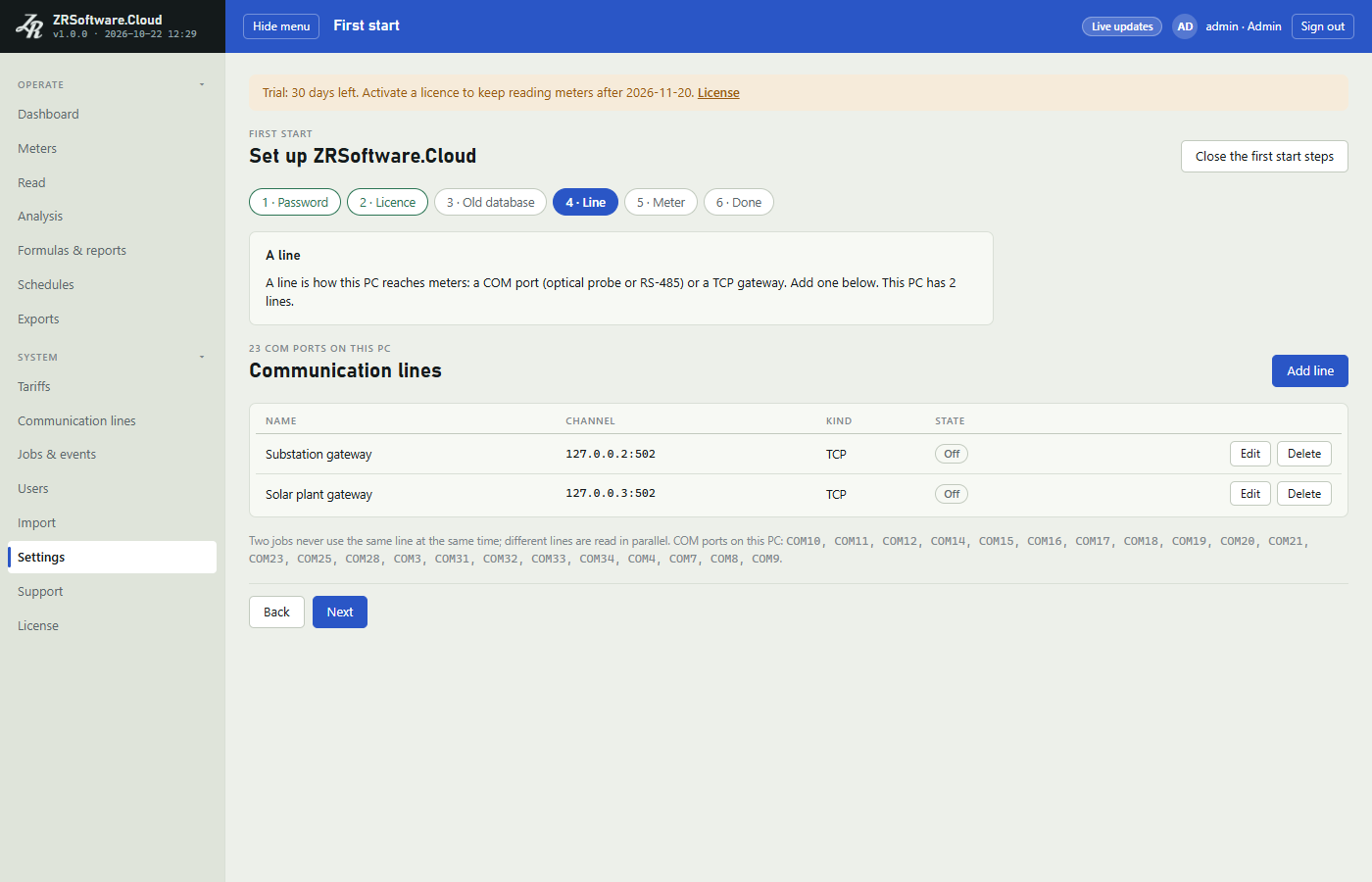
Close the first start steps or, on the last step, Go to the dashboard closes the steps and opens the Dashboard. After that they no longer open by themselves.
To see the steps again, open Settings and click Open the first start steps.
Silent installation
The setup can run without pages, for example from a deployment tool. Run it from an elevated command prompt with these switches:
| Switch | Meaning |
|---|---|
| /S | Install without pages. No browser is opened. |
| /PORT=5080 | The port of the pages. Used on a new installation only; an upgrade keeps the port. |
| /SHORTCUT=1 | Make the desktop shortcut. Without it, a silent setup makes none. |
The exit code of the setup tells the result:
| Exit code | Result |
|---|---|
| 0 | Done. For an upgrade, see the warning about the end of maintenance under Upgrading. |
| 2 | The upgrade failed; the previous version and its database are back and running. |
| 3 | The service is already installed. |
| 4 | The service was installed but did not answer. |
| 5 | Wrong switches (also a /PORT outside 1 to 65535), or the Windows is not 64-bit. On a new installation nothing is left installed. |
| 6 | The setup failed with an unexpected error, or an upgrade could not start the previous version again. On a new installation nothing is left installed; after an upgrade the service ZRSoftware may be left stopped, so meters are not read until it is started again. See setup.log. |
Note
Give /PORT a number from 1 to 65535 in plain digits without a leading zero, or leave the switch out. A number outside that range, also an empty value, stops the setup at once with exit code 5, before anything is installed.
Upgrading
To upgrade, run the setup of the new version on the PC. It finds the installed version, skips the Options page and keeps the folder and the port.
Warning
Before you upgrade by hand, look at Maintenance until on the License page or on the Updates card. With a licence that has an end of maintenance, a version built after that day does not read meters: the upgrade itself still ends as done, but the licence state becomes Version after maintenance, meters are not read and automatic exports do not run until you install a version released by the last day of maintenance or REDZ extends the maintenance (see License).
An upgrade can also start from the Updates card in Settings: the update task then runs the setup of the new version, and the setup upgrades in the same steps (see Settings). An admin, or REDZ support during a support session, can download and install an update. An update installed from the Updates card runs the setup without its pages; what it reports is in setup.log.
- The setup stops the service. If it does not stop within 60 seconds, nothing is changed and the old version is started again.
- It waits up to 60 seconds until no other program holds the program file. If one still does, nothing is changed and the old version is started again.
- It copies the database to the Backups folder in the data folder. The file name contains the old version number. If the copy cannot be made, nothing is changed and the old version is started again.
- It keeps the old program file in the folder previous in the program folder and puts the new one in place.
- It starts the service and waits up to 90 seconds for it to answer.
- When the new version answers, the upgrade is done. An upgrade gives an older installation's data folder the same permissions as a new installation. If it cannot, the setup still ends as done, and the last line of its details list is a warning that names the data folder and asks you to run the setup again; setup.log has the reason.
If the new version does not start, the setup puts the old program file and the database copy back and starts the old version. It then says "The upgrade failed; the previous version and its database are back and running. See the details above."
If the setup finds the program folder of an earlier setup but no ZRSoftware.Cloud service, it installs the program anew in that folder.
When a new version changes the layout of the database, it makes one more copy in the Backups folder at its first start. The Backups folder keeps the five newest copies and deletes older ones.
Removing the program
Remove the program in the Windows list of installed apps, where it is listed as ZRSoftware.Cloud by REDZ.
The uninstaller stops and removes the service, deletes the update task, the program files and the desktop shortcut.
Warning
The data folder is not deleted: the database, its backups, the logs and a downloaded update setup stay in C:\ProgramData\REDZ\ZR Software. The record of the trial period and of the licence state also stays on the PC, so installing again neither starts a new trial nor clears a state such as Clock behind or Withdrawn.
If you install the program again later, it uses the data that stayed: the users and their passwords are the same as before, and no new one-time password is made.
If the data folder is put back from an earlier copy and the licence is checked online, the licence server may count this PC as a copy (see License).
Signing in and the window
The pages ask you to sign in before they show anything. This chapter describes the sign-in page, the window you see after it, your own password and the Dashboard.
Signing in
Open http://127.0.0.1:5080 in the browser, or double-click the desktop shortcut ZRSoftware.Cloud. The page Sign in shows the program name and version. Type your User name and Password and click Sign in.
Tick Show the password to see the password you type.
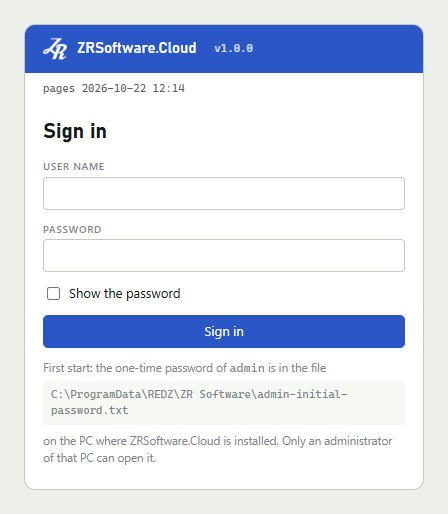
Every user has one of three roles: Admin, Operator or Viewer. An Operator reads meters; a Viewer only looks at the data. An admin adds users and sets their roles (see Users).
A wrong user name or password gives the message "Wrong user name or password"; for an existing user name the message adds how many attempts are left before a 15-minute lock. After five wrong passwords in a row the account is locked for 15 minutes; the page then says how many minutes are left. An account an admin has disabled gets "The account is disabled" once the right password is typed; a wrong password counts towards the lock as for any account.
Every sign-in with a user name and password is written to the event list, and so is a lock after wrong passwords (see Jobs & events). When you sign in by setting a new password, on Set your password or with the setup link, the event list shows that the password was set instead of a sign-in; the password itself is not written.
A one-time password
If the setup link was not used, the first admin signs in with a one-time password. The sign-in page says where it is: "First start: the one-time password of admin is in the file C:\ProgramData\REDZ\ZR Software\admin-initial-password.txt on the PC where ZRSoftware.Cloud is installed. Only an administrator of that PC can open it."
The file is in the data folder of the program. The page names that folder for Windows on drive C; on another drive it is the same folder in the ProgramData folder of Windows (see Installation and first start). Only the service, Windows itself and programs started with administrator rights can open the data folder; other Windows users of the PC cannot. Open the file from a program started with Run as administrator. Then sign in with the user name admin and the password from the file.
A one-time password does not open the pages: after Sign in the page Set your password opens. Type your own password in New password and New password again and click Save and sign in. The password needs at least 10 characters, must not be the user name and must differ from the one-time password. The same page opens when an admin has given you a one-time password.
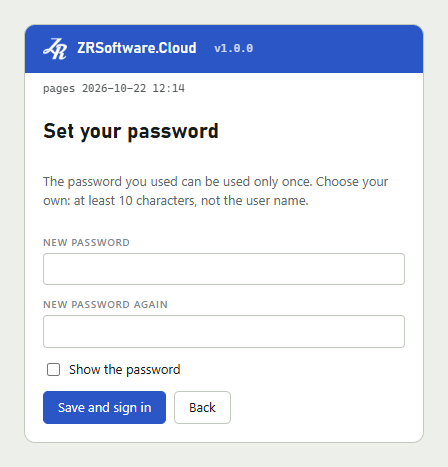
When the admin has set an own password, the program deletes the file admin-initial-password.txt.
When no admin can sign in, see Troubleshooting.
Your own password
Every user can change their own password. Click your user name at the top right; in a narrow window only your initials are shown there, click them. The page My password opens, and the menu marks Settings while it is open.
- Type your Current password.
- Type the new password in New password and again in New password again. It needs at least 10 characters, must not be the user name and must differ from the current password.
- Click Change my password.
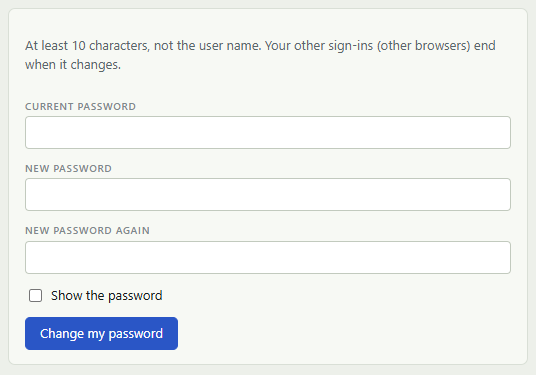
The page says "Your password is changed. Other sign-ins of this user end." You stay signed in in this browser tab. The service refuses your user's sessions in other tabs and browsers at once; their pages go back to the sign-in page at their next request to the service, within 10 minutes at the latest. The change is written to the event list (see Jobs & events).
If the two new passwords differ, the page says "The two new passwords are not the same." A wrong current password gives "wrong user name or password" and counts towards the 15-minute lock like a wrong password at sign-in; the lock is written to the event list.
The session and signing out
A session lasts 8 hours and belongs to the browser tab: if you close the tab, you sign in again next time. When the session has ended, the sign-in page comes back at the next request the page makes to the service, at the latest at your next action, and says "The session has ended. Sign in again."
The service also refuses a session at once when your password is changed by an admin, your account is disabled or your role is changed; the page goes back to the sign-in page at its next request.
To sign out, click Sign out at the top right.
The window
After signing in you see a top bar, the menu on the left and the page on the right. The top bar shows the program name and version, the name of the open page, the live update mark, your user name with your role, and Sign out.
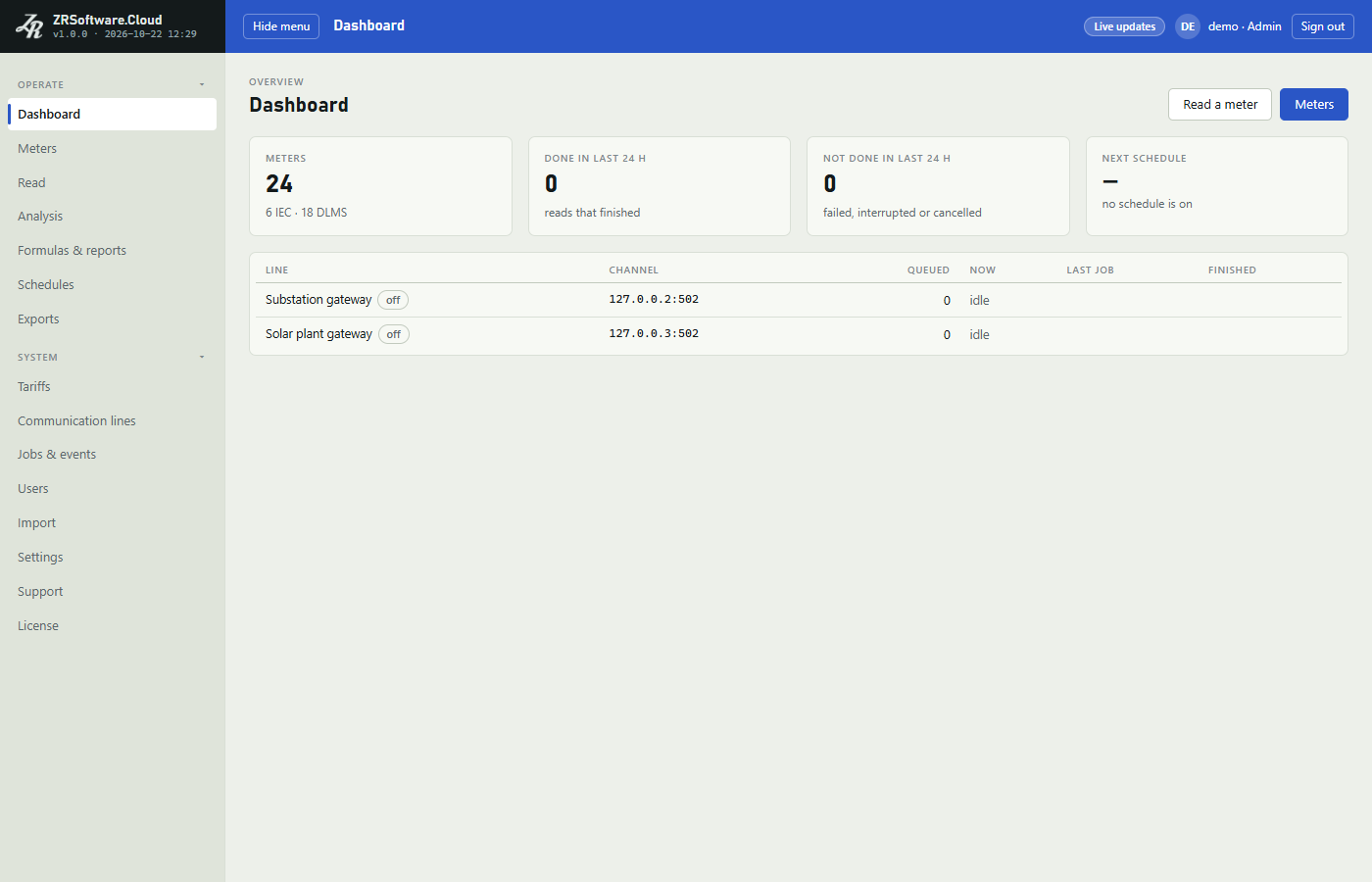
The menu has two groups, Operate and System. Some pages are shown to administrators only:
| Group | Page | Shown to |
|---|---|---|
| Operate | Dashboard | Everyone |
| Operate | Meters | Everyone |
| Operate | Read | Everyone |
| Operate | Analysis | Everyone |
| Operate | Formulas & reports | Everyone |
| Operate | Schedules | Everyone |
| Operate | Exports | Everyone |
| System | Tariffs | Everyone |
| System | Communication lines | Everyone |
| System | Jobs & events | Everyone |
| System | Users | Administrators |
| System | Import | Administrators |
| System | Settings | Everyone |
| System | Support | Administrators |
| System | License | Everyone |
A page that your licence does not include is not in the menu. This applies to Analysis, Formulas & reports, Schedules, Exports, Tariffs and Import (see License).
When meters are not read, for example after the trial or the licence has ended, Schedules and Import are not in the menu either; Analysis, Formulas & reports, Tariffs and Exports stay.
Click a group name to close or open it. At first System is closed; the group of the open page is always open. Hide menu in the top bar hides the menu to give the page more room, and Show menu brings it back. The browser remembers these choices.
In a narrow browser window the menu becomes a row above the page, and the top bar hides the version and the name of the open page.
Live updates in the top bar means the pages change by themselves as the service reads and exports. Not live means there is no live connection to the service; the page then changes only when you act.
During the trial, when the licence has ended or cannot be used, when its maintenance has ended, and in the last days of reading before meters stop being read (for example after the licence server called the licence withdrawn, or when this PC has not reached the licence server for too long), a coloured strip above the page shows the licence message and a License link; in those last days the message names the last day on which meters are read. The License page itself does not show the strip. See License.
While a REDZ support session runs, a small green window at the top right of every page says so, for every user (see Support).
The Dashboard
Without a page in the address the Dashboard opens; an admin may first see the first start steps (see Installation and first start). Read a meter and Meters at the top open those pages.
| Tile | What it shows |
|---|---|
| Meters | The number of active meters, split into IEC and DLMS meters. |
| Done in last 24 h | Reads that finished successfully in the last 24 hours. |
| Not done in last 24 h | Reads that failed, were interrupted or were cancelled in the last 24 hours. The tile is marked when the number is above zero. |
| Next schedule | When the next schedule that is on runs, and its name. The year is shown only when the run is in another year. |
When the last good registers reading of a meter is over a reactive limit, the card Over the reactive limit lists the meter, the ratio, its value and the limit. The limits link opens Settings, where an admin sets them (see Settings).
The table lists every communication line: its Channel, how many jobs are Queued, what it does Now (the running job, or idle), the Last job with its result, and when it Finished. A line that is switched off is marked off. Without lines the table says "No line yet. An admin adds one under Communication lines."
While the top bar shows Live updates, the Dashboard refreshes by itself when a job is queued, starts or ends.
First reading, step by step
This chapter takes one meter from nothing to its first values: a line to a TCP gateway, an EMH meter behind it, a read of its registers, the Meter detail page, a read of its load profile and the Analysis page. Each step names the pages and buttons; the chapters after this one describe every field and message.
The example is an EMH meter on the serial side of a TCP gateway such as the REDZ CKL. The program opens a TCP connection to the gateway's address and port; the serial speed and framing on the meter's side are the gateway's settings, not this program's.
Note
Steps 1 and 2 need an administrator. Reading (steps 3 and 5) needs an Operator or an administrator.
Step 1: add the line
- If the System group of the menu is closed, click System to open it; then open Communication lines and click Add line.
- Type a Name for the line.
- Set Kind to TCP (gateway or modem).
- Type the gateway's IP address (an IPv4 address such as 192.168.1.20) and its TCP port (1 to 65535).
- Leave IEC opening before DLMS (Landis+Gyr over TCP) unticked: it changes only DLMS reads, and an EMH meter is read with IEC 62056-21.
- Leave On ticked and click Save.
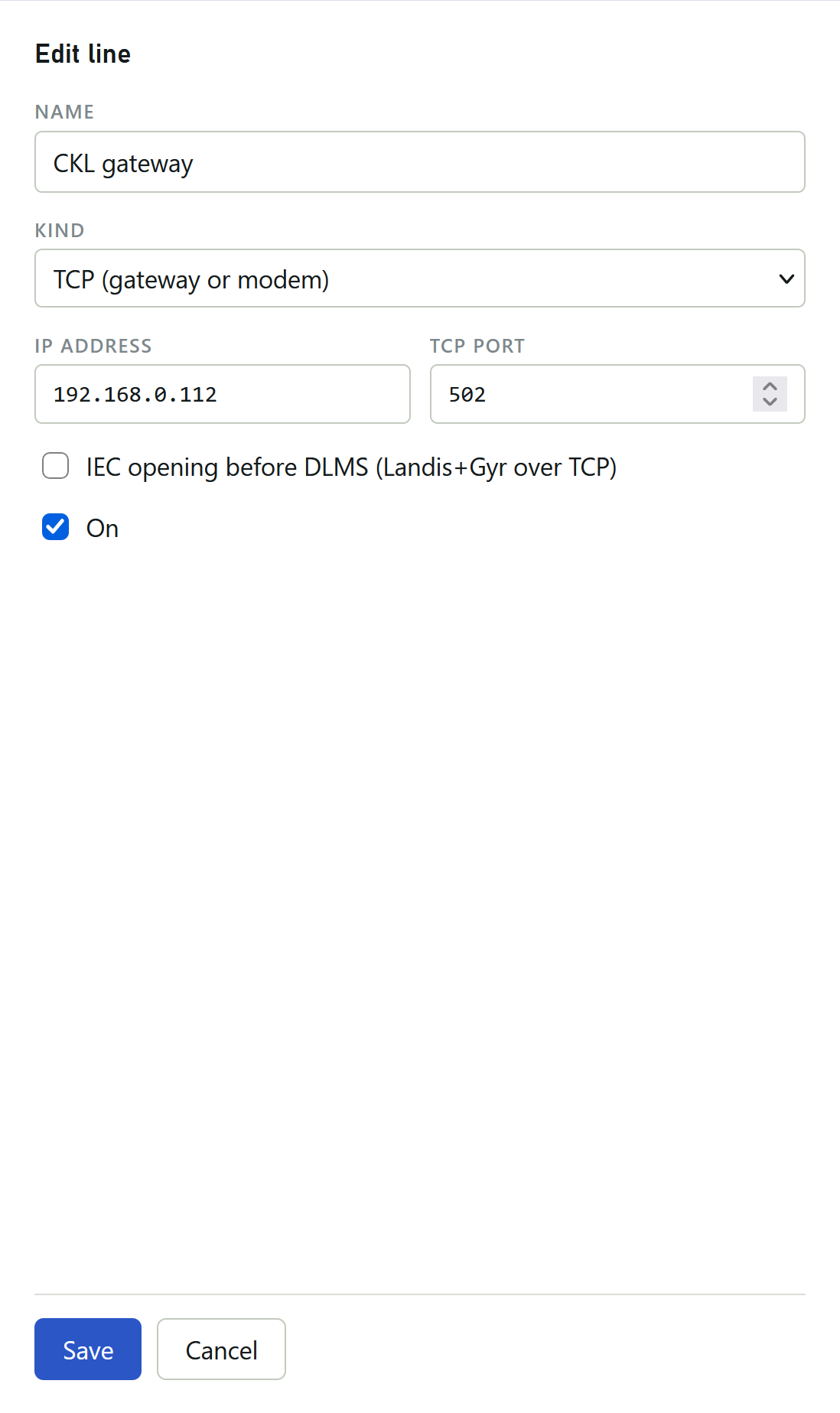
The line appears in the list with its address and port under Channel and On under State. If the service refuses the line, the form stays open and shows the reason under the fields. See Communication lines.
Step 2: add the meter
- Under Operate, open Meters and click Add meter.
- Type starts with EMH once a line exists; keep it.
- Type the meter's Serial no. and, if you like, a Location such as the site or feeder.
- Communication line starts with the first line; choose the line of step 1.
- Leave Physical address empty when the meter needs no address; with an empty field the sign-on carries no address.
- Click Save.
The form has no Initial baud rate for a meter on a TCP line: it says "TCP line: the gateway or modem sets the serial speed and framing." The Meter password is not used for IEC 62056-21 meters such as EMH; leave it empty.
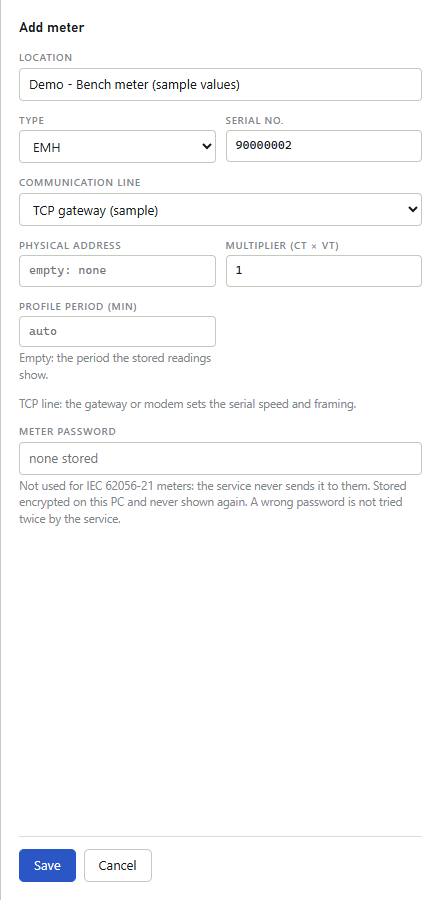
The meter appears in the list with a Read button in its row. See Meters and groups.
Step 3: read the registers
- Click Read in the meter's row. The page Read opens with the meter chosen and Registers chosen under What.
- To see the values on this page, untick Open the result when the read is good. While it is ticked, as it is at first, Meter detail opens by itself after a good read (step 4); the page remembers the choice in this browser.
- Click Read now.
While the meter answers, the Values card lists the values as they arrive, and the Line log shows every byte to and from the meter.
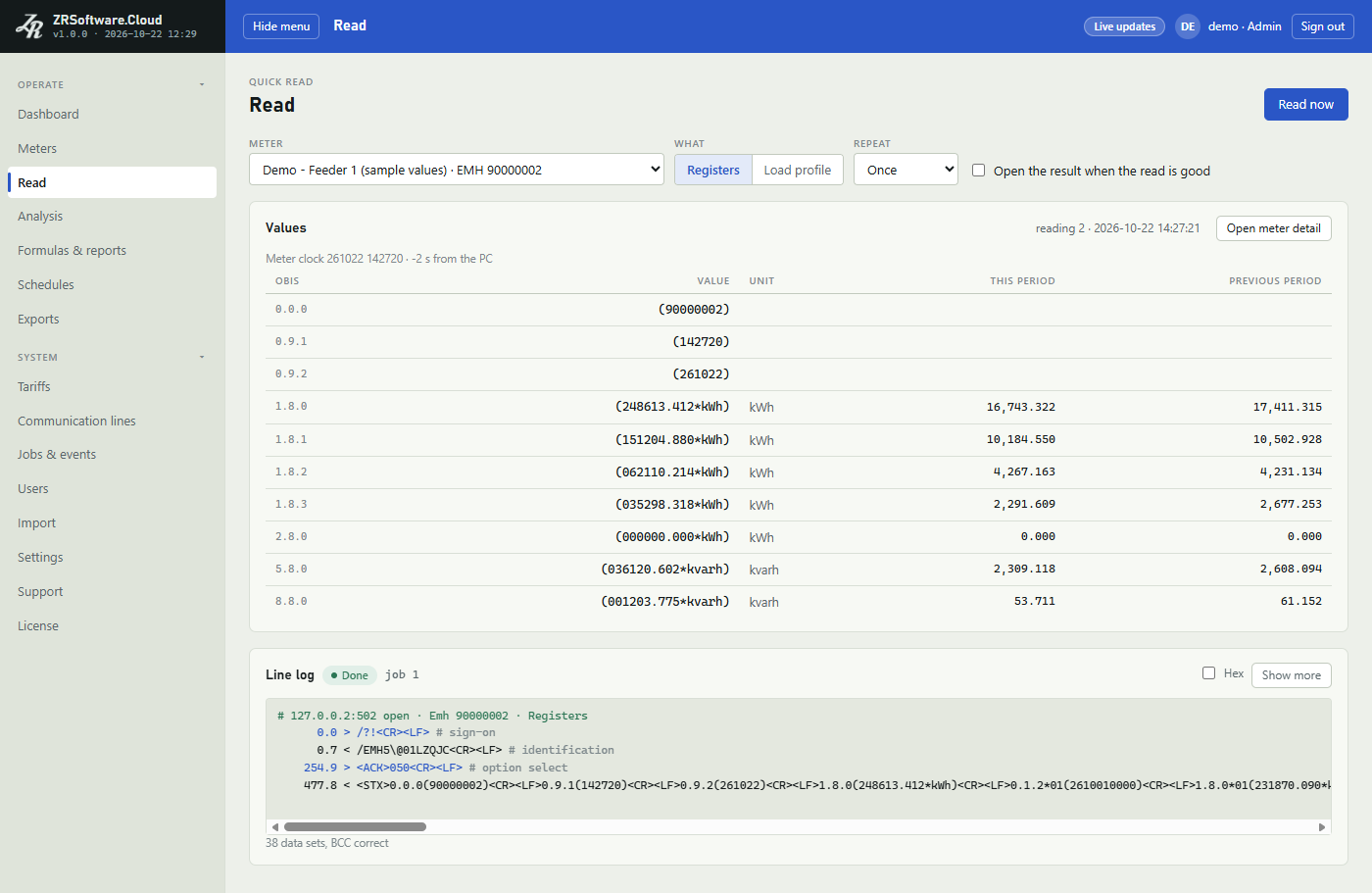
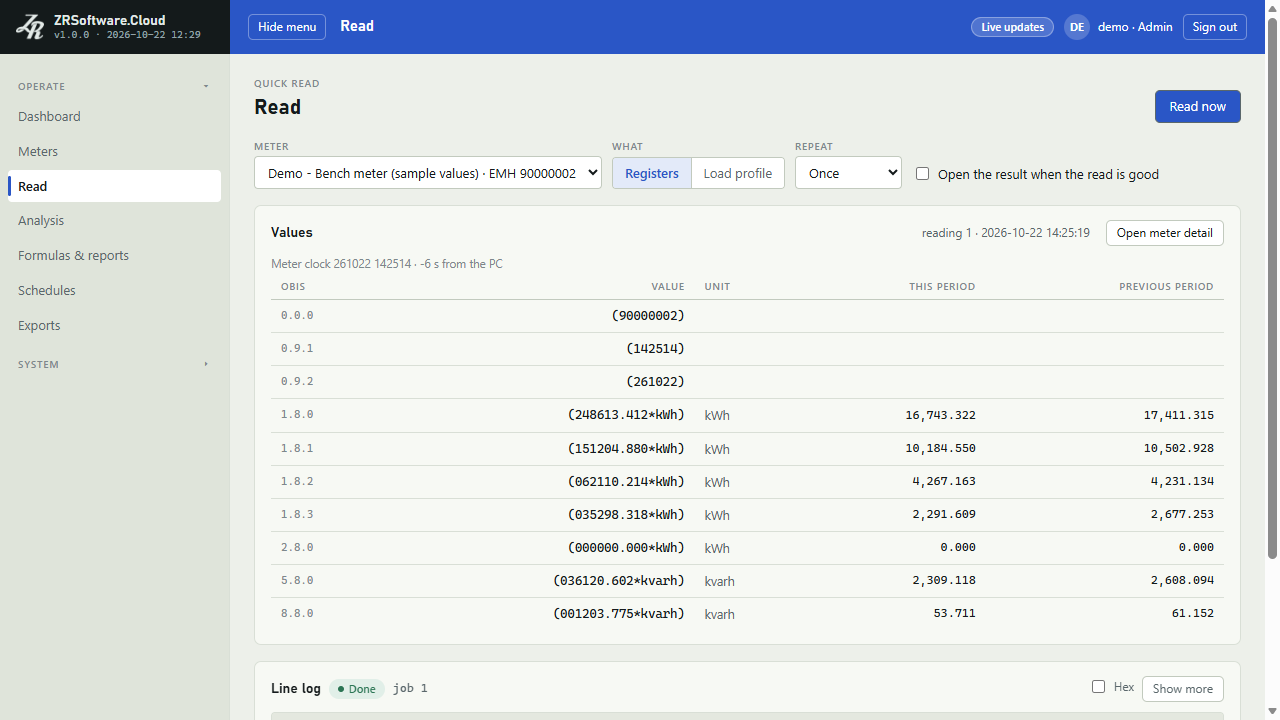
After a good read the Values card shows the stored reading: each OBIS code with its value and unit, and for the energy registers This period and Previous period. When the meter sends its clock, a line above the table gives it and how far it is from the PC's clock. The Line log card shows the result and the job number; Show more makes the log taller and Hex shows the bytes in hex. When a read does not succeed, the note under the log says why (see Troubleshooting).
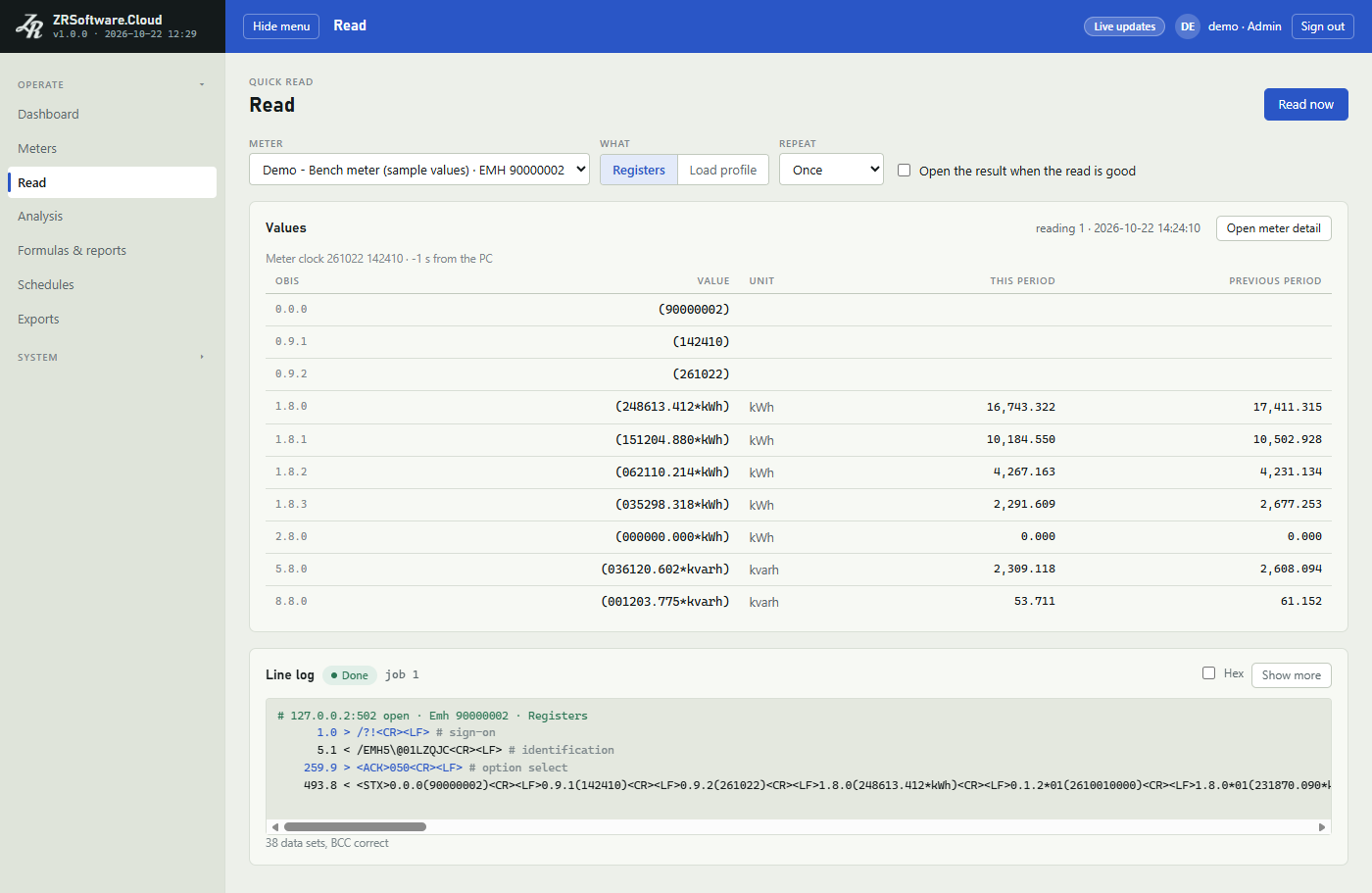
See Reading meters.
Step 4: open Meter detail
Click Open meter detail in the Values card. Meter detail shows one registers reading as the meter sent it, in the tabs Import, Export, Billing, Instantaneous, General & events and All values. It opens at Billing: the registers at the last and the previous end of billing and the energy of this and the previous period, with the Billing history below. The list at the top chooses an earlier reading, and Print readout prints the one shown.
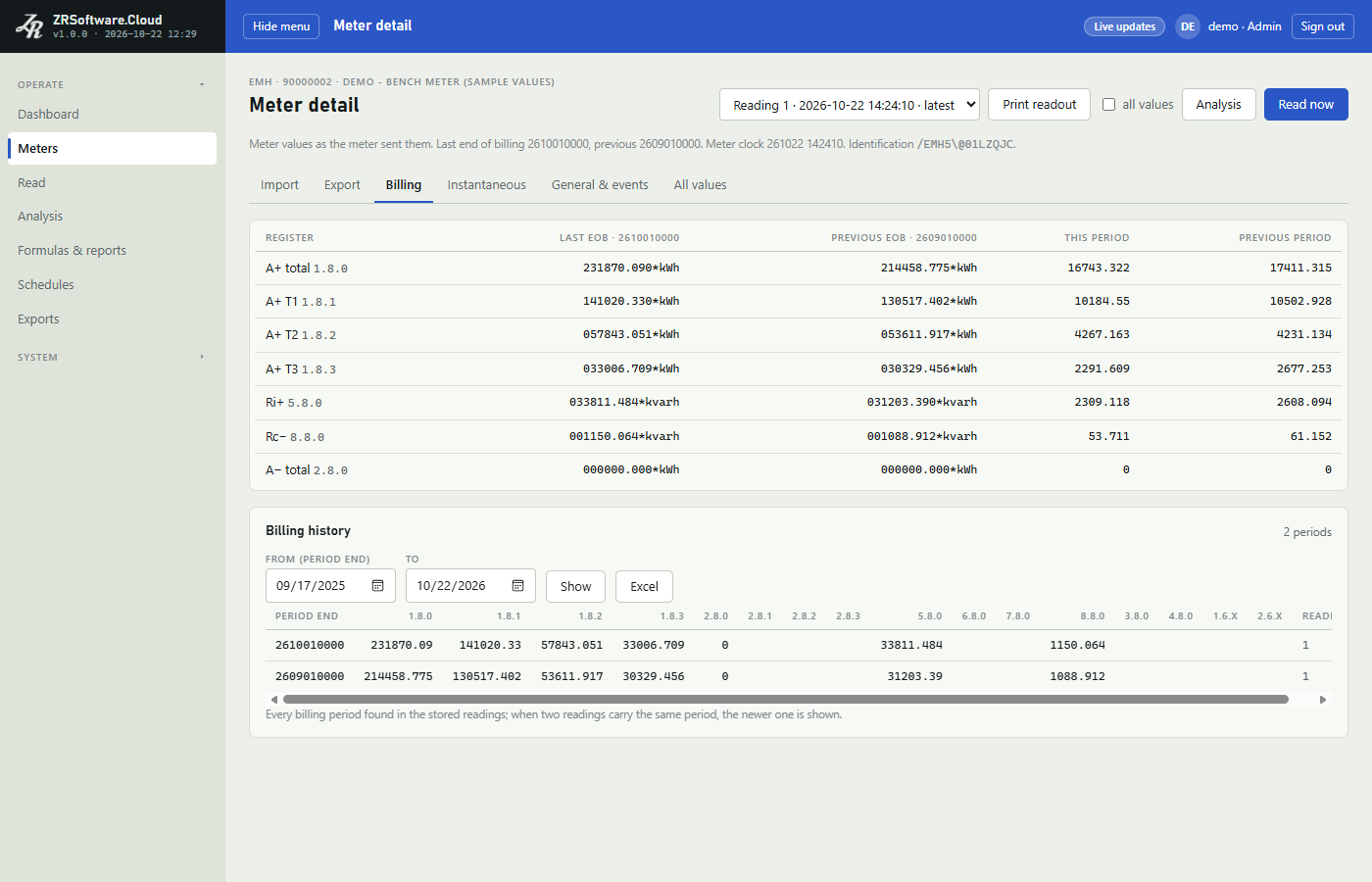
See Meters and groups.
Step 5: read the load profile
- Click Read now on Meter detail: it opens the Read page with the meter chosen, and does not read yet. Or open Read in the menu and choose the meter under Meter.
- Under What, choose Load profile.
- The page proposes yesterday in From (meter calendar) and today in the second box. For an EMH meter, as for every IEC 62056-21 meter, that box is To (until 00:00 of this day), so the proposed days read yesterday's profile.
- Click Read now.
After a good read the Load profile card shows how many intervals were stored and their length, the first and the last, and the sum of each channel. When the licence includes analysis, Open in Analysis opens them on the Analysis page; with Open the result when the read is good ticked it opens by itself.
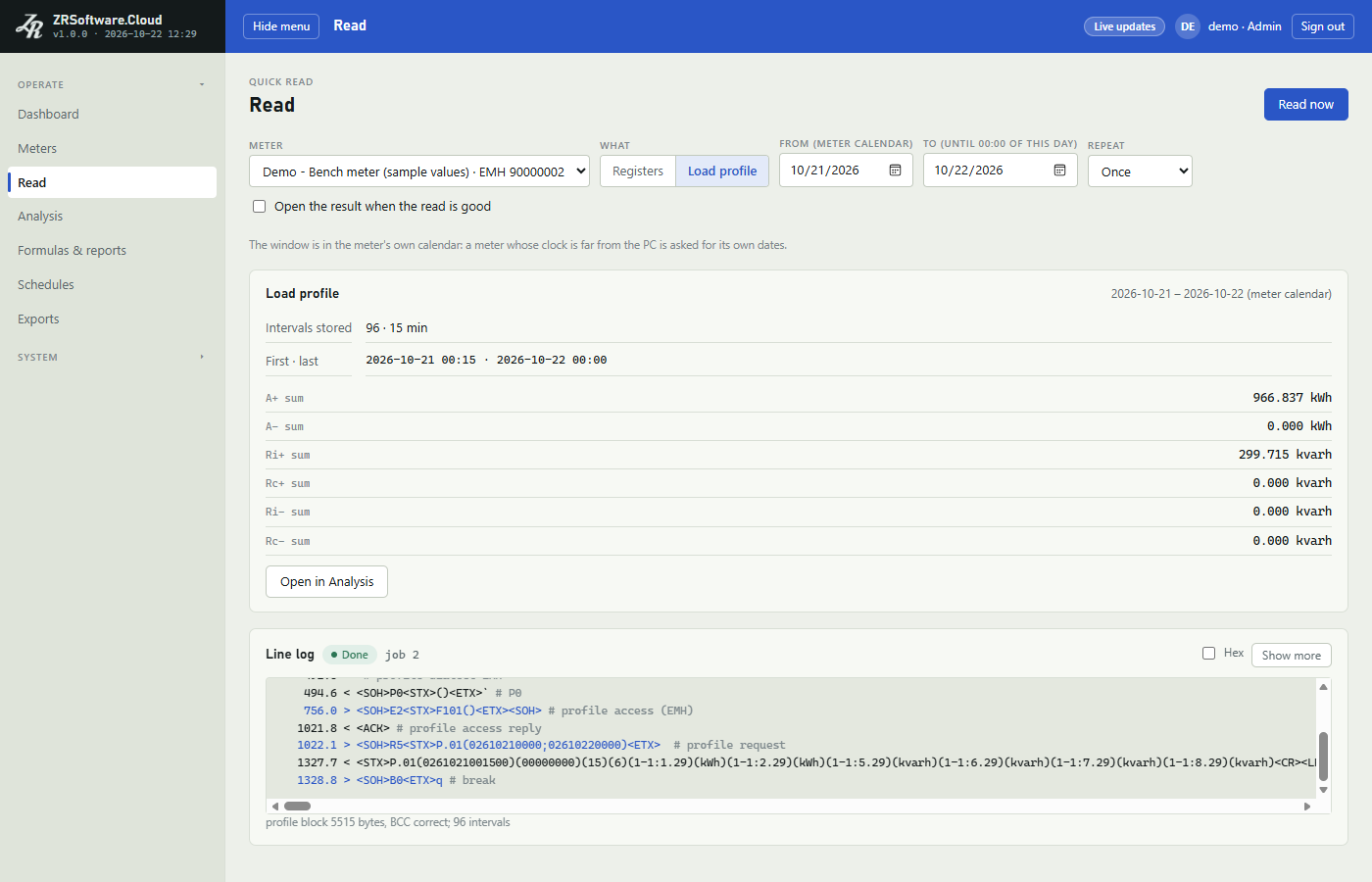
See Reading meters.
Step 6: look at the values in Analysis
Note
The Analysis page is there when the licence includes analysis (the trial includes it).
Analysis shows the stored profile of the meter as a chart and as rows.
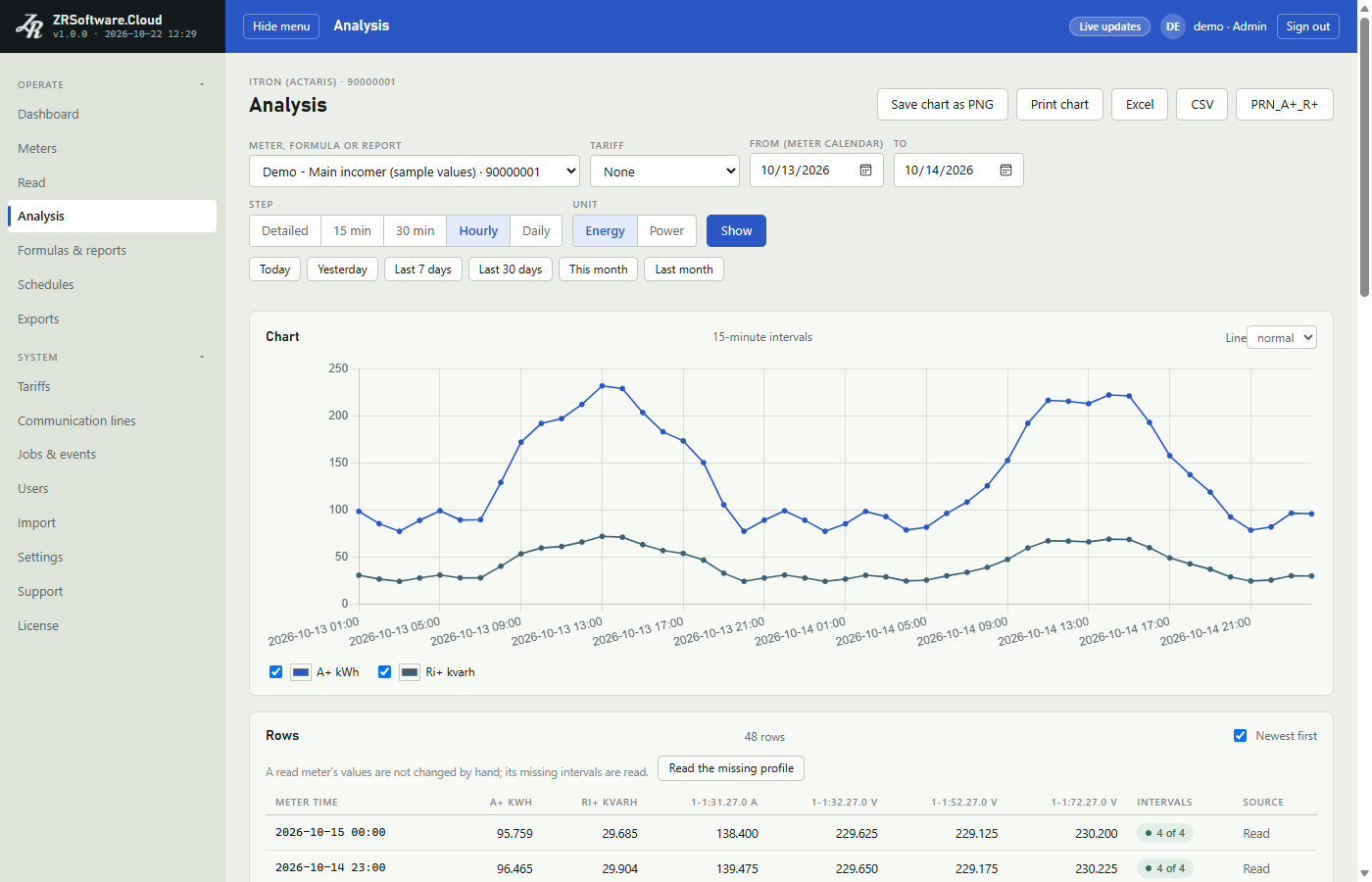
- Step groups the intervals: Detailed, 15 min, 30 min, Hourly or Daily. Unit chooses Energy or Power. The page shows the result again at once.
- The ready ranges from Today to Last month set the days and show them; or set From (meter calendar) and To and click Show.
- Under the chart, each series has a box that shows or hides it, and its colour.
- Pointing at the chart shows the time and the values of the series at that point.
- A Tariff adds the Tariff zones table under the rows, with the sum of each zone (see Tariffs).
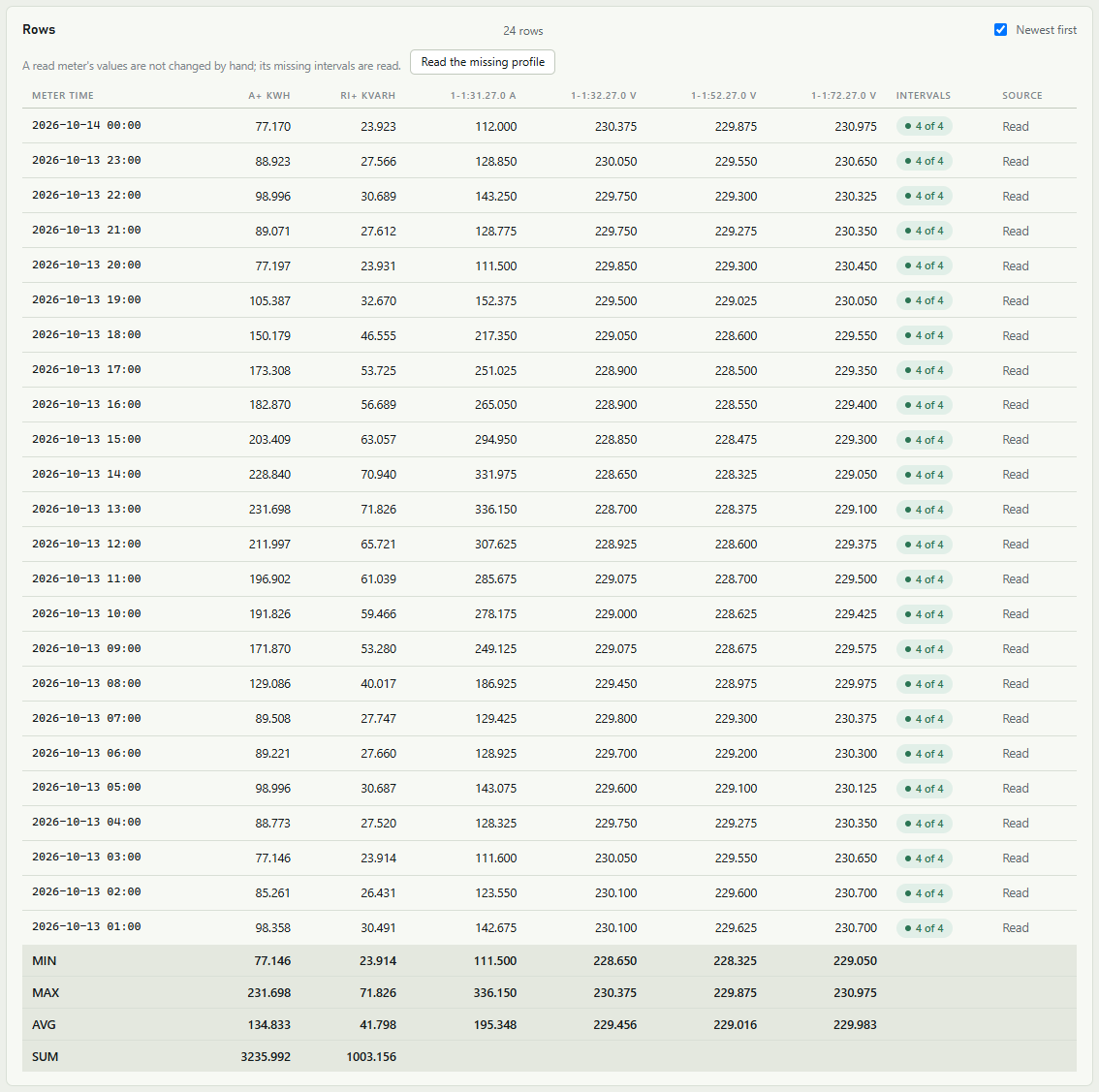
- The Rows table lists the rows, the newest first while Newest first is ticked, with MIN, MAX, AVG and SUM at the bottom.
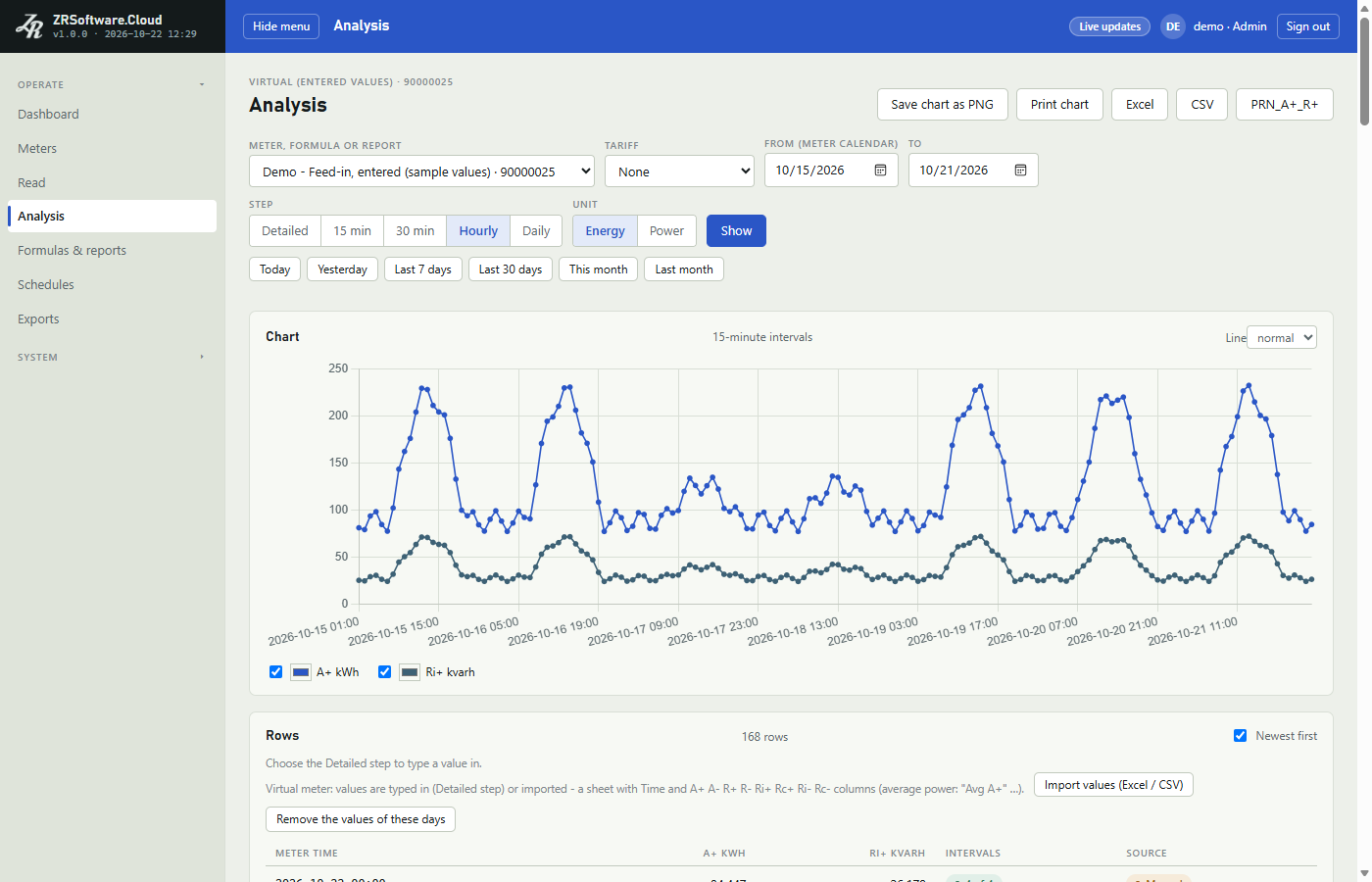
See Analysis.
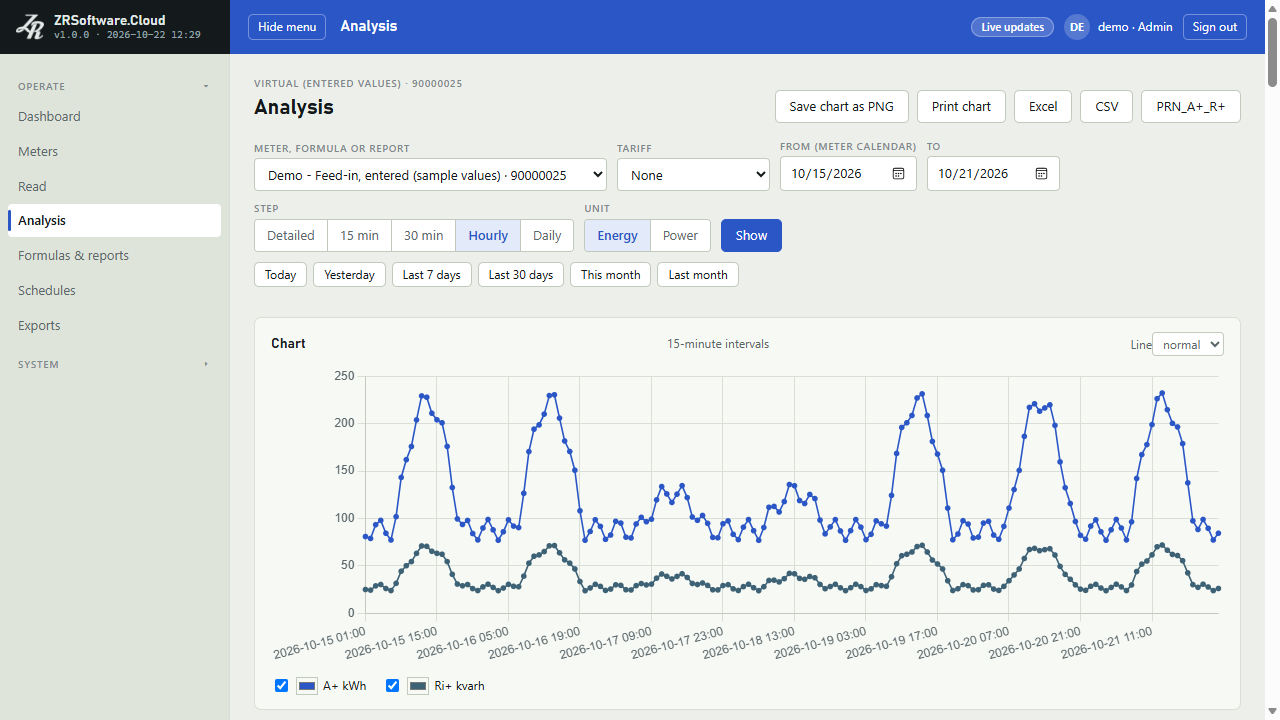
Communication lines
A communication line is the way the program reaches meters: a COM port on this PC (an optical probe or an RS-232 / RS-485 connection) or a TCP address (a gateway or modem). Every meter that is read hangs on one line; a virtual meter has none. You find the lines under System in the menu, on the page Communication lines.
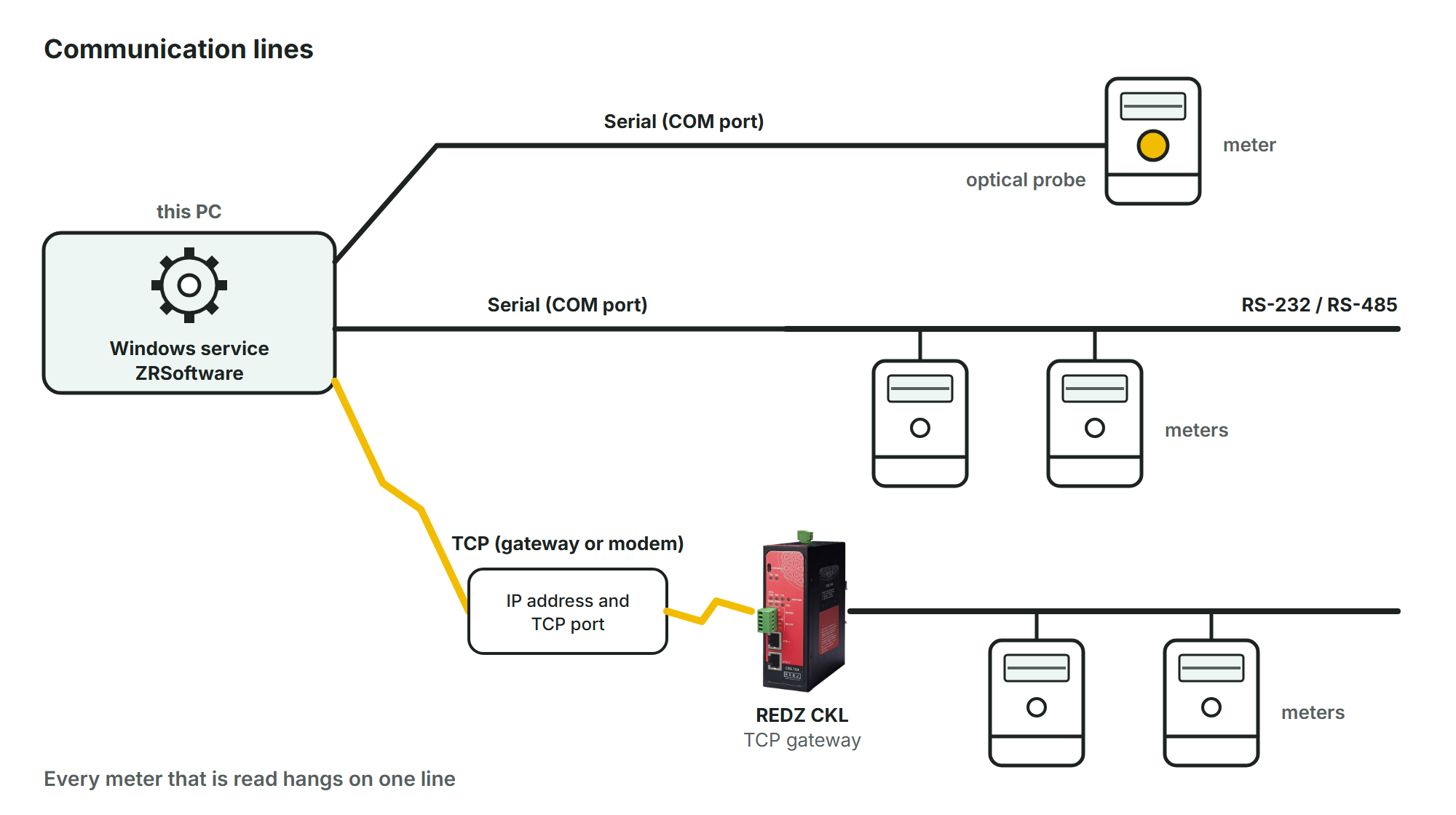
Every signed-in user sees the list. Only an administrator sees the Add line, Edit and Delete buttons and can change a line.
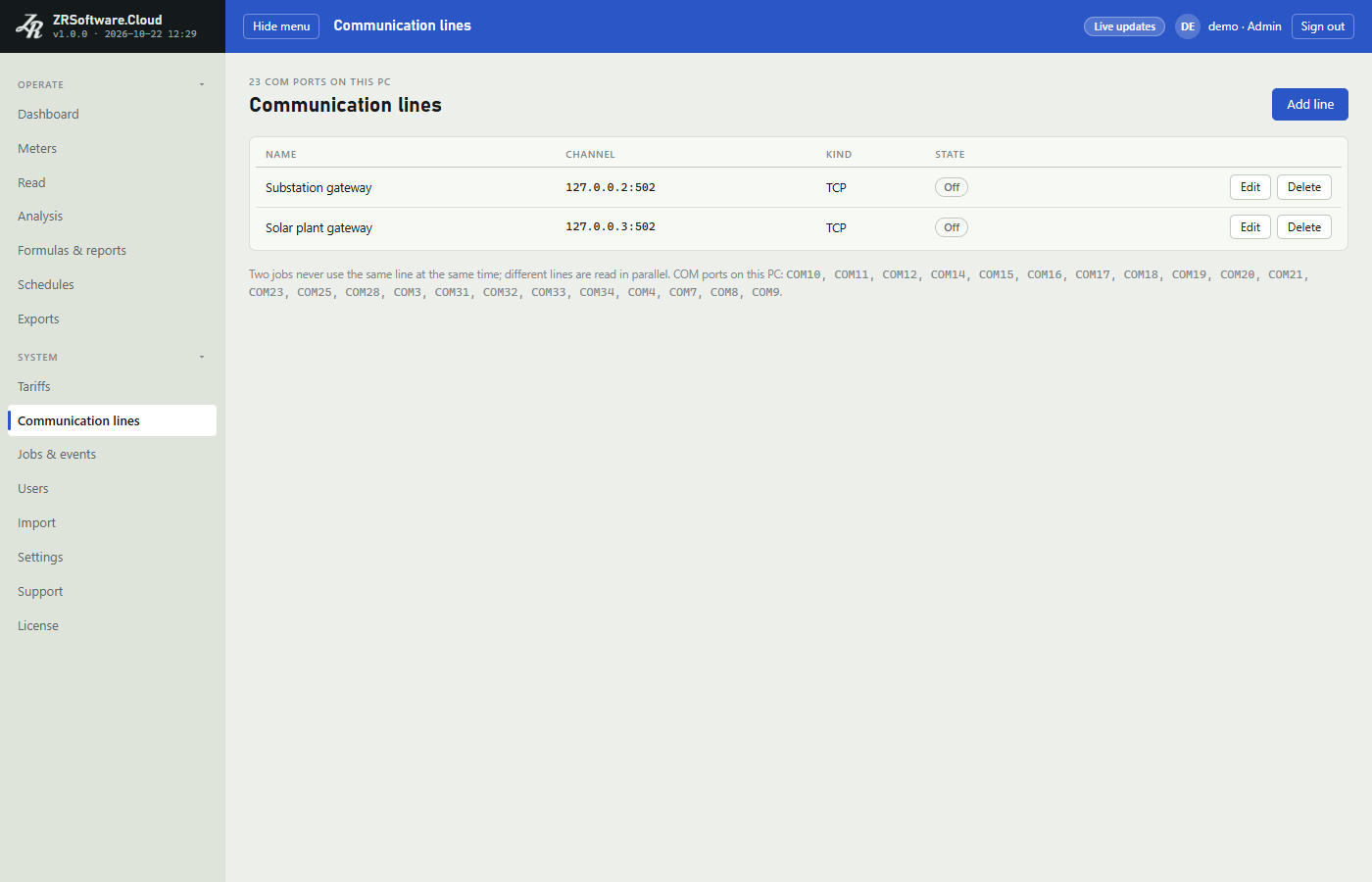
The line list
| Column | What it shows |
|---|---|
| Name | The name you gave the line. |
| Channel | The COM port of a serial line, or the IP address and TCP port of a TCP line. |
| Kind | For a serial line the interface, the framing and, when set, the probe; for a TCP line whether the IEC opening is used. |
| State | On or Off. |
Above the list the page counts the COM ports of this PC, and the note under the list names them (or says none). The list comes from Windows on the PC where the service runs, at the moment the page opens.
With no line yet, the list shows No line yet.
Adding a line
- Open Communication lines and click Add line.
- Type a Name (required).
- Choose the Kind: Serial (COM port) or TCP (gateway or modem).
- Fill in the fields of that kind (see the tables below).
- Leave On ticked to use the line, and click Save.
If the service refuses the line, the form stays open and shows the reason under the fields. Cancel closes the form without saving.
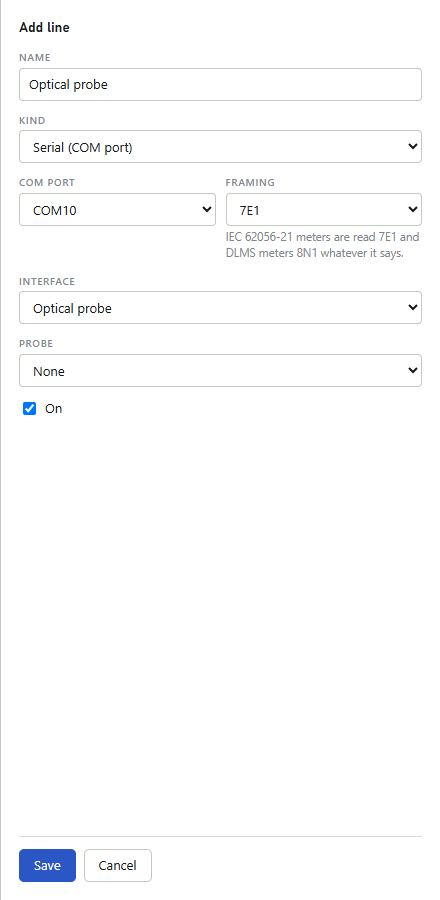
| Field (serial line) | Values | New line starts with |
|---|---|---|
| COM port | The COM ports of this PC. A stored port that Windows no longer lists is shown with (not present) after it. | The first port in the list |
| Framing | 7E1, 8N1, 8E1 or 8O1. IEC 62056-21 meters are read at 7E1 and DLMS meters at 8N1, whatever this field says; the note under the field says so too: "IEC 62056-21 meters are read 7E1 and DLMS meters 8N1 whatever it says." Through the REDZ BT probe the PC side is 19200 baud, 8N1 (see below). | 7E1 |
| Interface | Optical probe or Electrical (RS-232 / RS-485). | Optical probe |
| Probe | None or REDZ BT probe. Shown only for an optical serial line. | None |
The service opens a serial line at the meter's Initial baud rate (set on the meter, see Meters and groups) and keeps the DTR and RTS signals on while the port is open; some optical probes take their supply from these signals.
Through the REDZ BT probe the PC talks to the probe at 19200 baud, 8N1. The service does not send the meter's Initial baud rate to the probe: the probe's own mode decides how the sign-on reaches the meter. When the probe is in a mode that keeps the meter side at 8N1 or 8E1, it does not make the IEC opening at 300 baud, 7E1; if the meter then does not answer, the service's message names the probe's mode.
The Interface matters for DLMS meters: on an optical line the service first sends the IEC sign-on and switches the meter to DLMS, on an electrical line it talks DLMS directly at 8N1.
Choose REDZ BT probe when the optical line is that REDZ probe. The service then asks the probe for its mode, firmware and battery before each read. In command mode, and when the probe does not report its mode, the service sends the meter's new speed to the probe; in the other modes the probe follows the meter's speed by itself. The service never changes the probe's settings. Only IEC 62056-21 meters are read through this probe; for a DLMS meter the read ends without sending anything.
| Field (TCP line) | Values |
|---|---|
| IP address | An IPv4 address such as 192.168.1.20. A host name is refused. |
| TCP port | 1 to 65535. |
| IEC opening before DLMS (Landis+Gyr over TCP) | Tick it when the meters behind the gateway or modem need the IEC sign-on before DLMS; the label names Landis+Gyr meters over TCP. It changes only DLMS reads. Off for a new line. |
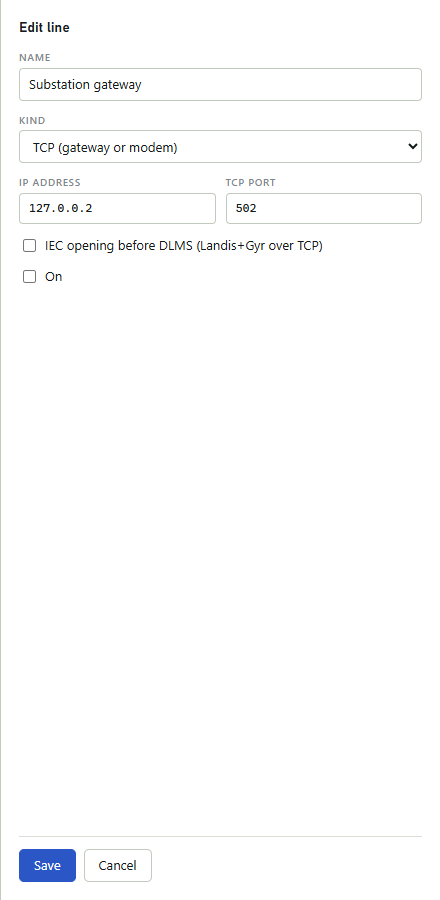
On a TCP line the gateway or modem sets the serial speed and framing; the program does not change the speed of the connection. That is why the meter form hides Initial baud rate for a meter on a TCP line.
When the TCP address does not answer within 5 seconds, or a COM port cannot be opened, the attempt ends at once and the line log names the channel and the reason. A scheduled read can make another attempt (see Schedules).
What the service checks when you save
- A line needs a name.
- A serial line needs a COM port named COM1 to COM999.
- A TCP line needs an IPv4 address and a port from 1 to 65535.
- Two lines cannot use the same COM port, or the same IP address and TCP port. The message names the line that already uses it.
- When the service is set up with a list of allowed COM ports or networks, a port or address outside that list is refused, and the message names what is allowed.
- The REDZ BT probe can be set only on a serial line with the optical interface.
Changing a line
Click Edit on the line's row, change the fields and click Save. The same checks apply as for a new line. The meters stay on the line; their next read uses the new settings.
If you change a serial line into a TCP line (or back), the service clears the fields of the old kind: the COM port, or the IP address and TCP port.
Switching a line off
Untick On and save to stop using a line without losing it. The list shows Off. On the Read page, Read now is disabled for a meter on a line that is off, and a banner names the line and says that it is turned off (see Reading meters). A scheduled read of such a meter, or Read the missing profile on the Analysis page, still makes a job; it ends with a message that the line is disabled, and nothing is sent.
Deleting a line
An administrator deletes a line with Delete on its row. The browser asks you to confirm the line's name first; after the delete a banner above the list says the line was deleted.
The service deletes a line only while no meter uses it, archived meters included, and no read is waiting for it or running on it. Otherwise the delete is refused, and the banner above the list gives the reason: how many meters use the line, or that a job is waiting or running.
To delete a line that still has meters, move them to another line first with Move to line on the Meters page; tick Show archived there to choose the archived meters too (see Meters and groups). To keep the meters where they are, switch the line off instead.
Warning
A deleted line cannot be brought back; to use its channel again, add a new line. The deletion is written to the event list with your user name. Past jobs of the line stay on Jobs & events, where their line is shown by its number after a # sign instead of its name.
Note
While a REDZ support session runs, REDZ support works with the rights of an Admin (see Support), so it can also add, change and delete lines.
One meter at a time on a line
Every line has its own queue. The service reads one meter at a time on a line, in the order the reads were asked for; different lines are read at the same time, up to four lines at once. The note under the list says it too: "Two jobs never use the same line at the same time; different lines are read in parallel."
A read you start while the line is busy waits in the queue until the reads before it have finished. The Read page then shows the job as Queued (see Reading meters).
Before it sends anything the service listens to the line for 1.5 seconds. If a meter is still sending, the attempt ends with a LineBusy message that says the meter is still sending, and nothing is sent.
A job, with all its attempts, is stopped after 15 minutes, so one meter cannot hold a line for ever. It ends as cancelled, and its message says that it timed out after 900 seconds, the longest a job may run.
Meters and groups
The page Meters lists the meters the program knows, with their line, address and last reading. From here you add and change meters, sort them into groups, choose many meters at once, and open each meter's own page, Meter detail.
| Role | What the role can do on this page |
|---|---|
| Viewer | See the list, the groups of each meter and Meter detail. |
| Operator | As Viewer, and open the Read page for a meter. |
| Admin | As Operator, and add, change, archive and restore meters, set meter passwords, make groups and change many meters at once. |
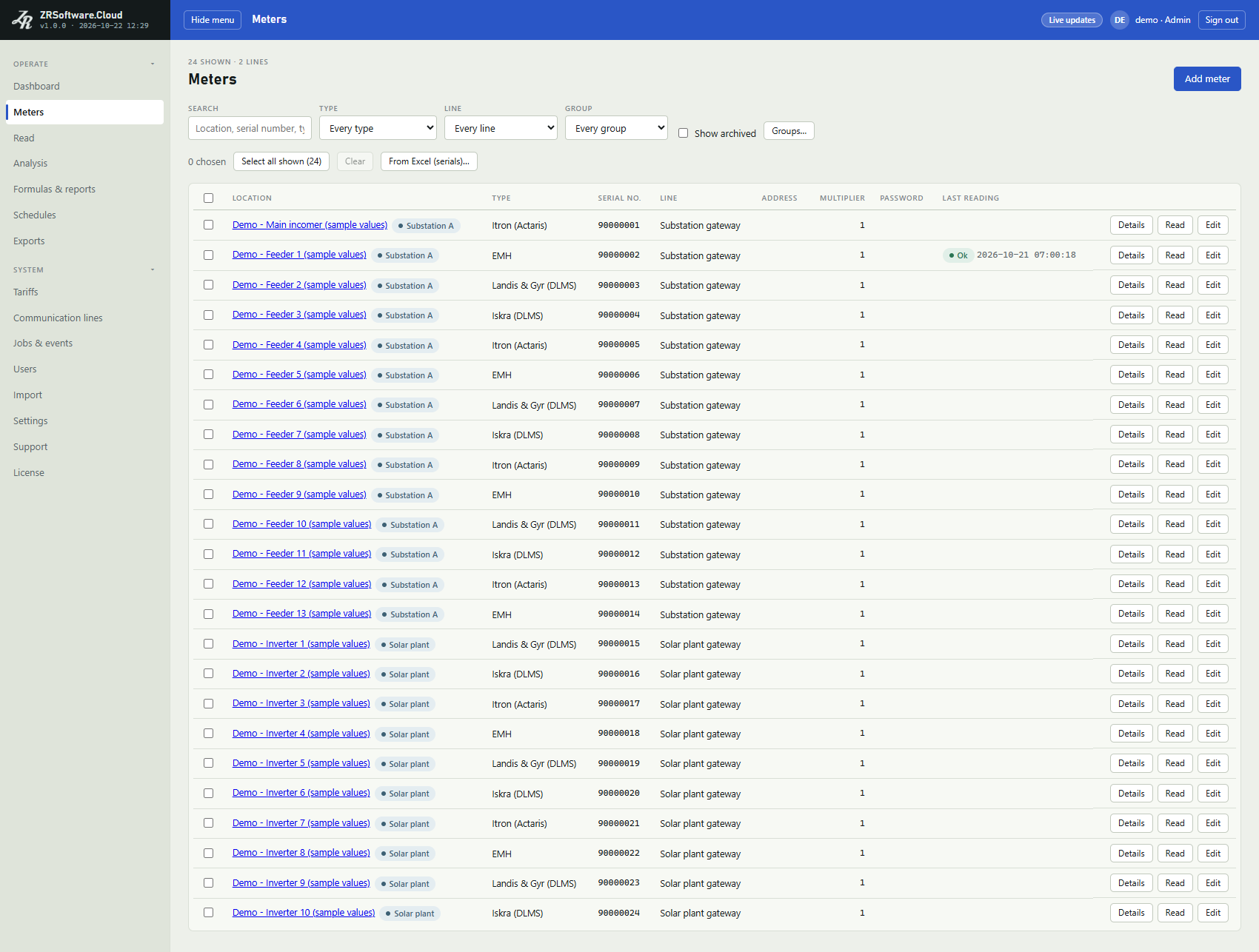
The meter list
| Column | What it shows |
|---|---|
| Location | The location, or the serial number when no location is set, as a link to Meter detail, followed by the meter's groups and the chips archived and reactive when they apply. |
| Type | The meter type (see Appendix: supported meters). |
| Serial no. | The serial number. |
| Line | The communication line; a dash for a virtual meter. |
| Address | The physical address, empty when none is set. |
| Multiplier | The multiplier of the meter. |
| Password | stored when a meter password is stored. The password itself is never shown. |
| Last reading | The outcome of the meter's newest reading of any kind (registers or load profile), good or failed, and when it finished; the outcome is written as one word here, for example NoAnswer. Empty for a meter that has never been read. |
The buttons at the end of a row open Details (the meter's page), Read (the Read page with this meter chosen; only for an active meter of a type the program reads) and, for an administrator, Edit.
The list shows 50 meters per page; Previous and Next under the list move between pages.
The reactive chip marks a meter whose newest good registers reading is over a reactive ratio limit; point at it to see which ratio is over and its value, and click it to open Meter detail. The limits are on the Settings page (see Settings) and the ratios on Meter detail.
Adding a meter
A meter that is read needs its line, so add the line first (see Communication lines). While there is no line, the form offers only the type Virtual (entered values), which needs no line.
- Click Add meter.
- Fill in the fields (see the table below). Serial no. and Communication line are required.
- If the meter needs a password, type it into Meter password.
- Click Save.
If the service refuses the meter, the form stays open and shows the reason under the fields.
The service keeps one active meter per type and serial number. A second meter of the same type with the same serial number is refused, and the message names the location of the meter already on the list. Archived meters do not count here.
The password is stored right after the meter. If the meter is saved but storing the password fails, the form stays open on the saved meter with the reason; clicking Save again stores the password into that meter and does not add the meter twice.
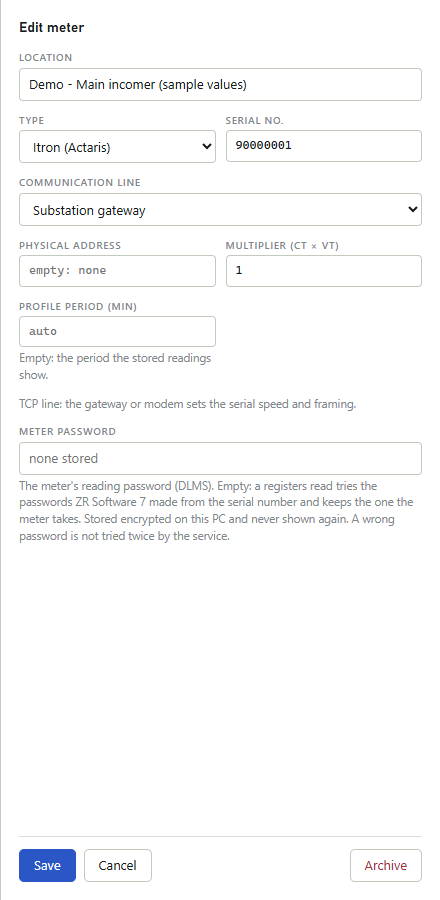
| Field | What to enter | New meter starts with |
|---|---|---|
| Location | Free text, for example the site or feeder. Searched by the filters. | Empty |
| Type | The meter type. The list is in Appendix: supported meters. | The first type of the list; Virtual (entered values) while there is no line |
| Serial no. | The meter's serial number (required). | Empty |
| Communication line | The line the meter hangs on (required, except for a virtual meter). | The first line |
| Physical address | The meter's address on the line. Leave it empty when the meter needs none. | Empty |
| Multiplier | The CT ratio times the VT ratio; a number above 0. | 1 |
| Initial baud rate | 300, 600, 1200, 2400, 4800, 9600 or 19200. Not shown for a meter on a TCP line. | 300 |
| Profile period (min) | The interval length the program assumes when it looks for missing intervals and shows the profile. Empty: the interval length of most of the stored profile (15 minutes while none is stored); the note under the field says "Empty: the period the stored readings show." It is not sent to the meter. For a meter that is read, to remove a saved period, empty the box and save. | Empty |
| Meter password | The password the meter asks for, if any (see below). | Empty |
The licence sets how many meters you can have. When the limit is reached the service refuses a new meter, or bringing back an archived one, and the message says how many the licence allows; archived meters do not count (see License). Virtual meters count toward the meter limit too. When more meters are registered than the licence allows, the meters registered first are read, as many as the limit, virtual meters among them; a virtual meter is never read, and its place does not go to another meter. The meters that are not read keep their readings (see Reading meters). This happens, for example, when meters were added during the trial.
The physical address
For an IEC 62056-21 meter the address goes into the sign-on; with an empty field the sign-on carries no address. An Itron or Landis & Gyr DLMS meter needs its address, 1 to 16383. For an Iskra or Cewe DLMS meter the service first tries the address in the field (or, when the field is empty, the address made from the serial number), then the address made from the serial number and the addresses those meters use by default. For these two types the serial number must have at least 8 characters; with a shorter one the read ends with an internal error, also when the field holds an address. When the service has no address it can use, the read ends with "the meter record has no HDLC physical address (1..16383)".
The meter password
The password field never shows a stored password: it says stored; type to replace when one is stored and none stored when there is none. The service seals the password on this PC and never sends it back to a page, so no one can read it from the pages.
- To keep the stored password, leave the field empty when you save.
- To replace it, type the new password and save.
- To remove it, click Remove the stored password.
Warning
Remove the stored password removes the password at once, without asking; Cancel does not bring it back. Type the password again to store it.
The note under the field says what the service does with the password for the chosen type. For IEC 62056-21 meters it says "Not used for IEC 62056-21 meters: the service never sends it to them." For DLMS meters it says whether the type uses the password and what the service does when the field is empty. The note ends with "Stored encrypted on this PC and never shown again. A wrong password is not tried twice by the service."
For an Itron meter, a registers read also tries passwords made from the serial number when the stored one is refused; the one the meter accepts replaces the stored password, and Jobs & events says so. When the serial number is not 8 digits, no password is sent.
Note
The sealed password can be opened only on the PC where it was stored. If the program's data is moved to another PC, reads of that meter end with "the stored password cannot be opened on this machine; enter it again". Type the password again in the meter's form.
Note
While a REDZ support session runs, REDZ support works with the rights of an Admin (see Support): it can store, replace and remove meter passwords. An Excel import during the session also stores the meter passwords in the file, and an import of a ZR Software 7 database stores the passwords of the meters it adds. REDZ support cannot change or test the mail settings; only an import of a ZR Software 7 database during the session, also a copy that REDZ support uploads, can still set that database's mail server, with user name and password, when none is set here and the licence includes Exports and e-mail.
Virtual meters
Choose the type Virtual (entered values) for a meter whose values you type in or import instead of reading them. A virtual meter has no line, address, speed or password, and it is not offered on the Read page. Its Profile period (min) must be 1, 5, 10, 15, 30 or 60; empty means 15. Formulas, reports, exports and tariffs use it like any other meter (see Analysis and Import).
A meter that has read values does not become a virtual meter: the form of a meter whose newest reading is good does not offer the type, and the service refuses the change with "this meter has read values: a read meter does not become virtual (its read values would be open to hand edits). Add a virtual meter instead."
Changing, archiving and restoring a meter
Click Edit on the meter's row, change the fields and click Save. Readings already stored stay with the meter.
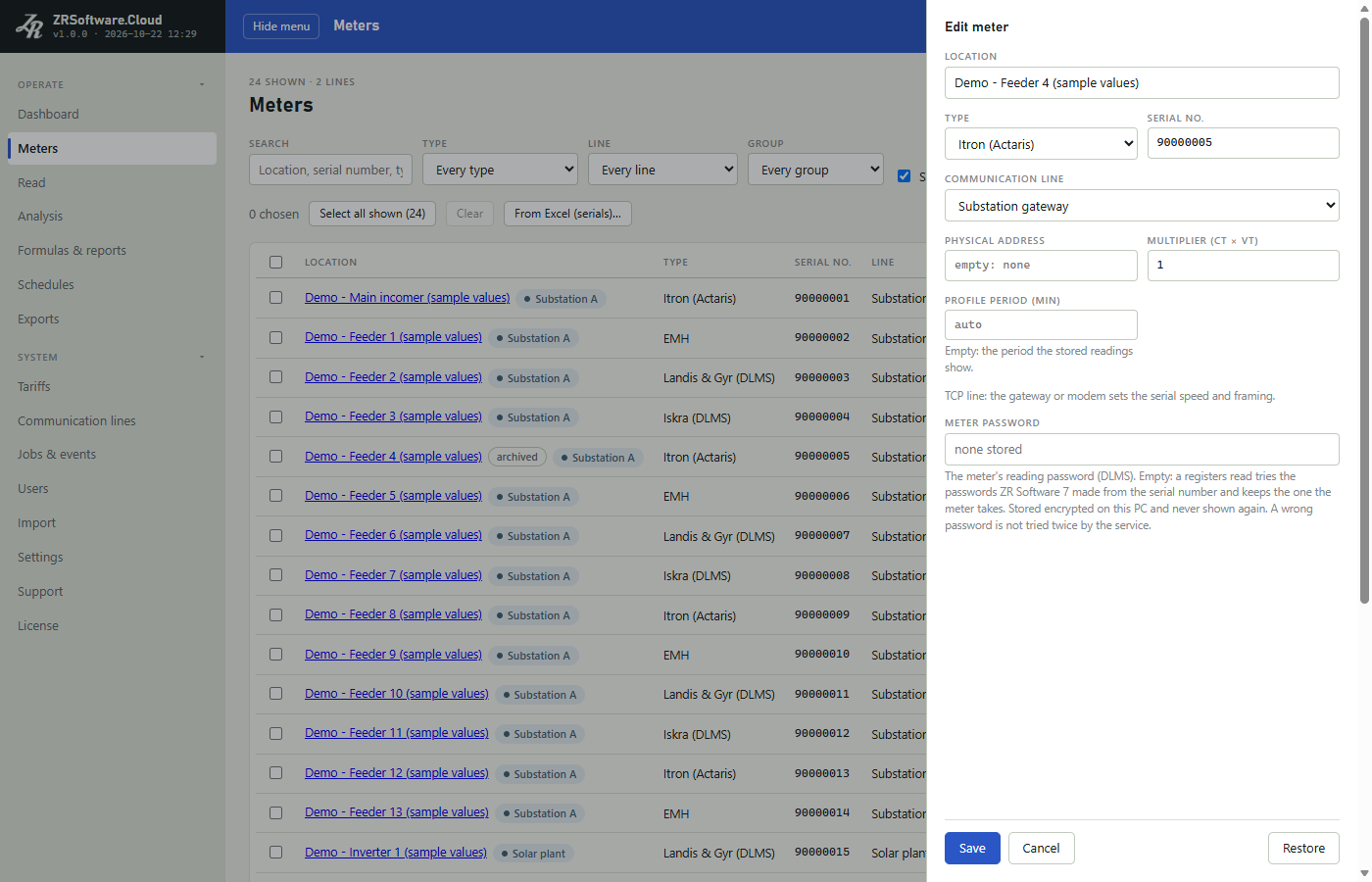
To take a meter out of use, click Archive in its form. A second button takes its place; it says that the meter is not read any more, that its readings are kept and that Restore brings it back. Click it to confirm. The meter and its readings stay in the program, but it is no longer read (a read already waiting in the queue still runs when the licence has no meter limit, as during the trial; under a meter limit it ends as an error with the licence's meter-limit message) and it leaves the list; tick Show archived to see archived meters again.
To bring an archived meter back, tick Show archived, click Edit on its row and click Restore. The meter becomes active with all its readings and is read again. Restoring is refused, with the reason under the fields, when the licence has no room for another meter or when an active meter of the same type and serial number is already on the list.
Note
A meter cannot be deleted; archive it instead.
Groups
Groups are labels for meters. The meter lists of Meters, Schedules and Exports can be filtered by them. A meter can be in several groups. An administrator opens the Groups card with the Groups button next to the filters.
- To make a group, type its name into New group (e.g. Substation A) and click Add group. A name has 1 to 60 characters and must differ from the other groups' names (upper and lower case count as the same).
- To rename a group, change its name in the box and leave the box. If the service refuses the name, the reason appears next to the box and the box shows the saved name again.
- To delete a group, click Delete on its row. A second button then says how many meters lose the label and that the meters stay; click it to delete the group. The Keep button next to it closes the question and keeps the group.
Warning
Deleting a group cannot be undone. Making a group with the same name again does not bring its members back.
Each group shows how many meters it has. To put meters into a group, use the bulk buttons below.
Finding meters
- Search finds the text anywhere in the location, serial number, type name and group names; upper and lower case are the same.
- Type shows only meters of one type; the list offers the types your meters have.
- Line and Group show only the meters of one line or one group.
- Show archived adds the archived meters.
The filters work together, and the list goes back to its first page when you change one.
Choosing many meters
An administrator can choose meters in the list and change them together. The bar above the list counts the meters chosen.
- Tick a meter's box to choose it, or the box in the heading (Choose this page) to choose every meter on the page.
- The select-all button next to the count chooses every meter the filters show, on all pages; its label gives the number.
- Clear empties the choice.
The choice stays when you change the filters, so you can build it from several searches.
Warning
An action works on every chosen meter, also the ones the filters now hide.
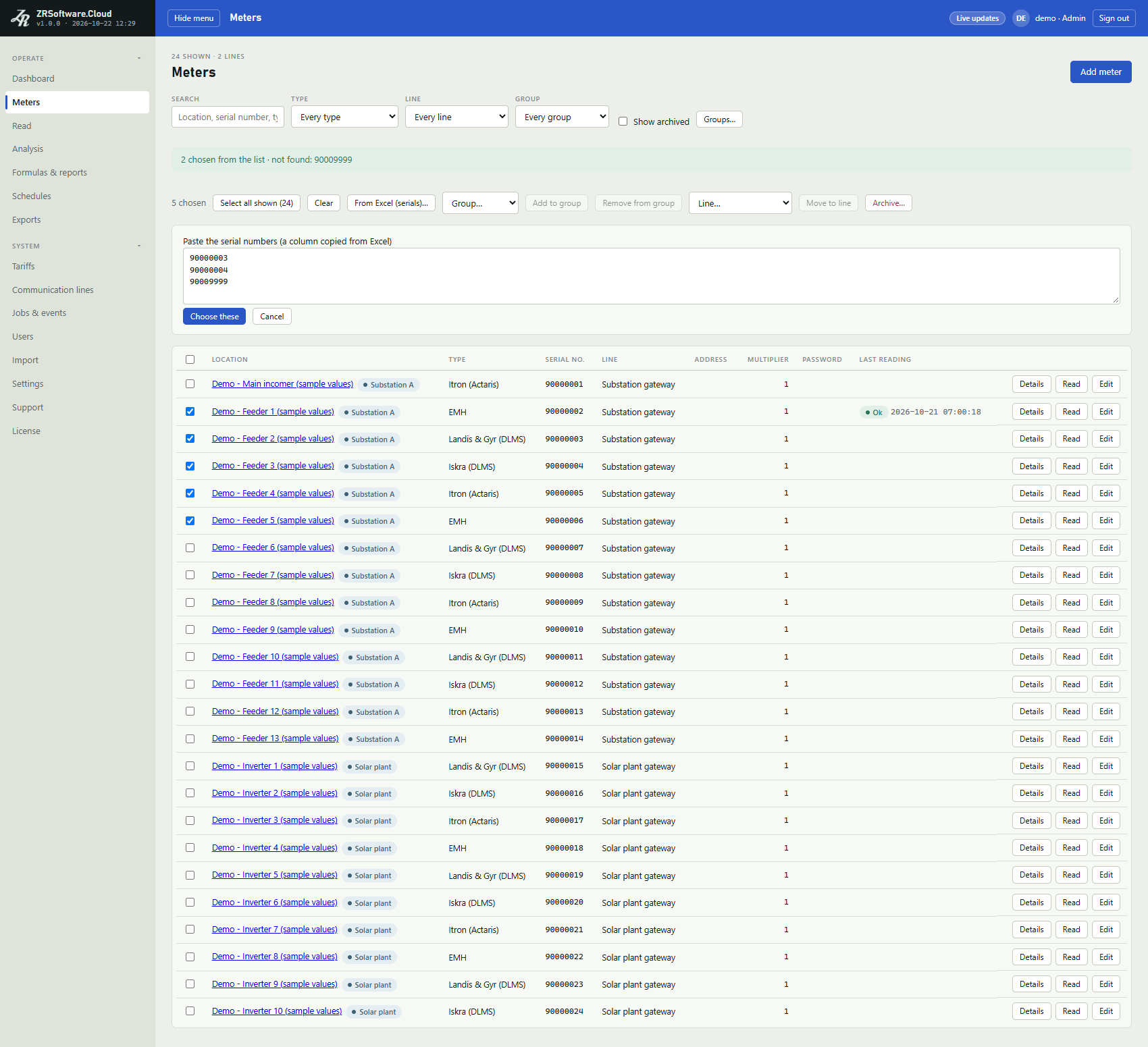
| Action | What it does |
|---|---|
| Add to group / Remove from group | Choose the group in the list next to the buttons first. Adds the chosen meters to it, or takes them out. |
| Move to line | Choose the line in the list next to the button first. Puts the chosen meters on that line, archived ones too. Virtual meters are skipped, because they have no line; the message after the action says how many were skipped. |
| Archive | Asks once more: the second button names the number of meters and says that readings are kept and that each meter can be restored. Archives the chosen meters. |
After an action the page says how many of the chosen meters changed; a meter that was already in that state is not counted. Each action is written to the event list with your user name (see Jobs & events).
Note
The choice is emptied after bulk archiving. There is no bulk restore: bring archived meters back one by one with Restore in each meter's form.
Choosing meters from a list of serial numbers
When you have the serial numbers in Excel, you do not need to tick the meters one by one:
- Click From Excel (serials) in the bar above the list.
- Copy the column of serial numbers in Excel and paste it into Paste the serial numbers (a column copied from Excel).
- Click Choose these.
The program splits the text at line breaks, tabs, commas and semicolons, and chooses each meter whose serial number matches exactly (upper and lower case are the same). The search and the Type, Line and Group filters do not narrow a pasted list. Archived meters are chosen only while Show archived is ticked; otherwise the message counts them as archived and not chosen. When two meters have the same serial number (for example the same meter entered with two types), only one of them is chosen; tick the other one by hand. The meters are added to the ones already chosen. The message above the list says how many were chosen and names the serial numbers it did not find (the first ten, then how many more).
The meter pickers of the Schedules and Exports pages work the same way: search, the Type, Line and Group filters, the select-all and Clear buttons and the pasted serial list. A picker lists at most 300 meters; narrow the search to see others, or use the select-all button, which takes every meter the filters show.
The meter detail page
Meter detail shows one good registers reading of the meter, the way a meter readout sheet does. It opens with the newest reading; the list at the top offers the last 100 good registers readings.
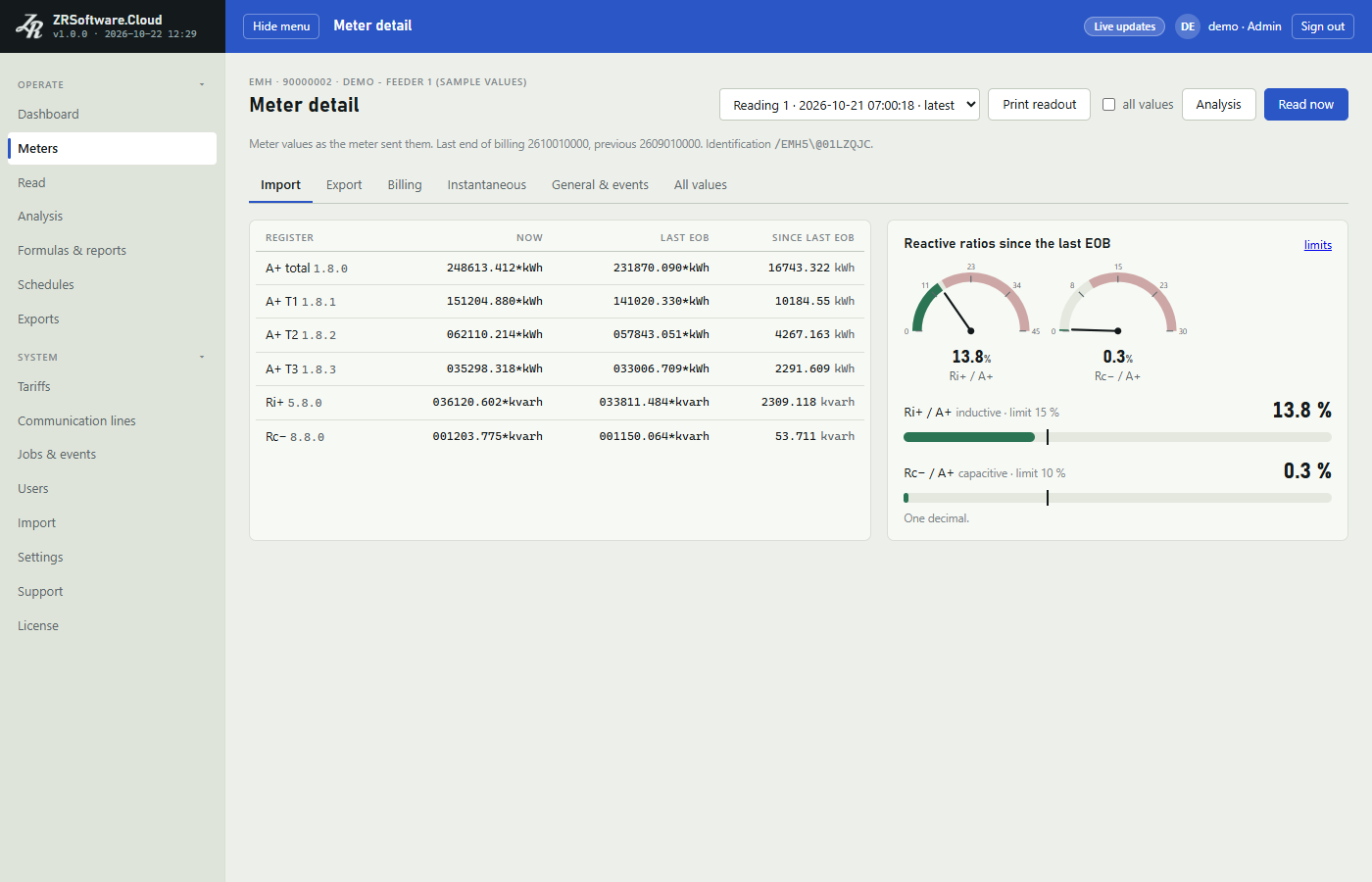
| Tab | What it shows |
|---|---|
| Import / Export | Each energy register now, at the last end of billing, and the difference since then, with the reactive ratios of that direction. |
| Billing | The last and previous end of billing, this period and the previous period, and the Billing history over all stored readings. |
| Instantaneous | Voltages, currents and other instant values, with dials for the phases, and the Extra profile channels of the load profile with their newest value. |
| General & events | The general values of the reading and the event registers. |
| All values | Every value of the reading as the meter sent it. |
The values are shown as the meter sent them. When the meter's multiplier is not 1, the note above the tabs says that it is not applied here.
A difference below zero is shown in red; its tip asks whether the meter was reset.
Reactive ratios since the last EOB compares the inductive and capacitive reactive energy with the active energy since the last end of billing, in per cent with one decimal. A ratio over its limit is shown in red. Without your own settings the limits are 15 % inductive and 10 % capacitive; an administrator changes them under Reactive ratio limits on the Settings page.
In Billing history choose From (period end) and To, click Show, and Excel to save the rows as an Excel file. When two readings carry the same billing period, the newer one is shown.
Print readout prints the reading on paper: the meter and the reading, the import and export registers, the reactive ratios and the instantaneous, general and event values. The Billing tab and the Extra profile channels are not printed. Tick all values next to it to add the full list of values.
When the identification in the reading shown names another maker than the meter's type, a warning banner says so. Check the type in the meter's form; the program never changes it by itself (see Reading meters).
A meter without a good registers reading shows "This meter has no good registers reading yet. Read it from the Read page."
When the licence includes analysis, Analysis opens the meter's load profile (see Analysis). Read now opens the Read page for this meter (Operator and Admin, only for an active meter).
Reading meters
The page Read reads one meter now and shows what happens on the line while it reads. Operators and administrators start and cancel reads and see the line log; a viewer sees the meter's newest stored values.
Starting a read
- Choose the Meter. The list holds the active meters that are read from a line. The Read button on Meters and Read now on Meter detail open this page with the meter already chosen.
- Under What, choose Registers or Load profile.
- For a load profile, choose the days: From (meter calendar) and the last day. The label of the second box says what that day means for the chosen meter (see below).
- Click Read now.
When the page is opened for a meter that is archived or virtual, no meter is chosen, and a banner says "That meter is archived or virtual, so it is not read. Choose a meter above."
Read now stays disabled while a read of this page runs, for a meter type the program does not read, and for a meter whose line is turned off. A banner then says that the service does not read that type yet, or names the line, says that it is turned off and that you turn it on in Communication lines (see Communication lines).
If the service refuses the read, the reason appears in a banner. It refuses, for example, when the licence does not allow reads (see License) or when a load profile window is longer than 31 days.
When the trial or the licence has ended, the licence is for another PC and the trial is over, or this version was built after the licence's maintenance ended, meters are not read: Read now and Read the missing profile are refused with the licence's message, a read already waiting in the queue ends with that message, and schedules do not read either. For an ended trial or licence the message says "Meters are not read and automatic exports do not run." The readings already stored stay (see License).
When the licence server says that the licence was withdrawn or moved, or that it does not know it on this PC, the program goes on reading meters for seven days and then stops (the state Withdrawn); a copy of a virtual PC stops at once. From then on reads are refused and end in the same way.
Virtual meters count toward the meter limit too. When more meters are registered than the licence allows, the meters registered first are read, as many as the limit, virtual meters among them; a virtual meter is never read, and its place does not go to another meter. For a meter that is not among them, Read now and Read the missing profile are refused with a message that gives the licence's number of meters and the number registered, and suggests archiving a meter or asking for a larger licence. A read of such a meter already waiting in the queue ends with the same message, and a schedule leaves those meters out and writes a warning row in Jobs & events (see Meters and groups, Schedules and Jobs & events).
The read becomes a job on the meter's line. When another read uses the line, it waits its turn (see Communication lines); the chip of the line log then shows Queued, and Running once it starts.
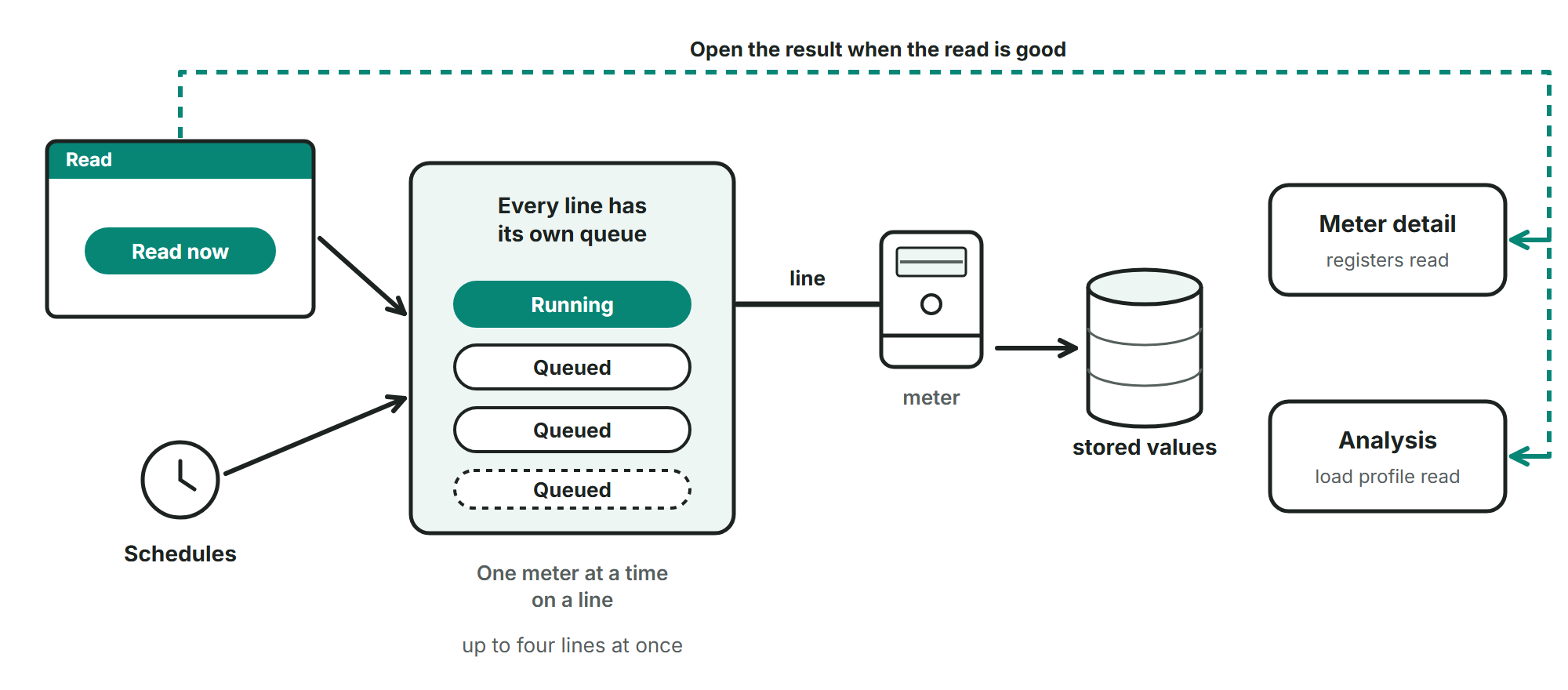
A read started here makes one attempt. Scheduled reads can repeat a failed attempt (see Schedules).
If you leave the page during a read, the read goes on in the service. Its result is on the Jobs & events page (see Jobs & events) and, for a good registers read, in the Values card the next time you open the page.
Opening the result
With Open the result when the read is good ticked, the page opens the result as soon as a read ends well: a registers read opens Meter detail at the billing tab (see Meters and groups), a load profile read opens the Analysis page for the same meter and the same days (see Analysis). When the licence does not include analysis, a load profile read stays on this page (see License). A read that fails, or is cancelled, stays on this page with the line log.
The box is ticked at first, and the page remembers your choice in this browser. Untick it to stay on the Read page and see the Values card or the Load profile card after the read. While Repeat is set, the box is disabled and the page does not leave.
Reading the load profile
For an IEC 62056-21 meter the second box is labelled To (until 00:00 of this day): the window starts at 00:00 on the From (meter calendar) day and ends at 00:00 on that day, so the day itself is not read. For a DLMS meter it is labelled To (this day included): the meter is asked, day by day, from the day before the From (meter calendar) day up to and including that day. When the window reaches the end of a month that has fewer than 31 days, the DLMS request starts one to three days earlier still; for example From (meter calendar) 30 September and 1 October ask from 28 September. The page starts with yesterday and today.
The days are in the meter's own calendar: the service asks the meter for these dates as the meter's clock counts them, even when that clock is far from the PC's. The note on the page says so too.
The last day must be after the From (meter calendar) day, and at most 31 days after it.
Reading days that are already stored replaces the stored values of those intervals with the new ones; an interval corrected by hand is kept.
As soon as a load profile read starts, a Load profile card with the chosen days takes the place of the values card and says that the profile is being read. If the read fails, the card says "The load profile read did not succeed; the line log below says why."
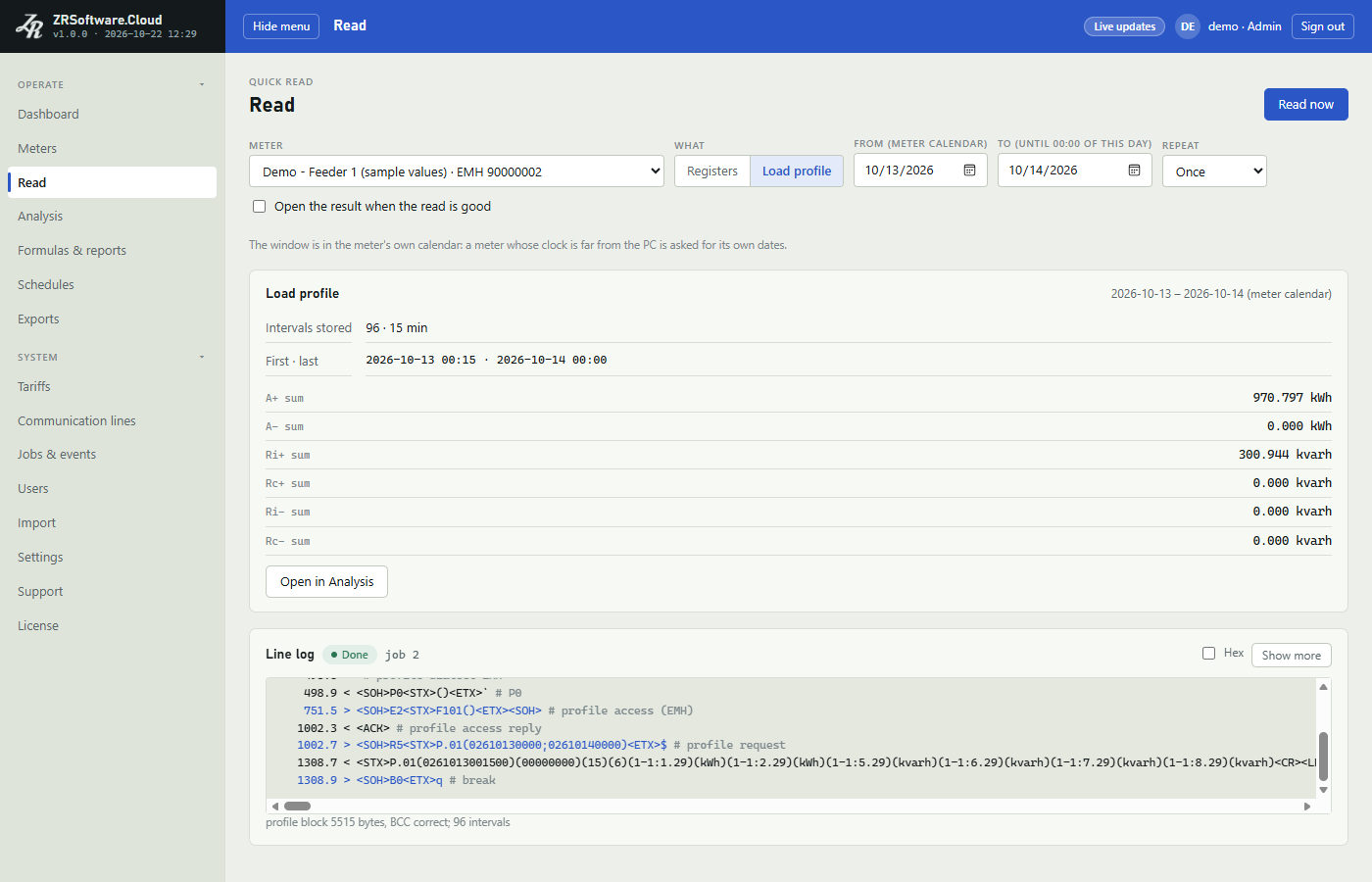
When the page stays after a good load profile read, the card shows what is stored for the days from the From (meter calendar) day up to and including the last day, whatever this read asked for: for an IEC 62056-21 meter it also counts intervals of the last day that were stored before. It shows Intervals stored with the interval length, the first and last interval, and, when the meter has them, the number of other channels (voltage, current and the like), and the sum of each energy channel. When the licence includes analysis, Open in Analysis opens the same days on the Analysis page (see Analysis).
If the summary cannot be made, the card says "The profile is stored; the Analysis page shows it." When the licence does not include analysis, the card says only that the profile is stored, without the summary and without Open in Analysis.
Reading only the missing intervals
To fill gaps in a stored load profile, use Read the missing profile on the Analysis page (Operators and administrators). The service looks for missing intervals in the days shown there, the last day included, but only in the last 31 days of them; when more days are shown, the answer says that only the last 31 days were looked at. When the last day is today, the search starts on the day before the From day, at the present time of day, so gaps of that afternoon or evening are read too. Gaps with more than 6 hours of stored profile between them are read as separate jobs, each from its first missing interval to its last; gaps closer together share one window, and the intervals already stored inside it are read again. For a DLMS meter each window is widened to whole days, from the day before the day of its first missing interval (earlier still at the end of a short month, as described above) up to and including the day of its last one. A gap that a finished read has already covered is not asked again.
The answer under the button names each window that is being read and, when there are several, how many jobs were made. When nothing is missing, the answer is "no interval is missing in these days". For a meter type whose load profile the program does not read, the request is refused.
Values, units and billing periods
While a registers read runs, the Values card fills as the meter sends its values. When the read ends well and the page stays (see above), the card shows the stored reading instead. After a failed read the card keeps the last good reading; the chip and the line log say what failed.
When the page opens it shows the meter's newest good registers reading, with its number and time in the card's heading (none yet when there is none). Open meter detail opens Meter detail at the billing tab with the newest good registers reading (see Meters and groups).
| Column | What it shows |
|---|---|
| OBIS | The register code as the meter sent it. |
| Value | The value. For a DLMS meter a plain number is shown here and its unit in the next column. An IEC 62056-21 meter's value is shown as the meter sent it, in brackets with its unit, for example (248613.412*kWh); the unit is in the next column too. Any other text is shown exactly as the meter sent it. |
| Unit | The unit the meter gave. |
| This period | For an energy register: the value now minus the value at the last end of billing, with three decimals. |
| Previous period | For an energy register: the last end of billing minus the one before, with three decimals. |
The This period and Previous period columns appear only when the program can work out a period for at least one energy register of the reading.
The table lists the current values. The values of past billing periods are stored with the reading and shown on Meter detail.
For a DLMS meter the values come in groups, and each group starts with a heading row.
A row whose period is below zero shows both periods in red; the negative value keeps its minus sign.
Above the table the card gives the meter's clock and how many seconds it is ahead of (+) or behind (-) the PC.
A meter read through the REDZ BT probe also shows what the probe reported before the read (firmware, battery, mode) as chips.
Note
The values in the Values card are the meter's own: the meter's multiplier is not applied there. The sums on the Load profile card come from the analysis and have the multiplier applied (see Analysis).
The line log
The Line log card shows the bytes between the PC and the meter as it happens; a DLMS login with a password is not recorded, as described below. Before the first read it says "Press Read now. Every byte to and from the meter appears here as it happens." While the job waits or opens the line, the card shows what the service is doing, for example "opening the line". When a job ends before the line was opened, the card says "Nothing went over the line: the job ended before the line was opened (see below)."
The log opens as a short box that scrolls to the newest row. Click Show more to make it taller, and Show less to make it short again.
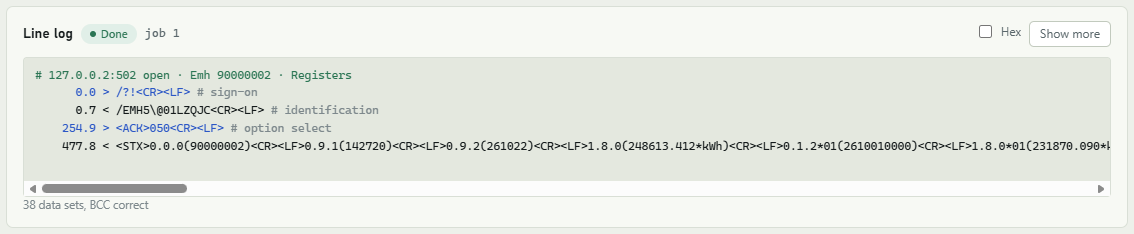
| Part of a row | Meaning |
|---|---|
| The first number | Milliseconds since the exchange with the meter began. |
| > or < | > is sent by the PC, < is received from the meter. |
| The text | The bytes as text. Control characters are shown in angle brackets, such as <CR> and <LF>; a byte without a printable character is shown as its hex value, such as <1F>. |
| # ... | A note of the service on that row, for example the step of the sign-on. |
| A dot in place of > or < | A step of the service without bytes, for example the speed switch; its note follows after #. |
Rows starting with # are headings, such as the line that was opened and the meter. Tick Hex to see the bytes as hex numbers instead of text.
The chip in the card's heading gives the job's state and the job number: Queued, Running, Done or Cancelled. When the read fails, the chip shows the outcome in words instead of the state, and the service's message appears under the log.
| Outcome | Meaning |
|---|---|
| Ok | The read is complete and stored; the chip shows Done. |
| No answer | No identification, no DLMS answer or no data block came back. |
| Bad checksum | A block came back incomplete or with a wrong checksum, or an IEC 62056-21 meter refused the load profile request twice. |
| Login failed | The meter refused the password (for an Itron meter: every password tried, the stored one and the ones made from the serial number), no password is stored for a meter that needs one, an Itron meter's serial number is not 8 digits, so no password is sent, or the stored password cannot be opened on this PC. |
| No data | An IEC 62056-21 meter answered the load profile request with an error: the window holds no records, or the meter does not accept the request. |
| Not supported | The program does not read this type or kind yet, or the meter's record lacks what the read needs (for example an address). |
| Cancelled | The read was cancelled with Cancel, it ran longer than the time allowed for one job, or the service stopped during the read; the message says which. The chip shows Cancelled. A read that could not end in time when the service stopped shows Interrupted after the service starts again. |
| Error | Any other failure, for example an IEC 62056-21 meter that did not accept the profile access; the message says what happened. |
The stored meter password never appears in the log. For a DLMS meter that logs in with a password, the login request is not recorded at all: its row says how many bytes were left out because of the password. In the meter's answer to the login, the authentication value is replaced by '0' characters, and the row says so. The stored meter password is never sent to an IEC 62056-21 meter.
The log of a finished read is kept with the reading when bytes went over the line. On Jobs & events, Operators and administrators open it with Trace and save it with Save as .txt; a job whose reading kept no log has no Trace button. The note above the log depends on the meter: for a DLMS meter it says that the login request is not recorded and the meter's authentication value is masked; for a Landis & Gyr DLMS meter it says "As stored: Landis & Gyr DLMS meters are read without a password, so the sign-in is recorded in full."
Cancelling a read
While the read waits or runs, Cancel stops it. A job still in the queue is closed with "cancelled before it started"; for a running job the service closes the line, and the job ends as Cancelled, its message ending with "cancelled". The same button is on the Jobs & events page.
Repeating a read
Repeat reads the meter again after a pause: Once (no repeat), Every 30 s, Every 60 s or Every 5 min. It works for registers and for the load profile. After each read, good or not, a note under the controls says when the next read starts; after a read that did not succeed the note begins with "The last read did not succeed."
Leaving the page stops the repeat, and so does a read that the service refuses (the banner gives the reason). Cancel stops only the running read: the next one follows after the pause. To stop repeating, choose Once; a next read that is already waiting still starts once, and no other read follows it. If that read ends well with Open the result when the read is good ticked, the page opens the result.
Warnings after a read
When the identification the meter sends names another maker than the meter's type in the program, the service writes a warning to the event list and, for a good registers reading, Meter detail shows a warning banner. The read itself is kept, and the program does not change the type: check the meter type in the meter's form (see Meters and groups).
When a good registers reading puts a reactive ratio over its limit, the meter's row on Meters gets the reactive chip and the Dashboard lists the meter under Over the reactive limit. The ratios and limits are explained in Meters and groups; the limits are set in Settings.
Analysis
The Analysis page shows the load profile that is stored for a meter: as a chart, as a table of rows with minimum, maximum, average and sum, and as files you can save. It works on the intervals that were already read (see Reading meters); it does not ask the meter for anything (except Read the missing profile, below).
Note
The Analysis page is in the menu only when the licence includes the feature Analysis and tariffs (the License page names it under Features, or shows All features; see License). Every role can open it.
Note
When the trial or the licence has ended, or meters are not read for another licence reason, the Analysis page, the tariffs, formulas and custom reports that the licence includes stay open with the stored data, and the files can still be saved (see License). Read the missing profile is then refused, and the values of a virtual meter are not typed in, imported or removed: operators and administrators see the note on Manual edit described under Values of a virtual meter, also when the licence includes that feature; the reason is that meters are not read, as the License page shows. The program in the browser asks for the licence state at sign-in and then every ten minutes; until it has the new state, it still offers these tools and the service refuses them with "the licence does not include Manual edit".
Choosing what to show
In Meter, formula or report you pick the source. The list has the groups Meters, Formulas and Custom reports; a meter is listed with its location (or its type) and its serial number. Archived meters are not in the list. Formulas and custom reports are made on the Formulas & reports page (see Formulas & reports).
The Formulas group is there only when there is a formula, and the Custom reports group only when there is a report. When the licence does not include formulas or custom reports, the page still opens with the meters.
From (meter calendar) and To are days in the meter's own calendar. Both start at yesterday, taken from the clock of this PC. The page shows whole days: from the start of the first day to the end of the last day.
The range can be at most 366 days. If To is before From (meter calendar), the page shows "to is before from".
The row of buttons under the boxes fills in both days and shows the result at once: Today, Yesterday, Last 7 days (today and the six days before), Last 30 days (today and the 29 days before), This month (from the 1st to today) and Last month (its first to its last day). These buttons take today's date from the clock of this PC.
- Detailed: one row for each stored interval, as the meter recorded it.
- 15 min, 30 min, Hourly, Daily: the intervals are grouped into steps of that length.
Unit is Energy (kWh, kvarh; a step adds up its intervals) or Power (kW, kvar). For Power the page shows this note:
Note
"Power is the meter's own average-power channel; a step shows the mean of its intervals. A meter that records only energy has no power values."
The page shows the result as soon as you change the source, the step, the unit or the tariff. After you type or pick other days in the boxes, select Show.
The page remembers the step and the unit you last used for each meter, formula and report, in this browser.
How the steps group the intervals
A row's time is the end of its step, in the meter's calendar. An interval belongs to the step in which it ends: in the Hourly step, the intervals ending at 10:15, 10:30, 10:45 and 11:00 form the row 11:00.
In the Daily step, 00:00 closes the day before: the row of 5 May has the time 6 May 00:00.
Values are shown with the meter's multiplier applied, rounded to three decimals. Next to the Chart heading the page shows the meter's interval length and, when it is not 1, the multiplier.
The eight channels are A+, A-, R+, R-, Ri+, Rc+, Ri- and Rc-. For a meter, a channel without any value in the range is left out of the chart and the table.
Missing intervals
In every step except Detailed, the Intervals column shows how many intervals of the step are stored and how many the meter's interval length allows, for example 3 of 4. A step with fewer intervals is highlighted, and the Rows heading counts these rows as short. A step without any stored interval is still a row, with no values.
When the step is shorter than the meter's interval (for example 15 min on a meter that records every 30 minutes), a row in which no interval can end shows a dash in Intervals and is not counted as short.
For a meter that is read, operators and administrators see the button Read the missing profile. It asks the service to read from the meter the missing intervals of the days in From (meter calendar) and To, also when you changed them without selecting Show.
The service puts profile reads for the meter on its line and the page shows the answer next to the button; the answer names the times that will be read. Missing intervals that lie more than six hours apart are read in separate reads, so the stored intervals between them are not read again; the answer then also gives the number of jobs. An interval that a finished read already asked for is not asked again. When nothing is missing, the answer is "no interval is missing in these days". You follow the reads on the Jobs & events page (see Jobs & events).
On a line that is turned off the reads are still queued, but each one ends with a message that the line is disabled; nothing is sent to the meter (see Communication lines).
The service looks back at most 31 days from the end of the range (from now, when the range reaches today). When the range is longer, the answer says that only the last 31 days were looked at, and up to which day. When the range reaches today, the service counts whole days back from now, so it also looks at the last hours of the day before From (meter calendar): with 10 May to 12 May at 15:00 on 12 May, it looks from 15:00 on 9 May.
Note
The read is refused when the licence does not allow reading meters at the moment, for a meter type whose load profile the service does not read, and for a meter beyond the licence's meter limit (only the meters registered first are read; see License). A refusal is shown in the banner above the chart, not next to the button; for such a meter type it says that the profile is not read by the service yet.
The chart
The Chart draws one line for each channel shown. Under the chart, each channel has a check box that shows or hides its line and a colour box that changes its colour.
The chart always runs from the oldest time on the left to the newest on the right, whatever order the table uses.
Line sets the line width: thin, normal or thick. The colours and the width are kept in this browser.
When the step is shorter than the meter's interval, the chart also leaves out the rows in which no interval can end; the table keeps every row.
For a meter, if the range has no stored values in the chosen unit, the chart area says so.
The table
Rows lists the rows. Meter time is the end of the row in the meter's calendar; then come the channels with their units. Source is Manual for values typed in or imported on this page (the values of a virtual meter) and Read for the other values, also for a load profile taken over from a ZR Software 7 database (see Import).
With Newest first ticked, which it is at the start, the newest row is at the top; untick it to list the oldest row first. The page keeps your choice in this browser.
The last four rows are MIN, MAX, AVG and SUM of the rows that have a value.
Extra profile channels
Some meters store more channels in their load profile, such as voltages or currents. These extra channels appear in the table after the eight channels, under their OBIS code and unit. They are not drawn in the chart.
In a step, an extra channel shows the average of its values in the step, not their sum. No multiplier is applied to them. Their SUM cell stays empty.
An extra channel without any value in the range is left out.
Tariff zone totals
In Tariff you can choose a tariff instead of None. Under the rows the page then shows Tariff zones: one row for each zone with the channels and the number of intervals in it.
The zone totals are made from the stored intervals, so they are the same in every step. Energy is added up and power is averaged. Zones with the same name (a zone used twice in a day) give one total.
Which zone an interval goes to is described in Tariffs.

Saving and printing
The Excel, CSV and PRN_A+_R+ files are made by the service; the page hands each to the browser under the name the service gives and then shows that name. Save chart as PNG saves the chart as it is drawn. The order you choose with Newest first does not change the files. The files, the picture's name and the printed sheet take the days now in From (meter calendar) and To, also when you changed them without selecting Show. The chart in the picture and on the sheet is always the one on the screen, so select Show first when you have changed the days.
| Button | What you get |
|---|---|
| Save chart as PNG | The chart as a picture, named Graph_ with the serial number (or the formula or report name) and the two days. |
| Print chart | A sheet headed with the meter's serial number and type (or the formula or report name), with the days, the step, the unit and the chart, sent to the browser's print dialog. |
| Excel | An Excel workbook (.xlsx) of the rows, with the zone totals when a tariff is chosen. |
| CSV | A CSV file of the rows with the extra channels. Only for a meter. |
| PRN_A+_R+ | A text file with A+ and R+ for each row. Only for a meter, in the Energy unit and a step other than Detailed. |
When PRN_A+_R+ is not available, its tip says why: "PRN_A+_R+ is written for a meter" or "PRN_A+_R+ is energy in 15 min, 30 min, hourly or daily steps".
During a REDZ support session (see Support), every file that REDZ support saves on this page leaves a row with the source REDZ support in Jobs & events, with the file name and the session number. When REDZ support saves the chart as a picture or prints a page, the program tells the service and Jobs & events gets a row. Files saved and pages printed by your own users leave no such row.
The Excel file of a meter
The file name has the form location_serial d_M_yyyy H_m_s.xlsx: the meter's location and serial number, then the day and time the file was made without leading zeros, such as 17_10_2026 9_5_30. The workbook has one sheet, named with the serial number.
| Unit | Columns |
|---|---|
| Energy | Meter Date Time, Import Active, Export Active, IMP Reactive Energy, EXP Reactive Energy, Import Inductive, Import Capacitive, Export Inductive, Export Capacitive |
| Power | Meter Date Time, IMP Active Energy Avrg, EXP Active Energy Avrg, IMP Reactive Energy Avrg, EXP Reactive Energy Avrg, IMP Reactive Inductive Avrg, IMP Reactive Capacitive Avrg, EXP Reactive Inductive Avrg, EXP Reactive Capacitive Avrg |
The extra channels follow as OBIS code with the unit in brackets. The rows go newest first; a step without any stored interval is left out. In the eight channels a missing value is written as 0, also for a channel the screen leaves out; an extra channel's missing value stays empty. Times have the format M/d/yyyy h:mm AM/PM and numbers three decimals.
With a tariff, an empty row, a row Tariff zone and one row for each zone follow the rows.
The CSV file
The file name has the form location_serial yyyy-MM-dd HH-mm-ss.csv. It is UTF-8 text with commas and a point for decimals. The first column is Meter time (yyyy-MM-dd HH:mm), then the eight channels with their units, such as A+ (kWh), then the extra channels. Rows go oldest first, a missing value is an empty cell, and a step without any stored value is left out.
The CSV file has no zone totals.
The PRN_A+_R+ file
The file is named with the serial number and the date it was made, for example 90000001 2026-10-17.prn. It starts with header lines (the program, its version, the report type, the date and time it was made, the meter's location, serial number and type, the type as ZR Software 7 names it and None for a virtual meter, and the step as 15MIN, 30MIN, 1HOUR or 1DAY), then a line with one space and the line --------------DATA STARTS AFTER THIS LINE------------------.
The next line is the serial number, 2 and the meter's interval length in minutes. Each row then has day, month, two-digit year, hour, minute, A+ and R+, separated by commas. A row ending at 00:00 is written as hour 24 of the day before. A missing A+ or R+ is written as 0, and a step without any stored interval is left out.
Values of a virtual meter
A virtual meter is not read; its values are typed in or imported here (adding a meter is described in Meters and groups). Operators and administrators can do this. Values are typed in the Detailed step; in another step the page says "Choose the Detailed step to type a value in."
- Choose the virtual meter, the days and the Detailed step. With Energy you type energy values, with Power average-power values.
- Select Edit on a row. The row gets a box for each of the eight channels, also for a channel that has no value yet.
- Type the values as the page shows them (with the multiplier). An empty box means no value.
- Select Save, or Cancel to leave the row as it was.
To add an interval that is not in the table, enter its end in Add a missing interval (meter calendar, interval end) and select Add. The time must be on the meter's interval boundary, for example 10:15 for a 15-minute meter. Typing in and importing use the same interval length.
If a value changed after the page showed it, nothing is saved and the page names the channel and tells you its current value as the table shows it; show the range again and repeat.
When a save leaves an interval without any value (no energy and no power value), the interval is removed and the page says so.
Import values (Excel / CSV) reads an .xlsx, .xls or .csv file. The first column is the time of the interval end, for example 2026-10-16 10:15. The other columns are headed A+, A-, R+, R-, Ri+, Rc+, Ri- or Rc- for energy values, or Avg A+ to Avg Rc- for average-power values, and hold the values as the page shows them (with the multiplier). Each channel column may appear only once. An empty cell leaves that value as it is. Each time must be on the meter's interval boundary and appear only once.
If any row has a problem, nothing is imported and the page gives the number of problems and lists the first ten. A file without a row of values under its header row, also one with only empty rows there, is refused with a message that the file needs a header row and at least one row of values. Otherwise the values are imported, the table is shown again with them, and the page reports how many intervals were imported, how many are new and how many changed.
Warning
Remove the values of these days removes every value, energy and power, of the virtual meter in the days of the result now on the screen: their intervals are removed as a whole. This takes back an import into days that had no values before. An import into days that already had values wrote over them; removing these days does not bring the old values back but removes them too, so type or import the old values from Corrections instead. If you have changed From (meter calendar) or To without selecting Show, the days on the screen count, not the boxes. At most 31 days are removed at once; the service refuses a longer range. The page first asks for confirmation and names the number of days and the two days, and in the Detailed step the number of intervals on the screen: check them before you confirm. Then it says how many intervals of how many days were removed.
Warning
Saving, importing and removing change the stored values; there is no undo button. An import writes over the values that are already there. In the Detailed step, Corrections lists each value that a save, an import or a removal changed, with Interval, Value, Was, Now, By and When; a value that was not there shows as empty. Values are listed with three decimals. It shows at most the 1000 newest changes of the days in From (meter calendar) and To; choose fewer days to see older ones. One day can hold more than 1000 changes, for example when a day of a meter with 15-minute intervals and values in all eight energy and all eight power channels is removed (1536 changes); the older changes of such a day are not listed. To go back, type or import the old values from this list. A power value is listed with Power before the channel, such as Power A+, and is imported in a column such as Avg A+. Corrections is offered only when a meter is the source, not for a formula or a custom report.
Note
Typing in, importing and removing values need the licence feature Manual edit (see License). Without it the page does not offer these tools for a virtual meter, and operators and administrators see the note "The licence does not include Manual edit, so this virtual meter's values are not typed in or imported here."
The values of a meter that is read cannot be changed by hand; read its missing intervals instead. A meter that already has read values cannot be changed into a virtual meter either; add a virtual meter instead.
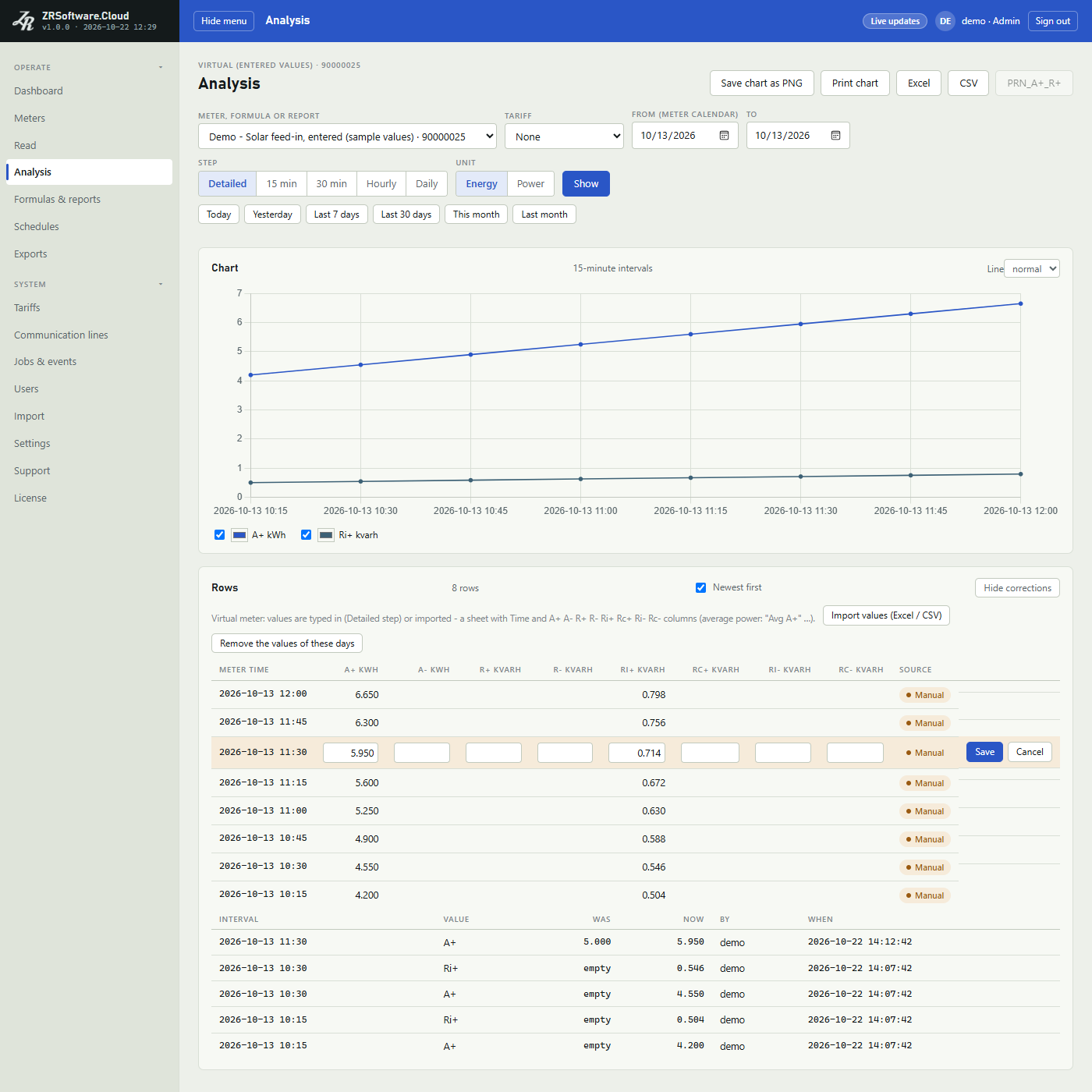
Tariffs
A tariff divides the day into time-of-use zones, such as day, peak and night. On the Analysis page a tariff adds the totals of each zone to the load profile. The Tariffs page lists the tariffs and lets an administrator add, change and delete them.
Note
The Tariffs page is in the System group of the menu when the licence includes the feature Analysis and tariffs (the License page names it under Features, or shows All features; see License). Every role can see the tariffs; only administrators see Add tariff, Edit and Delete.
The tariff list
Each tariff is a card with its name and either Every day or Weekdays, Saturday, Sunday. Its table lists the zones with Zone, From, To and the length of the zone; a zone that runs past midnight is marked as crossing midnight. A tariff with day types also has the Days column.
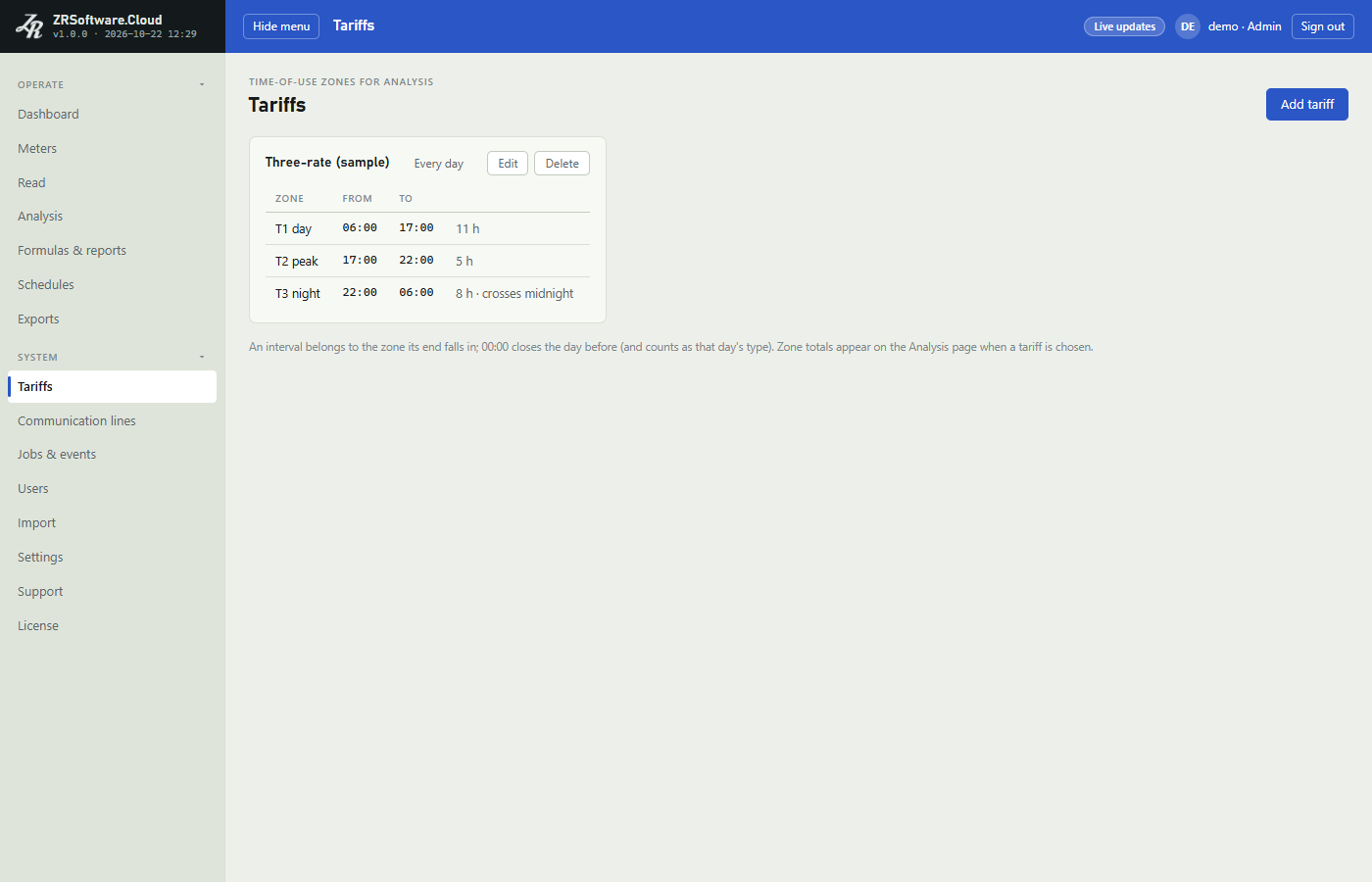
Zones and day types
Zones apply to chooses between one set of zones for Every day and one set each for Weekdays, Saturday and Sunday. Each set must cover the whole day: every minute belongs to exactly one zone.
The day type comes only from the day of the week. There is no separate day type for public holidays.
Note
"Times as HH:mm; 24:00 is the end of the day. A zone whose end is before its start crosses midnight (22:00 to 06:00)."
An end of 00:00 is stored as 24:00 and shown that way after saving.
Which zone an interval belongs to
Note
"An interval belongs to the zone its end falls in; 00:00 closes the day before (and counts as that day's type). Zone totals appear on the Analysis page when a tariff is chosen."
A zone from 06:00 to 17:00 takes the intervals that end after 06:00 and at or before 17:00. With 15-minute intervals, the interval 16:45 to 17:00 is in this zone and the interval 17:00 to 17:15 is in the next one.
The interval that ends at 00:00 on a Monday belongs to Sunday, and is counted in Sunday's zones.
A zone that crosses midnight, such as 22:00 to 06:00, takes the intervals of both ends of the same day: those ending after 22:00 and those ending at or before 06:00.
Adding or changing a tariff
- Select Add tariff, or Edit on a tariff's card. A new tariff starts with three zones: T1 06:00 to 17:00, T2 17:00 to 22:00 and T3 22:00 to 06:00.
- Type the Name (at most 60 characters; two tariffs cannot have the same name, and capital and small letters A to Z count as the same).
- Choose Zones apply to.
- For each zone type its name (at most 40 characters) and its start and end. Add zone adds a zone and Remove removes one.
- Select Save. Cancel closes the form without saving.
A click outside the form closes it when you have changed nothing. When you have changed something, the page first asks "Close the form without saving the changes?".
A zone added with Add zone starts where the last zone of the set ends and ends where that zone starts. Change the times so that the zones do not overlap.
When you switch to Weekdays, Saturday, Sunday, the every-day zones are copied into each of the three sets. When you switch back to Every day, the weekday zones are kept for every day and the form says: "The weekday zones now apply to every day; the Saturday and Sunday zones go when you save (Cancel keeps them)."
The service checks the tariff when you save it and shows the first problem in the form, for example when two zones overlap or when a time of the day has no zone. A zone whose start and end are the same time, such as 06:00 to 06:00 or 00:00 to 00:00, covers the whole day. A tariff has at most 48 zones in all its sets together; each set needs at least one.
A change to a tariff changes the zone totals of every analysis and automatic export that uses it, from the next time they are shown or run. Files saved before keep the totals they had.
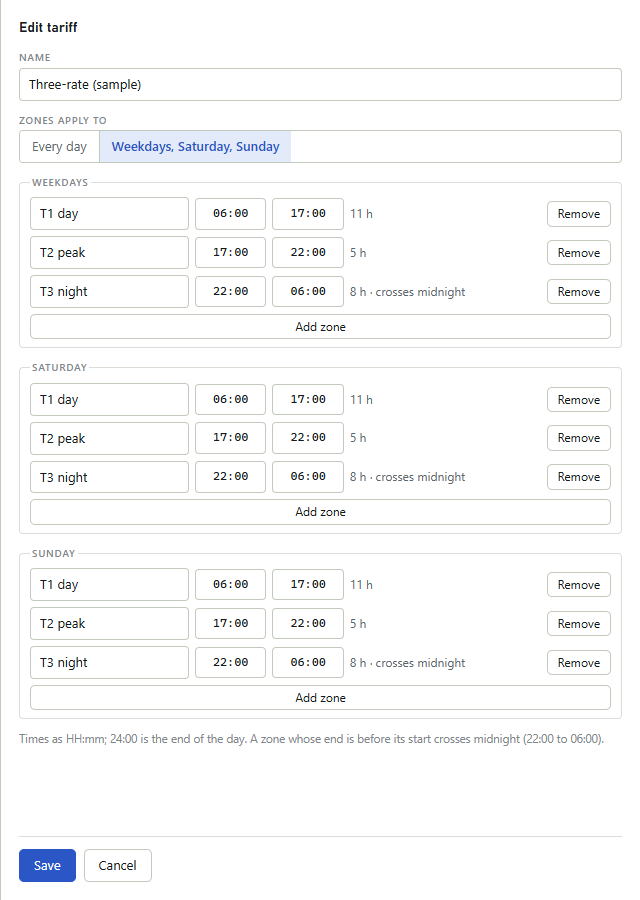
Deleting a tariff
Delete asks for confirmation and then deletes the tariff. A tariff that an automatic export uses cannot be deleted; the page says how many exports use it and names up to three of them by number and target (see Exports).
Warning
A deleted tariff cannot be restored. To use it again, add it again with the same zones.
A tariff in the analysis
On the Analysis page, choose the tariff in Tariff. The Tariff zones table then shows, for each zone, the channels and the number of intervals in it. The totals come from the stored intervals and are the same in every step; energy is added up and power is averaged. Zones with the same name give one total, so a zone such as T1 can appear twice in a day (morning and evening). See Analysis.
A tariff works the same way for a formula and a custom report. There, a value that is empty in an interval (because a meter has no value in it) adds nothing to the zone totals, but the interval is still counted in Intervals.
The Excel file of the analysis then ends with the zone totals. The CSV and PRN_A+_R+ files have no zone totals.
An automatic export can also add a tariff's zone totals; see Exports.
Formulas & reports
A formula calculates a new load profile from the channels of several meters, for example a main meter minus its sub-meters. A custom report puts meter channels and formulas side by side in one table. Both are made on the Formulas & reports page and shown on the Analysis page like a meter.
Note
The page is in the menu when the licence includes the feature Formulas or Custom reports (the License page names them under Features, or shows All features; see License); each of the two needs its own feature. Every role can see the formulas and reports. The Analysis button of a formula or report is there only when the licence also includes the feature Analysis and tariffs. Only administrators see Add formula, Add report, Edit and Delete.
The analysis of a formula or report on the Analysis page, and its Excel file there, also need the feature Analysis and tariffs. An export of a formula runs only while the licence includes Formulas, and one of a report only while it includes Custom reports, also with Run now; otherwise the run is skipped with "the licence does not include formulas" or "the licence does not include reports" (see Exports).
When the licence includes only one of the two, the page still opens: the list of the other kind stays empty, and the service refuses to save one of that kind with a message that the licence does not include it.
The formula list
Formulas lists each formula with Name, Expression, the Meters it reads and its Unit. Analysis opens the formula on the Analysis page.
The unit is kWh when every channel in the formula is active (A+ or A-) and kvarh when every one is reactive. A formula that mixes active and reactive channels has no unit.
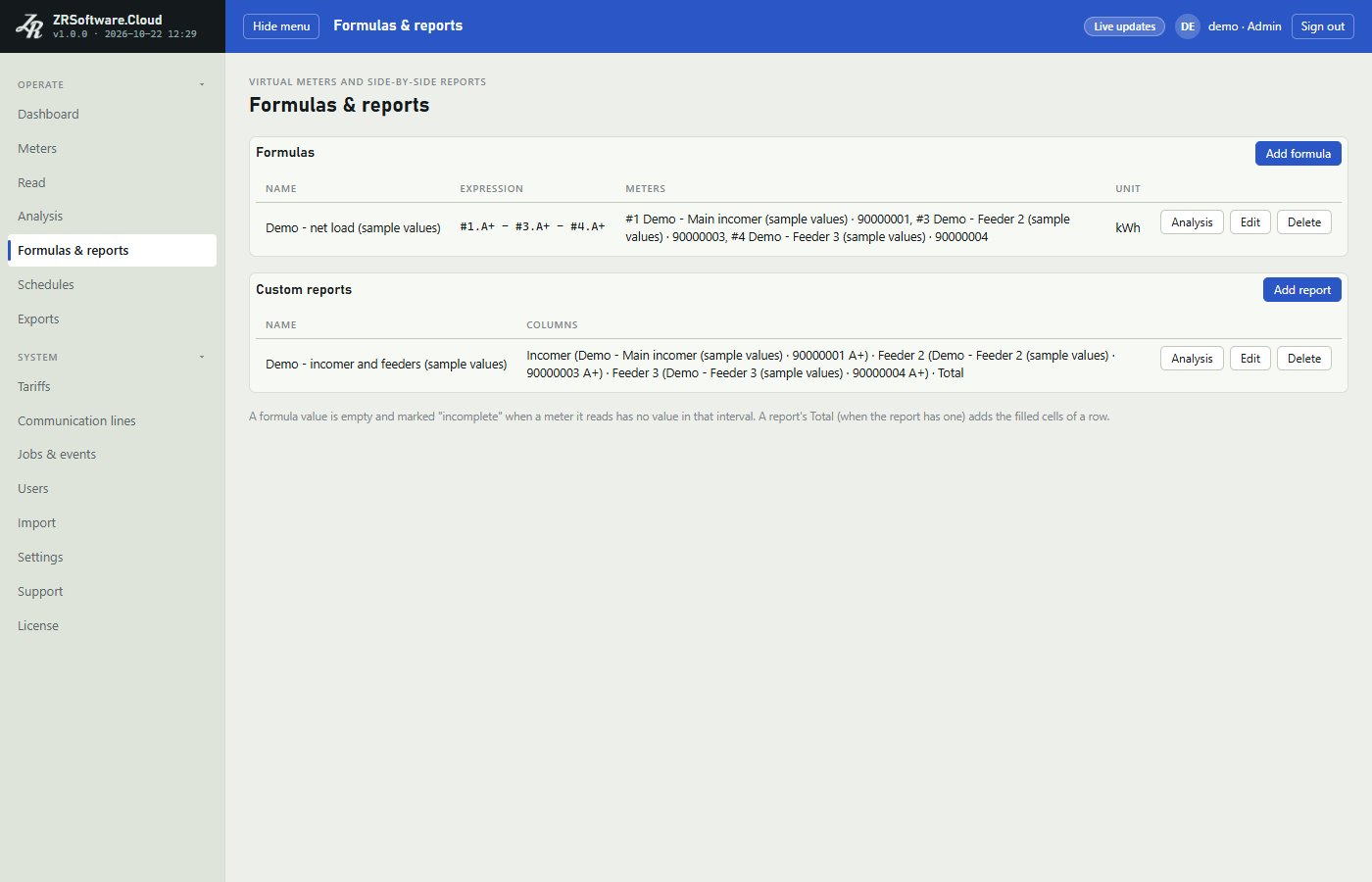
Writing a formula
A formula is an expression of meter channels, numbers and the operators + - * /, with parentheses. The form shows this note:
Note
"#meter.channel reads a meter's channel (A+ A- R+ R- Ri+ Rc+ Ri- Rc-); numbers use a point (0.98). A formula cannot use another formula."
The meter number is the number after # in the Meter list of the form. For example #1.A+ is the A+ channel of meter 1; the empty Expression box shows the example #1.A+ - #2.A+ - #3.A+. Channel names can be typed in small or capital letters.
Multiplication and division are done before addition and subtraction; use parentheses to change the order. A minus sign can also stand before a value. Example: #1.A+ - (#2.A+ + #3.A+) * 0.98.
A formula is at most 1000 characters long and reads at most 50 different meter channels (each #meter.channel counts once).
The formula is saved in a tidy form, with one space around each operator and only the parentheses it needs, so the saved text can look slightly different from what you typed.
Adding or changing a formula
- Select Add formula, or Edit on a formula.
- Type the Name (at most 60 characters; two formulas cannot have the same name, and capital and small letters A to Z count as the same).
- Type the Expression. To put a channel in at the cursor, choose the meter in Meter and the channel in Channel under the expression, then select Insert. The buttons + - * / ( ) put in an operator.
- Check the table under the expression: it shows each Reference and the Meter it names.
- Select Save, or Cancel to close without saving.
A click outside the form closes it when you have changed nothing. When you have changed something, the page first asks "Close the form without saving the changes?". The same holds for the report form.
The service checks the formula when you save it. If the expression cannot be read, the form shows the position of the first problem and what was expected there. A meter number that names no meter is refused. The number of an archived meter is accepted.
Only active meters are in the Meter list under the expression.
Note
A change to a formula also changes every custom report and every automatic export that uses it, from the next time they are shown or run.
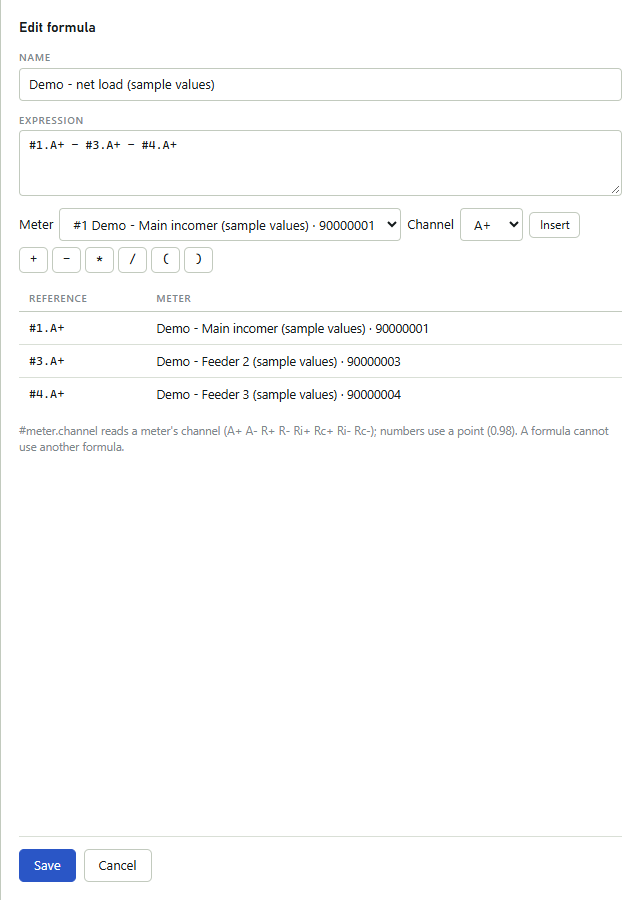
How a formula is calculated
For each row of the chosen step and unit, the formula uses the value of each meter in the same row, with each meter's own multiplier. The result is rounded to three decimals.
When a meter the formula reads has no value in a row, the formula's value is empty and marked INCOMPLETE; it is not counted as 0. A division by zero leaves the value empty and marked DIVISION BY ZERO. A row in which none of the meters has a stored interval stays empty without a mark.
On the Analysis page, the Rows heading counts the rows with a marked value as incomplete (and, as for a meter, the rows with fewer intervals as short), and the page shows this note:
Note
"A value is empty and marked when a meter it reads has no value in that row; it is not counted as 0."
Custom reports
Custom reports lists each report with its Name and its Columns: each column's title and what it shows. Analysis opens the report on the Analysis page.
- Select Add report, or Edit on a report.
- Type the Name (at most 60 characters; two reports cannot have the same name, and capital and small letters A to Z count as the same).
- For each column type its Title and choose its source in Meter or formula: a meter and one of its channels in Channel, or a formula. Add column adds a column, Up and Down move a column one place (Up is off on the first column, Down on the last) and Remove removes it.
- Tick Add a total column (the sum of the row) after the last one if the report should have a total.
- Select Save, or Cancel to close without saving.
As the form notes, a report without the total column has the same columns on the screen and in the files as in ZR Software 7.
A report has 1 to 20 columns. A title is at most 40 characters and can be used only once in a report, whatever the letter case.
The title Total, in any letter case, is kept for the total column; the service refuses a column with this title.
The total column adds up the filled cells of the row. When a cell of the row is empty, the total is marked INCOMPLETE. The total has a unit only when all columns have the same unit.
A meter column is empty and marked INCOMPLETE in a row where the meter has no value. A row in which none of the meters has a stored interval stays empty without a mark, also in the total column.
Only active meters can be chosen as a new source. A column that already reads an archived meter keeps it: the list shows that meter with (archived) after its name.
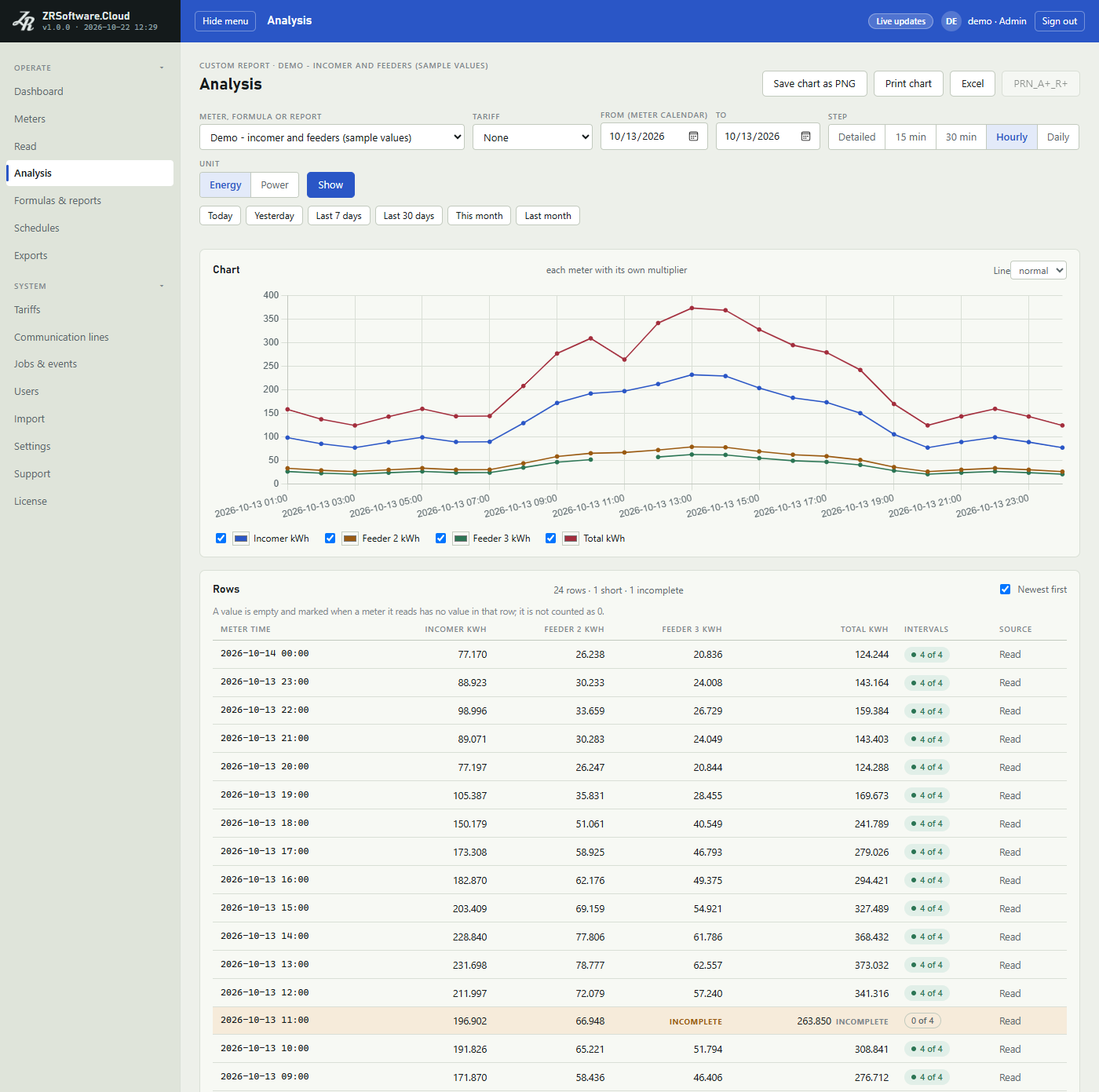
Formulas and reports in the analysis
On the Analysis page, choose the formula or report in Meter, formula or report. Days, ready ranges, step, unit, tariff and Newest first work as for a meter (see Analysis).
All columns are shown, also those without values. A formula or report has no extra profile channels, no values to type in and no CSV or PRN_A+_R+ file; Excel, Save chart as PNG and Print chart work.
With a tariff, a value that is empty in an interval (because a meter has no value in it) adds nothing to the zone totals, but the interval is still counted in Intervals.
The Excel file of a formula or report
The file name has the form name d_M_yyyy H_m_s.xlsx: the formula or report name, then the day and time the file was made without leading zeros. A / or \ in the name becomes _. The sheet is named Formula or Report.
The first column is Meter Date Time; then, for a formula, one column headed with its name; for a report, each column under its title. In these headings each space becomes _ and there is no unit. The rows go newest first. A row in which every value is empty is left out when one of the meters has no stored interval in it, so a formula row marked INCOMPLETE on the screen can be missing from the file; an empty value in a row that is written is an empty cell. With the total column, Total is the last column.
With a tariff, the zone totals follow the rows, as in the file of a meter.
Formulas and reports can also be the source of an automatic export; see Exports.
Deleting a formula or report
Delete asks for confirmation and then deletes the formula or report. A formula that a report uses cannot be deleted: its Delete button is off with the tip Used by a report. A formula or report that is the source of an automatic export cannot be deleted either; the page says how many exports use it and names up to three of them by number and target.
Warning
A deleted formula or report cannot be restored. The meters and their profiles are not changed.
Schedules
A schedule reads a list of meters by itself at the times you set: the load profile, the registers, or only what is missing from the stored profile. You find the page Schedules under Operate in the menu. The page is in the menu only when your licence includes schedules and meters are read.
Every signed-in user sees the list. An operator or an administrator can start a schedule at once with Run now. Only an administrator sees Add schedule, Edit and Delete and can change a schedule.
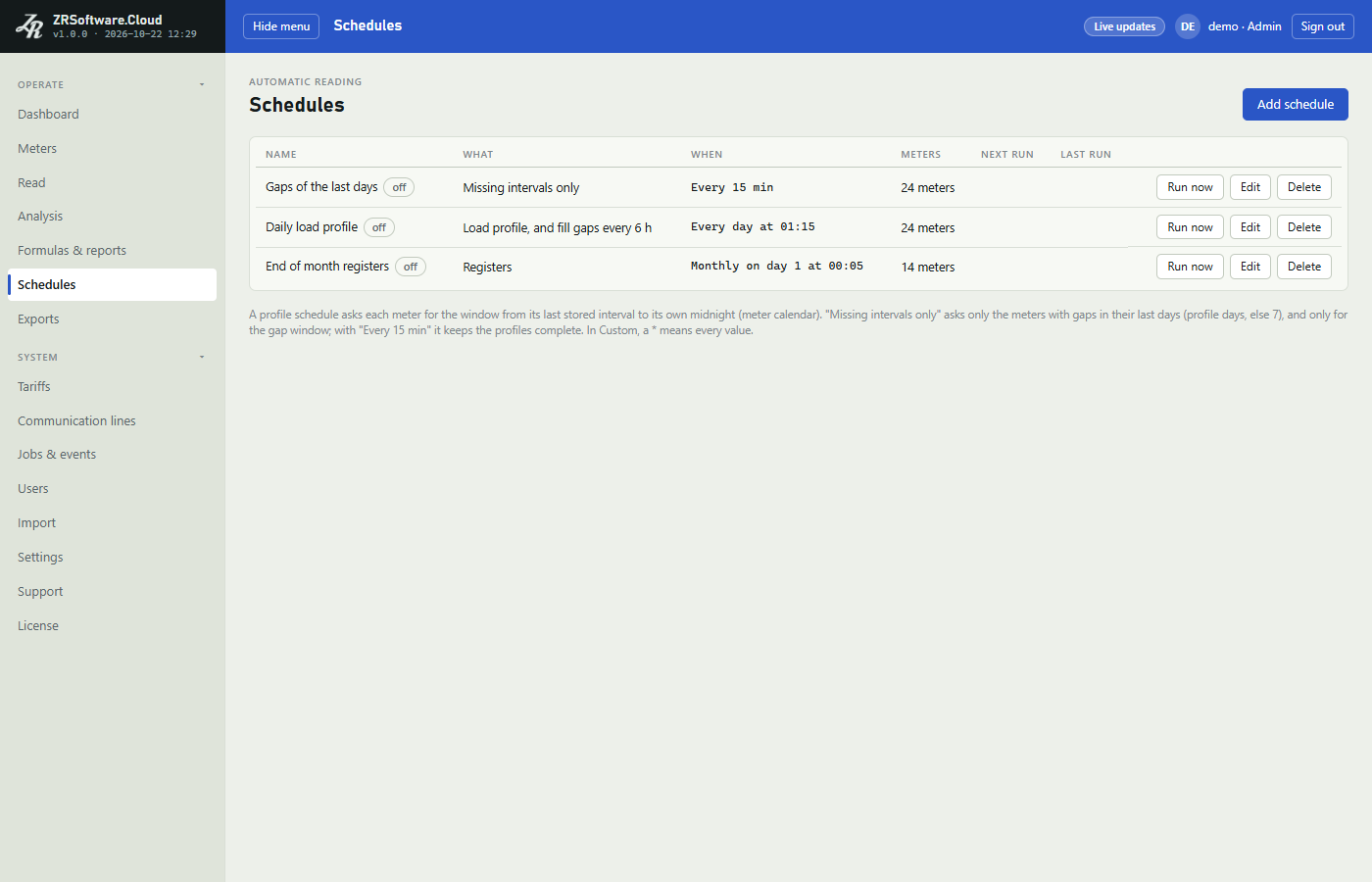
The schedule list
| Column | What it shows |
|---|---|
| Name | The name of the schedule. A schedule that is turned off carries the chip off. |
| What | What the schedule reads (see the next section). For a load profile with gap filling it also shows how many hours apart the gaps are filled. |
| When | The pattern in words, for example every 5 min, every day at a time, or monthly on a day. A custom pattern shows its four fields as month / day / hour / minute. |
| Meters | The type and serial number of each meter of the schedule; with more than six, only their number. |
| Next run | The next time the schedule runs. It is empty while the schedule is turned off. |
| Last run | The time of the last run and the jobs it queued: how many are done, how many did not finish (failed, interrupted or cancelled) and how many are still open (queued or running). A meter that still has a job from an earlier run is skipped. A run that skipped every meter shows nothing done and nothing open, even while those earlier jobs still run; the event log then has a warning from the source Scheduler that says how many meters were skipped. |
With no schedule yet, the list shows No schedule yet.
While the top bar shows Live updates, the list updates by itself each time a job is queued or finishes.
A new schedule that Import takes over from ZR Software 7 comes in turned off, so that the meters are not read twice while ZR Software 7 still reads them. Edit it and tick On when the automatic reading of ZR Software 7 has stopped.
Meters of a ZR Software 7 schedule whose kind and time fields match a schedule that is already here are added to that schedule instead, and if it is on, they are read from its next run. A schedule set to Every 5 min or Every 15 min never takes in such meters: ZR Software 7 has no such pattern.
What a schedule reads
| Choice | What each run does |
|---|---|
| Load profile | Reads each meter's load profile from the day of its last stored interval, however long ago that was, up to the coming midnight of the meter's own calendar. |
| Registers | Reads each meter's register values. |
| Load profile, and fill gaps | Reads the load profile as above. In addition, on the first run and then each time the hours in Fill gaps every (hours) have passed, it also asks each meter again for the intervals missing before its last stored interval. |
| Missing intervals only | Looks at the last days up to now in each meter's calendar and reads only the windows of the missing intervals. A meter with no gap is not read at all. |
| Missing days of the previous month | Looks at the previous month in each meter's calendar and reads each day that has fewer intervals than a full day (96 for a 15-minute profile), one job per day. |
Missing intervals that lie close together are read in one window, from the first to the last of them. Gaps more than 6 hours apart are read as separate windows, one job each, so that the stored intervals between them are not read again.
You choose what a schedule reads and when it runs independently. For example, Every 15 min with Missing intervals only keeps the profiles complete without reading whole days again. For Missing intervals only and for the gap filling, the program looks back as many days as Profile days says, or 7 days when that box is empty.
A day or an interval that a successful profile read already covered, after it had closed in the meter's calendar, is not asked for again, even if the meter did not deliver it: the meter has given all it keeps for that time. After a read that failed, found no data or was cancelled, it is asked for again at the next run.
The meter's calendar is the PC clock corrected by the meter's clock difference from its last registers reading, or the PC clock itself while no successful registers reading of the meter is stored. When no successful registers reading of the last 7 days is stored, a job of a Load profile schedule (also with gap filling) first reads the registers to learn the meter's clock; the job then shows "registers read first for the meter's clock". That registers reading is kept as a reading of its own. If it fails, the job fails too, with a message that starts with "the meter's clock is not known".
When a meter has no stored interval yet, the first load profile read goes back Profile days days. When that box is empty, the number of days depends on the pattern, and the empty box shows it in grey, for example "empty: 60 days":
| Pattern | Days read back the first time |
|---|---|
| Every 5 min | 30 |
| Every 15 min | 30 |
| Every hour | 30 |
| Every day at a time | 60 |
| Monthly on day and a time | 365 |
For Missing intervals only and for Load profile, and fill gaps the empty box shows "empty: the last 7 days", the look-back of the gaps. For Load profile, and fill gaps the first load profile read of a meter still goes back the number of days of the pattern from the table above. For Registers and Missing days of the previous month the box shows that it is not used.
Adding or editing a schedule
- Click Add schedule, or Edit in the row of a schedule.
- Type a Name (required).
- Choose in What what the schedule reads. For Load profile, and fill gaps, set Fill gaps every (hours) (1 to 168; a new schedule offers 6).
- Choose a pattern under When and fill in its time fields (see below).
- If needed, set Profile days and Attempts.
- Choose the meters under Meters.
- Leave On ticked for the schedule to run, and click Save.
A new schedule starts as a load profile read every day at 01:15, with 2 attempts, turned on.
If the service refuses the schedule, the form stays open and shows the reason under the fields. Cancel closes the form without saving.
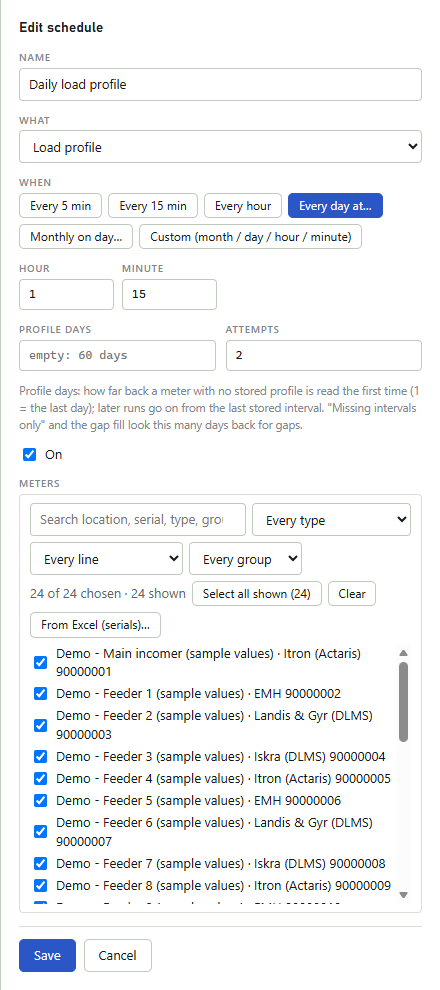
| Field | What it does |
|---|---|
| Profile days | 1 to 366. How far back the first load profile read of a meter goes, and how far back the missing intervals are looked for. Empty: the first read goes back the number of days of the pattern, and the missing intervals are looked for in the last 7 days (see above). Clear the box and save to go back to these values. |
| Attempts | 1 to 5. How many times one job tries the meter, 3 seconds apart. Only a read that may work next time is tried again: no answer, a checksum error or another error such as a line that cannot be opened. A refused password is not tried again. All attempts together stay within the 15 minutes a job may take. |
| Meters | The meters to read. The list offers only active meters that are not virtual; you can narrow it by search, type, line and group, or paste serial numbers from Excel (see Meters and groups). When the program has virtual meters, a note under the list says "Virtual meters are not read, so they are not on this list." |
| On | Clear it to stop the schedule without losing it. |
Choosing when it runs
| Pattern | Fields you fill in | When it runs |
|---|---|---|
| Every 5 min | None | At :00, :05, :10 and so on, every five minutes of every hour. |
| Every 15 min | None | At :00, :15, :30 and :45 of every hour. |
| Every hour | Minute | Every hour at that minute. Type a number: a * there makes the schedule run every minute. |
| Every day at | Hour, Minute | Every day at that time. |
| Monthly on day | Day, Hour, Minute | Every month on that day at that time. |
| Custom (month / day / hour / minute) | Month, Day, Hour, Minute | At every time that matches all four fields. |
In Custom (month / day / hour / minute) each field is a number or *, and * means every value: month 1 to 12, day 1 to 31, hour 0 to 23, minute 0 to 59. A date that never occurs, such as day 30 of month 2, is refused with "this month never has that day". Times are the PC's local time.
With Monthly on day and a day that a month does not have (for example 31), the schedule does not run in that month.
When a schedule runs
Schedules are run by the Windows service ZRSoftware, not by the browser: they run while the service runs, whether or not a page is open. The service looks for due schedules every 15 seconds.
If the PC or the service was off at a planned time, the missed run is made once, as soon as the service runs again, while the licence allows it. Several missed runs are not made one after the other: after the catch-up run the schedule goes on with its next planned time.
A job that is running when the service stops is closed as cancelled, and its message ends with "cancelled: the service stopped". A job the service could not close is shown as interrupted when the service starts again. Jobs that were still queued are queued again in their order when the service starts (see Jobs & events).
When the trial or the licence has ended, the licence message says "Meters are not read and automatic exports do not run." Then, and whenever else the licence does not let the program read meters (see License), the page Schedules leaves the menu and no schedule runs. On a page that was still open, Run now is refused with "the licence does not include Schedules", also when the licence includes schedules: the reason is that meters are not read now. The schedules themselves stay as they are and run again at their next planned time once meters are read again.
While the licence does not allow reading, or does not include schedules, a due run is skipped and not saved up for later: it is not made later, also when the licence allows reading again. The event log then gets a warning from the source Schedule that names the schedule and the reason.
Virtual meters count toward the meter limit too. When more meters are registered than the licence allows, the meters registered first are read, as many as the limit, virtual meters among them; a virtual meter is never read, and its place does not go to another meter. A schedule does not queue its other meters, and its row in the event log is then a warning that says how many meters were not read and why: archive a meter or ask for a larger licence (see License).
Run now runs the schedule at once, also when it is turned off, and the page says how many jobs it queued. Run now does not move the planned times. It counts as the last run in Last run, and for Load profile, and fill gaps the hours until the next gap filling count from the last run that filled the gaps, also when that was Run now.
The order of reads on a line
Each communication line has its own queue: the meters of one line are read one after the other, never two at the same time. Different lines are read at the same time, up to four lines at once.
A schedule queues its meters in the order they were added to the program. Jobs on a line run in the order they were queued; a read you start by hand on the Read page waits behind the jobs already queued on that line.
A meter that still has a queued or running job from the same schedule is not queued again by that schedule. With a short pattern such as Every 5 min on a long line this keeps the queue from growing.
One job may take at most 15 minutes; after that it is stopped and shown as cancelled, and its message says that it timed out.
Note
Each job that runs to its end writes a row to the event log. Each run of a schedule writes one more; a schedule set to Every 5 min or Every 15 min writes it only for the first run of each hour and for every run that queued nothing, skipped a meter or left meters unread because of the licence. With such a pattern and many meters the event log still reaches its limit of 100 000 rows within weeks, and the oldest rows are then deleted (see Jobs & events).
Deleting a schedule
Warning
Delete asks for confirmation and then removes the schedule with its list of meters; it cannot be undone. Its jobs that are still queued or running are cancelled. The jobs it queued before stay in Jobs & events with their history, and the event log notes who deleted the schedule and how many jobs were cancelled. To stop a schedule without losing it, edit it and clear On.
Exports
An export writes a file by itself at the times you set: the load profile or the billing values of a meter, or the result of a formula or a custom report, for a period such as yesterday or last month. The file goes into a folder, is sent by e-mail or is uploaded to an FTP server. You find the page Exports under Operate in the menu; it is there only when your licence includes exports.
Every signed-in user sees the list and the past runs. An operator or an administrator can start an export at once with Run now. Only an administrator sees Add export, Edit and Delete.
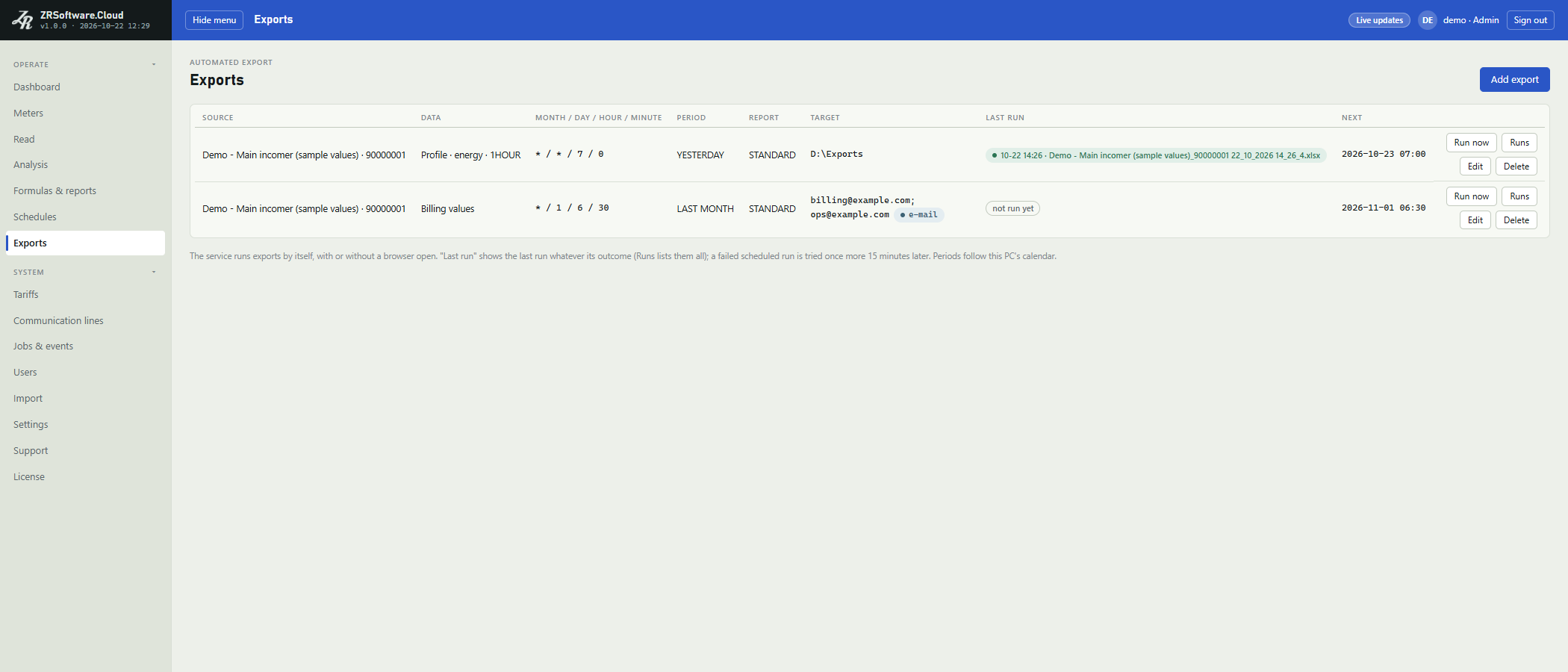
The export list
| Column | What it shows |
|---|---|
| Source | The meter (location and serial number), formula or report. A formula or report carries a chip with its kind; an export that is turned off carries off. |
| Data | Billing values, or the profile with its unit and step, and the extra channels when chosen. |
| Month / day / hour / minute | The four time fields of the export. |
| Period | The days the file covers. |
| Report | The file kind, and the tariff when one is chosen. |
| Target | The folder; the recipients with the chip e-mail; or the folder on the FTP server with the chip FTP (empty for the folder of the FTP settings itself). |
| Last run | The time and the result of the last run, whatever it was: the file name, or the error of a run that did not succeed. Before the first run it shows not run yet. |
| Next | The next planned run; after a failed scheduled run the time of the retry instead. Empty while the export is turned off. |
With no export yet, the list shows No export yet.
An export that Import takes over from ZR Software 7 comes in turned off, so that reports are not sent twice while ZR Software 7 still sends them. Edit it and tick On when the automated export of ZR Software 7 has stopped.
Adding or editing an export
- Click Add export, or Edit in the row of an export.
- Choose the Source: a meter, a formula or a report. Find a meter, Line and Group above it narrow the list of meters.
- Choose Data, Unit and Step, then the Period and, if you want zone totals, a Tariff (optional).
- Fill in the time fields Month, Day, Hour and Minute.
- Choose the Report kind and the Target, and fill in the folder, the recipients or the folder on the FTP server.
- Leave On ticked for the export to run, and click Save.
A new export starts as the energy profile in 1-hour steps of yesterday, as an xlsx file into a folder, every day at 07:00.
Formulas and reports are offered as a source, and tariffs in Tariff (optional), only when your licence includes them.
If the service refuses the export, the form stays open and shows the reason under the fields. Cancel closes the form without saving.
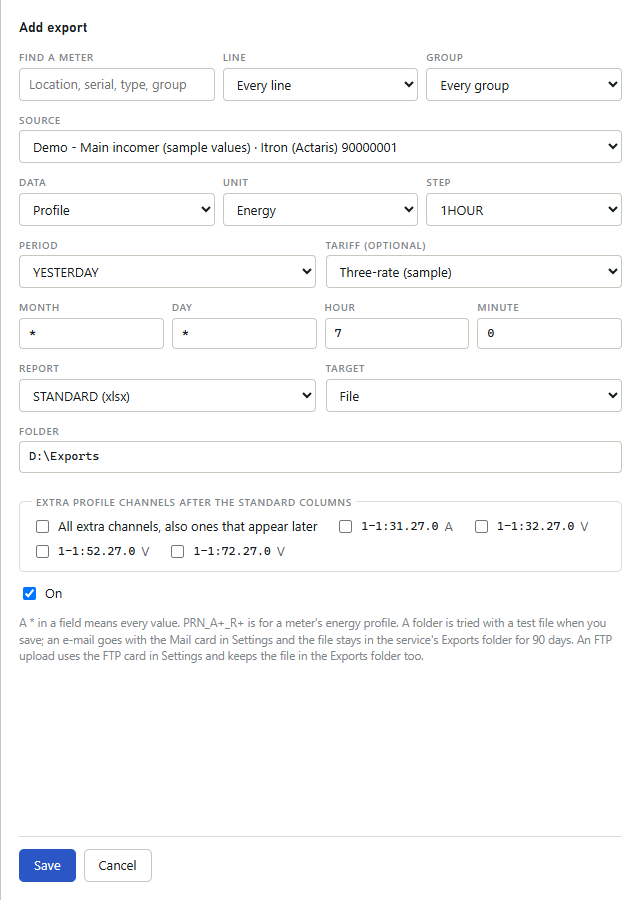
| Field | What it does |
|---|---|
| Data | Profile or Billing values. Billing values come from a meter only, not from a formula or report. |
| Unit | Energy or Power, for a profile. |
| Step | 15MIN, 30MIN, 1HOUR or 1DAY: the length of one row of a profile. |
| Tariff (optional) | Adds the totals of the tariff zones to a profile file (see Tariffs). Only with STANDARD (xlsx). |
| Extra profile channels after the standard columns | For a meter's profile as xlsx: extra channels such as voltage or current, ticked one by one, or All extra channels, also ones that appear later. None are ticked in a new export. |
Periods
The period is counted in the PC's calendar on the day the export runs. Each period runs from midnight to midnight:
| Period | Days in the file |
|---|---|
| TODAY | Today. |
| YESTERDAY | Yesterday. |
| LAST 2 DAYS | Yesterday and today. |
| LAST 7 DAYS | The last six days and today. |
| LAST WEEK | Monday to Sunday of the previous week. |
| LAST MONTH | The whole previous month. |
| THIS MONTH | From the first of this month to today. |
| LAST 15th TO THIS 15th | From the 15th of the previous month to the 14th of this month. Run before the 15th, the file also covers days still to come. |
The Runs table shows each run's period as its two ends: the values after the first midnight and up to the last one.
File kinds and names
| Report | What the file holds | File name |
|---|---|---|
| STANDARD (xlsx) | An Excel file: the profile rows of the period (with the zone totals when a tariff is chosen), or the billing values of the period. | For a meter its location and serial number, for a formula or report its name, then the date and time of the run, for example: Main_90000001 16_10_2026 7_0_0.xlsx |
| PRN_A+_R+ | A text file with a header and, per row of the chosen Step that has values, its time with the active import energy (A+) and the reactive import energy (R+), for a meter's energy profile only. | The serial number and the date, for example: 90000001 2026-10-16.prn |
Warning
A file with the same name is written over. A PRN file has the date only in its name, so a second run of the same export on the same day replaces the first file. Two exports of the same meter that write into the same folder can also replace each other's PRN file. On the FTP server, too, a file of the same name in the same folder is replaced.
Writing to a folder
With the target File, type in Folder a full path on this PC, such as D:\Exports, or a shared folder, such as \\server\share\folder. When you save, the service writes a small test file there and deletes it again. If it cannot, the export is not saved and the form says why, starting with "the service cannot write to" and the folder.
The file is written by the Windows service, which runs under its own account NT SERVICE\ZRSoftware, not under your Windows account: the folder must allow the service's account to write. A folder that does not exist yet is created.
The program never deletes files from an export's own folder, unless that folder is the Exports folder of the service's data folder or a folder inside it (see the next section).
Sending by e-mail
With the target E-mail, type the addresses in Recipients (; between), with ; or , between them, at most 20. Before you can save such an export, an administrator must set the mail server and the sender address under Settings, card Mail; otherwise the form says "set the mail server and the From address in the Mail card in Settings first".
The file goes as an attachment, with the subject from the mail settings and the fixed text "Sent via ZR Software - Mail Client". A copy stays in the Exports folder of the service's data folder, C:\ProgramData\REDZ\ZR Software\Exports, in a folder of its own named after the export's number, and is deleted there after 90 days, the next time an export runs.
Only the service, Windows itself and programs started with administrator rights can open the data folder; other Windows users of the PC cannot. To give users these files, choose a target folder they can open.
If the mail server does not accept the e-mail, the run counts as failed even though the file was written, and its error starts with "mail:".
Uploading to an FTP server
With the target FTP server, type in Folder on the FTP server (under its root) a folder below the Folder on the server of the FTP settings, for example daily/main, or leave it empty to use that folder itself. Letters, digits, spaces and / _ . - are allowed. Before you can save such an export, an administrator must set the server and the user name under Settings, card FTP (see Settings); otherwise the form says "set the FTP server and user in the FTP card in Settings first". The folder is not tried when you save; a folder that does not exist yet on the server is created at the first upload.
Every export with this target uses the one server of the card FTP: changing the card changes where all of them upload. When you change the server, the port or the type there without typing the password, the stored password is removed; type the password for the new server on the card, or the uploads cannot sign in.
The file is first written to the Exports folder of the service's data folder, as for e-mail, and is deleted there after 90 days. It is then uploaded with the same name, using the settings of the card FTP: under a temporary name ending in .part first; its size on the server is compared with the file, and only then is it renamed. If the sizes differ, the run fails and a file of that name already on the server stays as it was.
When a file of that name is already on the server, the earlier file first gets a temporary name ending in .old; the new file then takes the name, and the .old file is deleted. If the new file cannot take the name, the earlier file gets its name back. An SFTP server that can replace a file in one step does it in one step instead.
Warning
When an upload fails, the service tries to delete the .part file on the server. A file ending in .part can stay on the server when the upload or the check after it fails. A file ending in .old that stays on the server is the earlier file of that name: it stays when it could not get its name back or could not be deleted, and also when the time limit ran out during the renaming. The program does not look for such files on the server later; delete them there if you do not need them. When no file of that name is on the server, the .old file is the earlier file: give it its name back or run the export again before you delete anything.
If the upload fails, the run counts as failed even though the file was written, and its error starts with "ftp:" followed by the reason (see Troubleshooting). As for any failed scheduled run, it is tried once more 15 minutes later. In the Runs table the result of a run that tried the upload carries ftp uploaded or ftp failed.
Mail settings
The card Mail on the page Settings is shown to administrators only, and only when your licence includes exports. The full list of its fields is in Settings; in short:
- SMTP server and Port (587 when nothing is saved yet).
- Security: STARTTLS (the default; the card pairs it with port 587), SSL/TLS (465) or None. Choosing one does not change the Port box. The server's certificate is checked; None sends the password without encryption.
- User name and Password of the mail account.
- From address: when it is empty, the user name is used if it is an e-mail address.
- Subject of the e-mails.
The password is only written, never shown again. The service seals it with Windows on this PC. The Password box shows only whether one is stored and whether this PC can open it; leave the box empty to keep the stored password, type a new one to replace it, or, when one is stored, click Remove password. Remove password removes only the password; what you typed in the other boxes without saving is not saved. A password stored on another PC (for example in a copied database) cannot be opened here and must be typed again.
Note
During a REDZ support session, REDZ support can add, change, run and delete exports, also those sent by e-mail; each such change leaves a row in Jobs & events (see Jobs & events). It can also change the FTP card in Settings, and with it the server that every FTP export uploads to. It cannot change the mail settings, and it cannot send a test e-mail from the card Mail; only an import of a ZR Software 7 database during the session, also a copy that REDZ support uploads, can still set that database's mail server, with user name and password, when none is set here and the licence includes exports.
Test e-mail
- Save the mail settings first: the test uses the saved settings.
- Type an address in Send a test e-mail to and click Send test e-mail.
- Look in that mailbox, also in the spam folder.
When the mail server accepts the test e-mail, the card says so and reminds you that delivery is not confirmed: the program only knows that the server took it. When it fails, the card shows "Not sent:" and the reason as the server or the connection gave it, for example a sign-in or TLS error. Each test is also written to the event log. The text of the test e-mail names this PC.
When an export runs
Exports are run by the Windows service ZRSoftware, whether or not a browser is open. The four time fields work as in a custom schedule: each is a number or *, and * means every value (see Schedules). The service looks for due exports every 15 seconds.
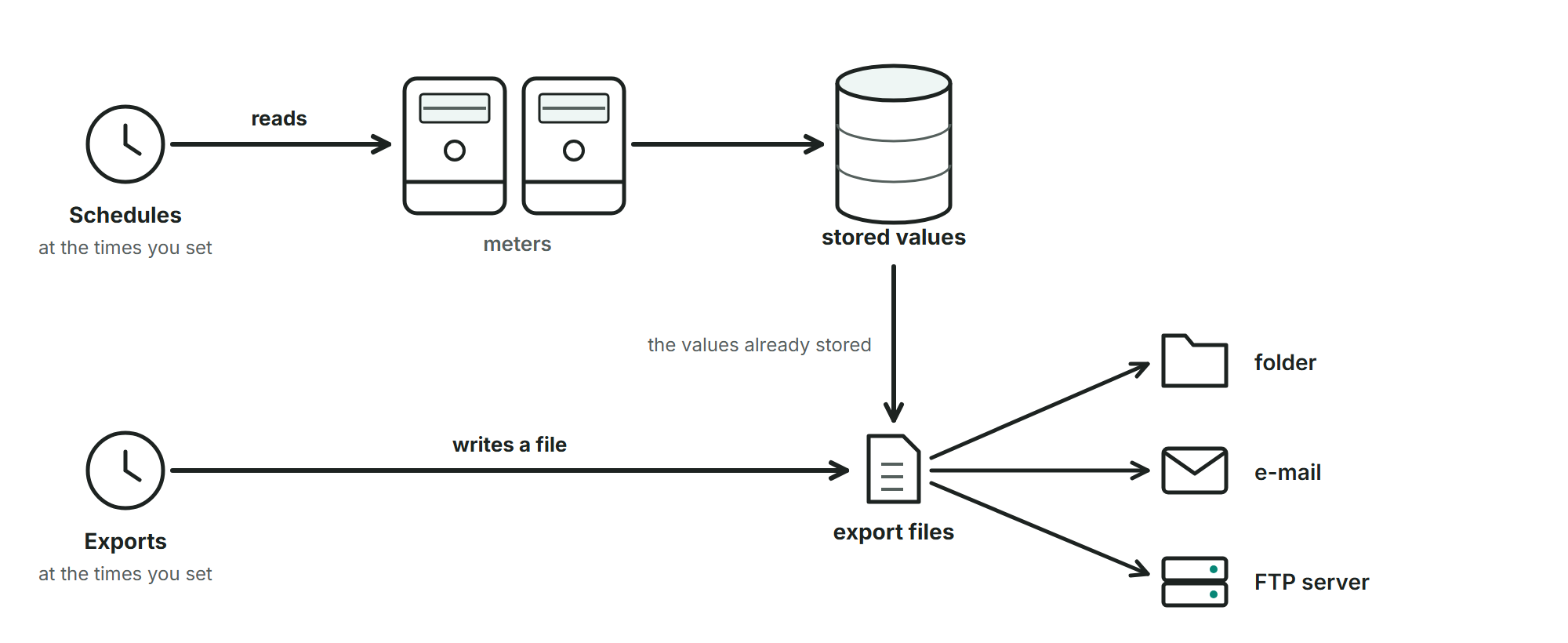
If the PC or the service was off at a planned time, the missed run is made once when the service runs again, while the licence allows it; the period is then counted from that day.
A scheduled run that fails is tried once more 15 minutes later; the Next column shows the time of that retry. If the retry fails too, the export waits for its next planned time. The retry counts the period from its own day, so a retry after midnight writes the period of the new day.
When the trial or the licence has ended, the licence message says "Meters are not read and automatic exports do not run." Then, and whenever else the licence does not let the program read meters (see License), the page Exports stays, but scheduled runs and retries are skipped and not made later, and the event log gets a warning from the source Export. While the licence does not include exports, the scheduled runs are skipped in the same way, with the same warning; the page Exports is then not in the menu. While only reading is not allowed, Run now still works: it writes the file from the values already stored.
Run now runs the export at once and waits for it. The page then says how many rows were written to which file and whether the e-mail was sent or the file uploaded to the FTP server, or shows the error. Run now does not change the next planned time.
Past runs and errors
Runs opens the past runs of an export under the list, the newest first (the last 50). Click it again to close them.
| Column | What it shows |
|---|---|
| At | When the run was made. |
| How | Schedule, Retry or Manual (Run now). |
| Result | Ok, Failed or Skipped, with the e-mail or FTP result and the error when there is one. |
| Rows | The number of rows written. |
| File | The full path of the file. |
An export of a formula or a report also needs that part of the licence: when the licence does not include formulas, an export of a formula is skipped with "the licence does not include formulas", and an export of a report likewise with "the licence does not include reports", also with Run now.
A run is skipped when its source no longer exists or its meter is archived. Every run, also a skipped or failed one, is written to the event log with the source Export; e-mail addresses appear there shortened, so the log does not list who received what (see Jobs & events).
Deleting an export
Warning
Delete asks for confirmation, says that this cannot be undone, and then removes the export together with its past runs. The event log notes who deleted it; the rows its runs wrote to the event log stay. Files it wrote are not deleted with it, also not on the FTP server; copies of e-mailed or uploaded files in the Exports folder are still deleted after 90 days, like every file there. To stop an export without losing it, edit it and clear On.
Jobs & events
Every meter read is a job: a read you start on the Read page, a read a schedule queues, a read of missing intervals from the analysis. The page Jobs & events under System in the menu lists these jobs and the program's event log. Every signed-in user can open it.
Above the title the page counts the open jobs (queued or running). The tabs Jobs and Event log switch between the two lists.
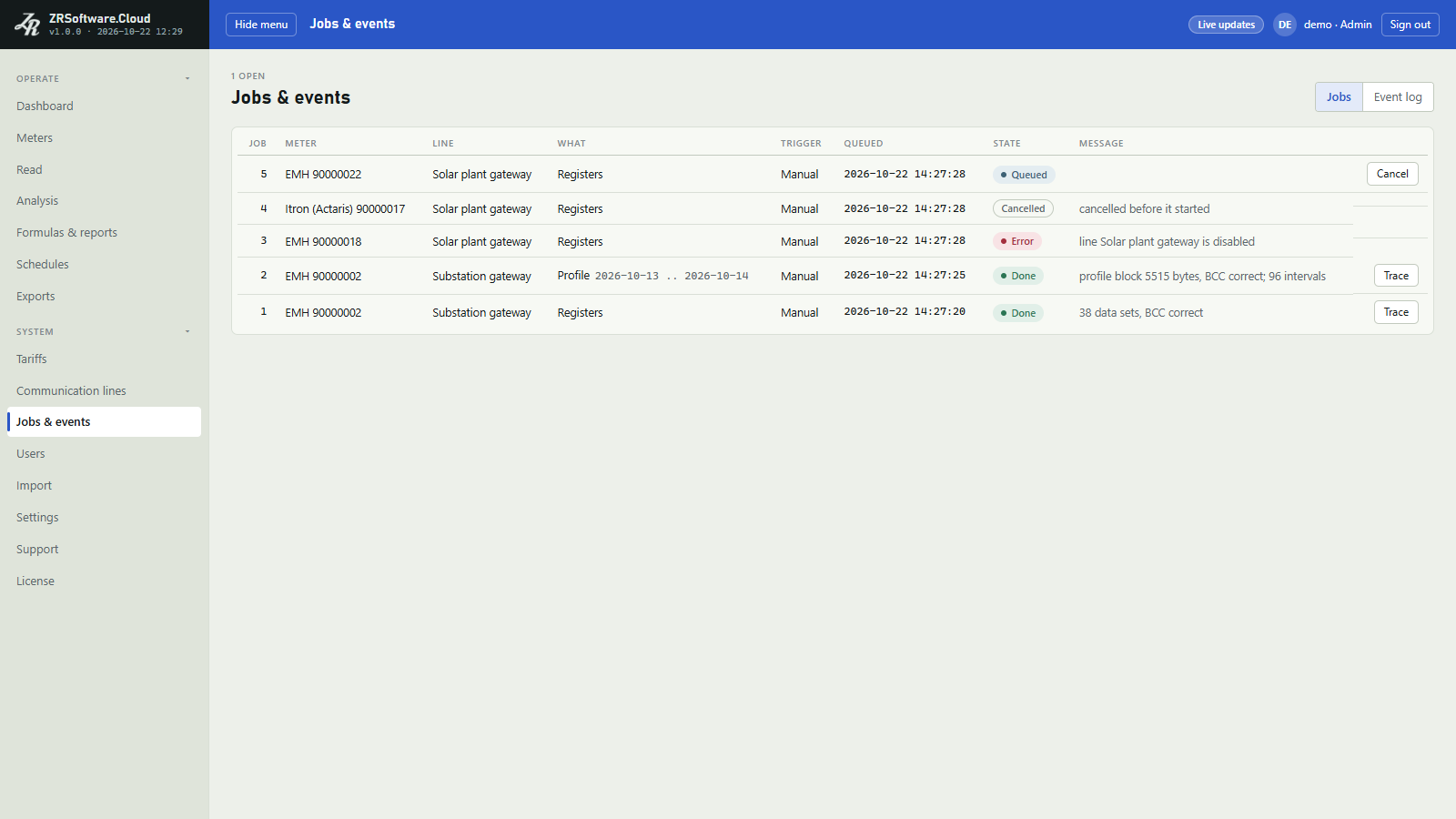
The job list
The list shows the newest 500 jobs, the newest first.
| Column | What it shows |
|---|---|
| Job | The job number. |
| Meter | The meter type and serial number. |
| Line | The communication line the job uses. |
| What | Registers or Profile; for a profile also the dates of the start and the end of its window, for the load profile of a schedule once the job has started. A window that ends at midnight shows the day after its last day as its end. |
| Trigger | Who started it: Manual (a read started by hand), Schedule, MissingMonth (a schedule reading missing days of the previous month), MissingIntervals (missing intervals, from a schedule or from the analysis) or FillGaps (the gap filling of a schedule). |
| Queued | When the job was queued, in local time. |
| State | The state of the job (see below). |
| Message | While the job runs, what it is doing; afterwards the result or the error. |
With no job yet, the list shows No job yet.
While the top bar shows Live updates, the list updates by itself: each time a job is queued, starts or finishes. While it shows Not live, the job list does not update by itself.
Job states
| State | Meaning |
|---|---|
| Queued | Waiting on its line's queue. |
| Running | The job has started: the line is being opened or the meter is being read. |
| Done | The read succeeded and its values are stored. |
| Failed | The read did not succeed. Instead of the word Failed, the chip shows the reason (see the next table). |
| Cancelled | The job was stopped before it finished. Its message ends with the reason: "cancelled" when a user cancelled it, "cancelled: the service stopped" when the service stopped while it ran, or that it timed out after the time a job may take (15 minutes). A queued job that was cancelled shows "cancelled before it started". |
| Interrupted | The service ended without closing the job. When the service starts again, the job gets the message "the service stopped while this job was running". |
| Chip of a failed job | Meaning |
|---|---|
| No answer | The meter did not answer. |
| Bad checksum | The meter's answer arrived damaged. |
| Login failed | The meter refused the password, no password is stored for a meter that needs one, or the stored password cannot be opened on this PC. |
| No data | The meter answered the load profile request with an error: it holds no records for the window asked, or it does not accept the request. |
| Not supported | The program does not read this meter type or this kind of read, or the meter's record lacks what the read needs (for example an address). |
| Error | Any other error, for example a line that cannot be opened, or a meter that the licence does not let the program read; the message gives the reason. |
Jobs that were still queued when the service stopped are queued again, in their order, when it starts.
A job from a schedule may try the meter more than once (see Schedules); the message then says which attempt it was and what the attempt before it gave.
When a schedule is deleted, its queued and running jobs are cancelled; its other jobs stay in the list.
Cancelling a job
An operator or an administrator sees Cancel in the row of a queued or running job. A queued job is cancelled at once and never reaches the meter. A running job is stopped by closing its line. If the job finished in the meantime, the page shows "the job is not queued or running".
Note
Cancelling a job of a schedule does not change the schedule: its next run comes at the planned time.
The trace of a job
When a job has stored a reading together with the bytes exchanged with the meter, an operator or an administrator sees Trace in its row. It opens those bytes as they were stored. The note above them says what the trace leaves out: for a DLMS meter the sign-in request is not recorded and the meter's authentication value is masked; Landis & Gyr DLMS meters are read without a password, so their sign-in is recorded in full.
Save as .txt saves the trace as a text file named after the meter, the job number and the time it was queued (in UTC); Close closes it.
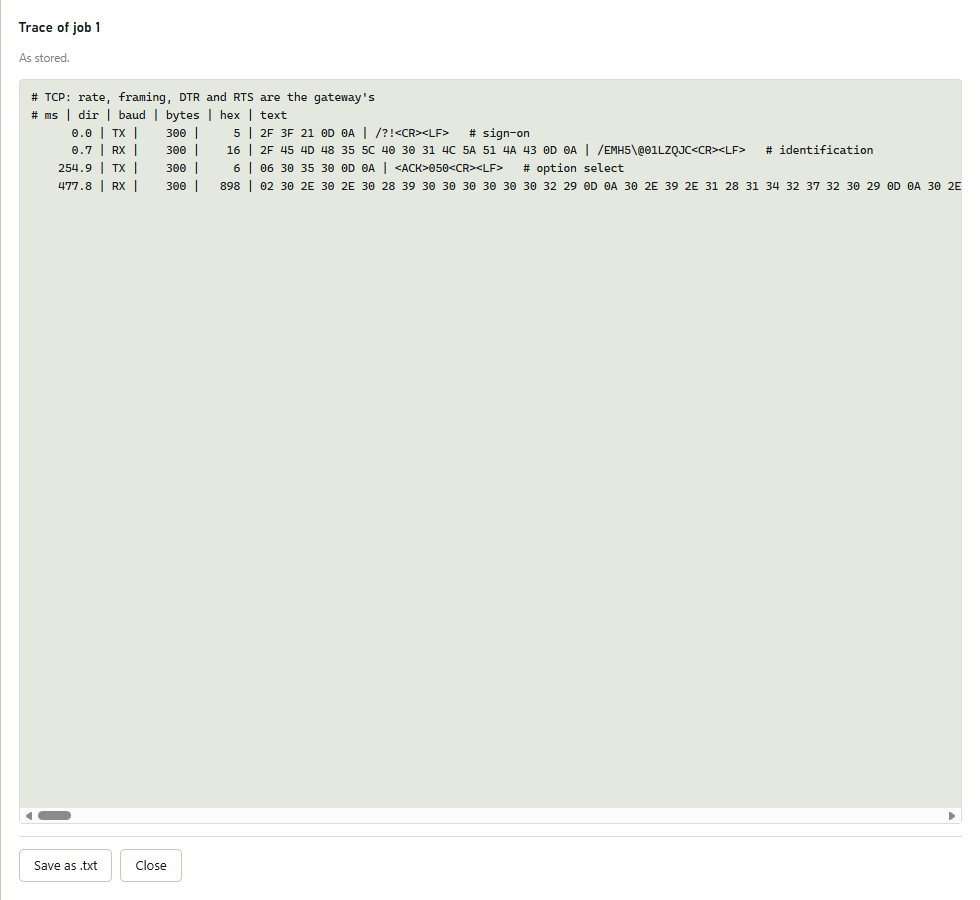
The event log
The tab Event log lists what the program did and noticed: finished jobs, schedule runs, exports, successful sign-ins, users locked after wrong passwords, password changes, users added and changed, changed settings, imports, deleted schedules, exports and lines, REDZ support sessions and what REDZ support changed or took, a Check now for updates that failed, downloaded updates and updates handed over to be installed, and licence events. The newest come first.
| Column | What it shows |
|---|---|
| Time | When it happened, in local time. |
| Level | Info, Warning or Error. |
| Source | The part of the program that wrote the row. |
| Meter | The meter it is about, when there is one. |
| Text | What happened. |
The tab shows 200 rows at a time; Older events at the bottom adds the next 200. While only the newest 200 rows are shown, the open tab looks for new rows every 15 seconds while the browser shows it. After Older events it stops looking, so the older rows stay; change a filter to go back to the newest rows.
Warning
The event log keeps one year and at most 100 000 rows. Older rows are deleted once a day and cannot be brought back; save them with CSV if you need them longer. A CSV file holds the newest 50 000 rows that match the filters. There is no date filter: to save more, save one file at a time per meter or per source.
REDZ support in the event log
During a REDZ support session, Jobs & events gets a row with the source REDZ support for each change REDZ support makes or tries to make, and for each file or reading trace it takes: what was done, on which page, and the answer. A change that was refused or failed is a warning. What was typed, for example a password, is not in the row. Pages that REDZ support only looks at leave no row.
A file is, for example, the Excel file of an analysis, the CSV of the event log or a support bundle. When REDZ support saves the chart as a picture or prints a page, the program tells the service and Jobs & events gets a row. A reading trace is what Trace opens; saving it with Save as .txt adds no second row. A few requests that only check or test something leave a row as well, for example the preview of an import, a check of the licence or for updates, or a test of the FTP connection; while a licence request waits and REDZ support has the License page open, the page asks about it every 30 seconds and each time leaves a row.
The row names the page and the item, for example Meters and the meter's number, and ends with done, refused or failed and the session number. A request to one of the few settings that are closed to REDZ support, such as the support session or its own password, is refused and named only as "a closed setting". Other refused changes, for example of the mail settings, name their page like any other row.
The start and the end of each session are rows from the same source: who asked for the session and until when, who ended it early, that REDZ or the licence server ended it, or that its time ran out. If REDZ's connection does not accept this program during a session, a warning from the same source says "REDZ support could not connect; ask REDZ". When REDZ support signs in, a row from the source Auth names the session number; a refused sign-in of REDZ support is a warning from the source Auth (see Support).
To see them all, choose REDZ support in Source; the sign-ins of REDZ support are under Auth. The chat with REDZ during a session is not written to the event log (see Support).
Updates in the event log
An admin, or REDZ support during a support session, can download and install an update. Each download or install on the page Settings, card Updates, gives the event log a row from the source Update: that the update was downloaded and checked against the signed list, that it was handed over to be installed, or, as a warning, why it was refused. A Check now that fails is a warning from the source Update with the reason; a check that succeeds leaves no row. The program's own daily check leaves no row in the event log, also when it fails. The updates are described in Settings.
Filtering the events
| Filter | What it does |
|---|---|
| Find | Shows the rows whose text contains what you type. Capital and small letters count the same, also for the Turkish letters, and the letter i with or without a dot counts as one letter. The characters *, ? and square brackets are searched as they are. |
| Level | All, or one level. |
| Source | All, or one of the sources that appear in the log, for example Engine for the reads, Scheduler for the runs of schedules, Schedule for skipped schedule runs, Export, Auth for sign-ins, locks, password changes and changes to users (a user added, a role changed, a user turned on or off, a password reset), each with who made it and never with the password; a change that is refused leaves no such row. REDZ support for support sessions and what was changed or taken in them, Update for updates, and Settings. |
| Meter | All, or the rows of one meter. |
The list follows the filters as you change them. When no row matches, it shows No event matches.
CSV saves the rows that match the filters (at most 50 000) as a file for Excel, with ; between the columns. The file has the time twice: in UTC and in the local time of this PC, as the page shows it.
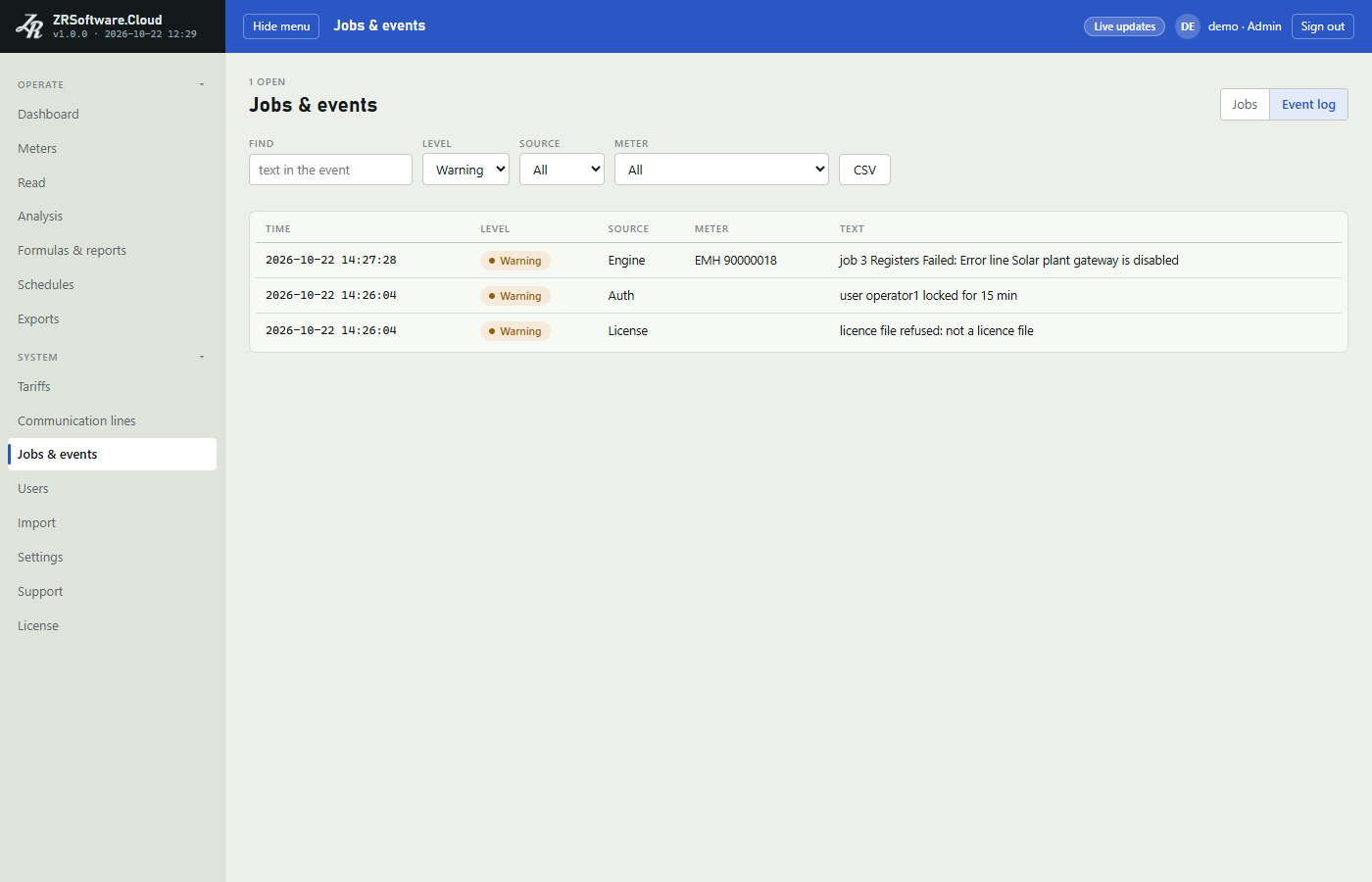
Import
The Import page brings lists from files into the program: meters, schedules and exports from an Excel or CSV file, and the whole database of ZR Software 7. The page is in the System menu for administrators, and only when the licence includes the Import feature; see License.
When the trial or the licence ends, or meters are not read for another licence reason, the Import page leaves the menu and the program refuses imports until meters are read again.
Four tabs at the top choose what you import: Meters, Schedules and Exports read an Excel file, Old database reads a ZR Software 7 database.
Importing from an Excel file
The Import page reads Excel 97-2003 (.xls), .xlsx and .csv files of at most 2 MB and 2 000 rows. It reads the first sheet of an Excel file. The file type is taken from the file's contents, not from its name.
- Choose the tab of the list: Meters, Schedules or Exports.
- Under File, choose the file. The program reads it and shows what each row would do. Nothing is saved yet.
- Read the notes above the table and check the table. The Result column shows "new", "update", "unchanged", "skip" or "error" for each row, with the reason.
- Click Import. The button shows how many rows it will save. It is available only when no row has an error and at least one row is new or changed.
If the file cannot be saved as it is, a red banner says why as soon as you choose it: how many rows have an error, that every row is already there, or that the new meters do not fit the meter limit of the licence and how many meters it allows.
Note
For an export row with a folder, the preview already writes and removes a test file in a folder that exists. A folder that does not exist yet is made and tried only when you click Import; if the service cannot write there, nothing is saved and the page shows why.
When the rows are saved, a green banner shows how many rows were new, updated and already there.
Warning
If any row has an error, nothing from the file is saved. Fix the rows marked "error" in the file and choose the file again. When the file is saved, all of its rows are saved together, in one step. An import cannot be undone from this page: change or archive the records on their own pages.
If no row is new or changed, the Import button stays unavailable and nothing is saved.
Imported schedules and exports come in off
A schedule the import makes, and every export it adds, is saved switched off, so that the meters are not read and the reports are not sent twice while ZR Software 7 still does it. The notes above the table say so. The lists show such a schedule or export with an "off" chip; see Schedules and Exports.
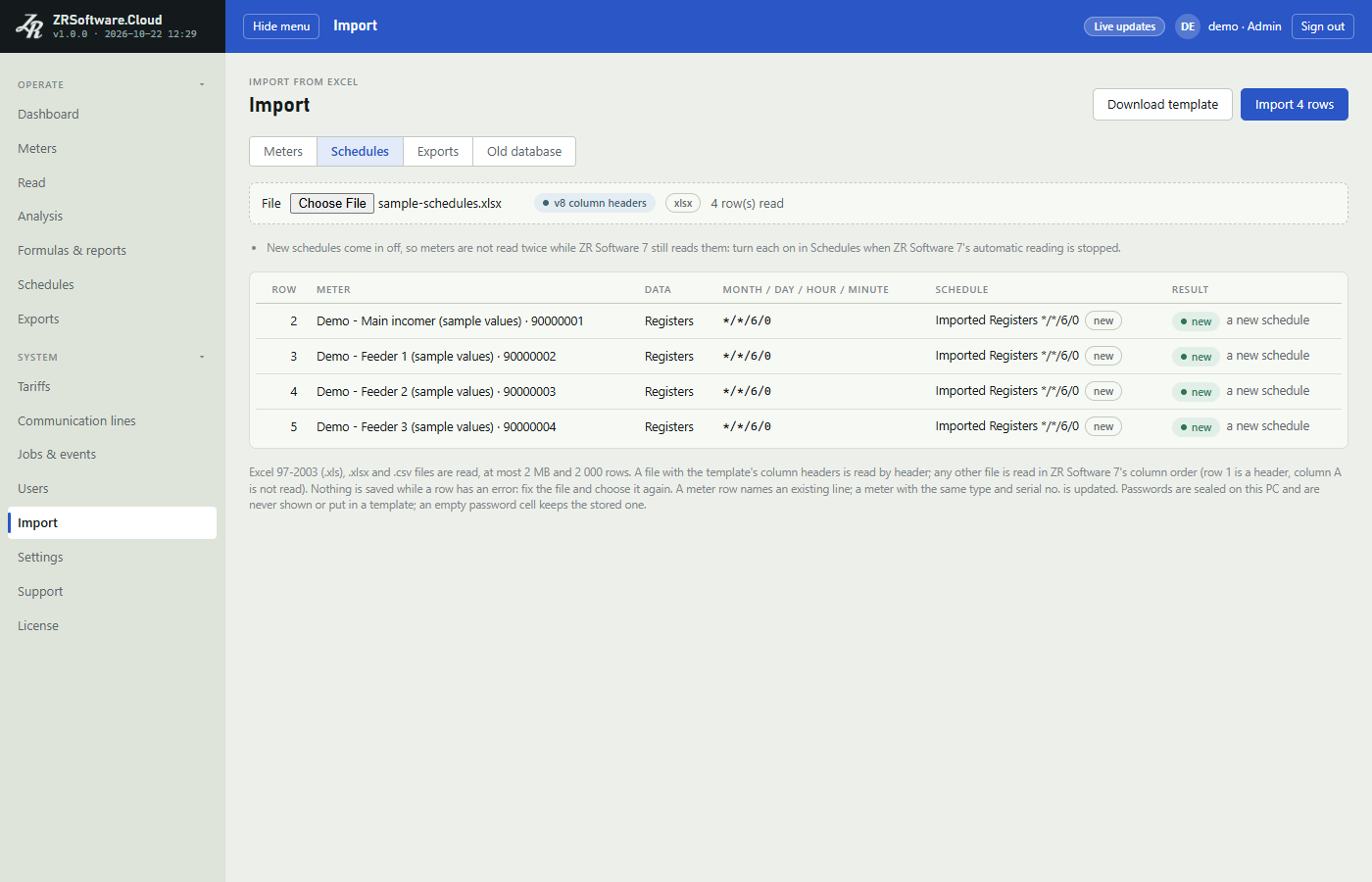
Note
Meters added to a schedule that already exists keep that schedule's setting: if it is on, it reads them from its next run, and the notes above the table say so. A schedule set to Every 5 min or Every 15 min is never joined: a row of the file makes or joins a schedule with its own month / day / hour / minute pattern.
- Stop the automated readings and automated exports of ZR Software 7 for the same meters.
- On the Schedules and Exports pages, click Edit in the row of each imported schedule or export, tick On and click Save.
The two column layouts
The program reads a file in one of two layouts and shows which one it used next to the file name: v8 column headers or ZR Software 7 column order.
- v8 column headers: row 1 holds the column names of the template. The columns can be in any order and the case of the names does not matter. A meters file needs at least the columns Type, Serial no. and Line.
- ZR Software 7 column order: any other file is read in the column order of ZR Software 7. Row 1 is a header and is not read, and column A is not read. A note above the table lists what each column means.
Download template saves an .xlsx file with the template's column headers for the open tab. The template is filled with the list that is stored now (active meters, schedules, exports), so you can change it in Excel and import it again. Only meter rows update stored records: a changed schedule or export row is added as a new one and the old one stays; change or delete it on the Schedules or Exports page. Meter passwords are never written to the template.
Note
Empty rows in the file are skipped. The row numbers in the table are the row numbers of the file.
Meter rows
A meter row must name a line that already exists on the Communication lines page. In the template layout this is the line's name; in the ZR Software 7 column order it is the COM port or the IP address and port. The Excel import never adds a line: a row whose line is not there is an error.
- A meter with the same type and serial no. as a stored meter updates that meter. The message lists what changes.
- A row equal to the stored meter is "unchanged".
- A row for an archived meter, a second row for the same meter in the file, or a row that matches two stored meters is an error.
The Password column of the table shows only whether the file gives a password. Passwords are sealed on this PC and are never shown. An empty password cell keeps the stored password.
New meters must fit the meter limit of the licence. If they do not, nothing is saved; the red banner says how many meters the licence allows.
Schedule and export rows
A schedule row names a meter by its serial no., or by "#" and the meter's id when two active meters have the same serial no. Rows with the same data and the same month / day / hour / minute pattern join one schedule: an existing schedule with that pattern, or a new one named after the data and the pattern. A meter that is already in that schedule is skipped.
An export row names its source (a meter, or in the template layout also a formula or a report by name) and, if it uses one, a tariff by name. A row equal to a stored export, or to an earlier row of the file, is skipped.
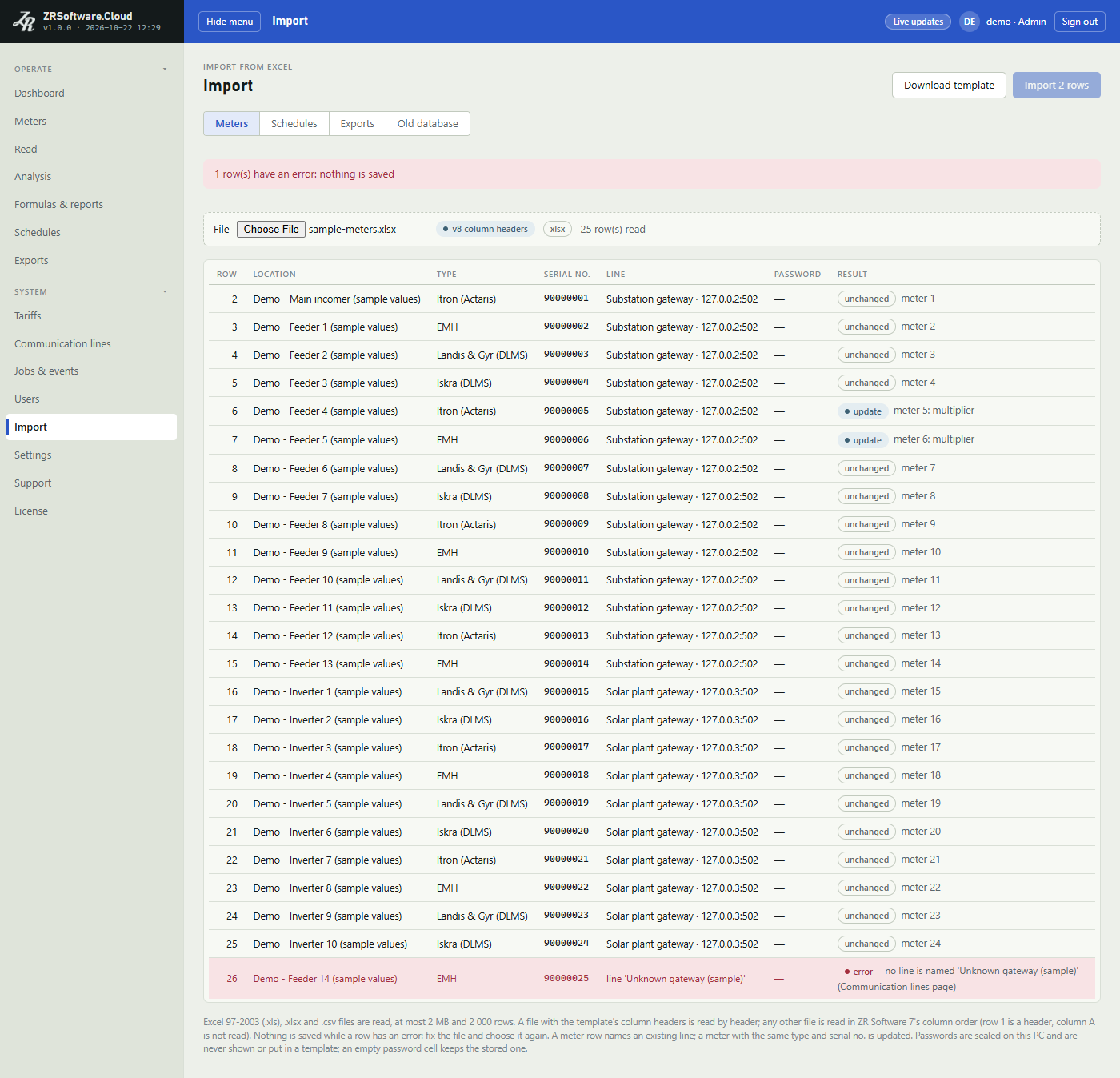
Importing a ZR Software 7 database
The Old database tab reads the database file of ZR Software 7 (zrs.s3db) and brings its meters, readings and lists into this program in one step; a row that does not fit is skipped with its reason. It is meant for moving from ZR Software 7 to this program on the same PC or on a new one.
- Open the Old database tab. If the program finds the old database on this PC, its path is already in File on this PC, and the card's title line says whether setup recorded it or it was found in the usual ZR Software 7 folder. Otherwise type the full path of the file.
- Or, under Or upload a copy, choose a copy of the file, for example one brought from the old PC. An uploaded file can be at most 512 MB. The check starts by itself when you choose it.
- Click Check (no changes). The program does the whole import and then discards it, so the counts in the table are those of the import. Nothing is saved in the program's database; as in the Excel preview, an export folder that exists is tried with a test file, and one that does not exist yet is made and tried only at Import.
- Read the table and the notes above it. Then click Import. The button is available after a check that found something to import.
The table has one row for each part of the old database, with the columns Old table, Rows, Imported, Already there, Skipped and Why skipped.
After the import the page says "Imported. Rows that did not fit are listed with the reason."
Warning
An old database import cannot be undone from this page: change or archive the records it added on their own pages.
What the old database import brings
| Part of the old database | What happens |
|---|---|
| Meters | Imported with their settings. A line that does not exist yet is added; a meter whose line this PC does not allow is skipped. Meter passwords are sealed on this PC. |
| Tariffs | Imported with their zones; a tariff whose zones cannot be taken over is skipped with the reason. |
| Formulas | Imported when each term can be matched to an imported meter and channel; otherwise skipped with the reason. The notes show each imported formula. |
| Custom reports | Imported with the columns that can be imported; a column that cannot is listed in the notes. |
| Mail settings | Imported when no mail server is set in this program yet, with its password; a mail server set here is kept. |
| Automated readings | Imported as schedules, by the same rules as the Excel import. A new schedule comes in off. |
| Automated data exports | Imported as exports, by the same rules as the Excel import, switched off. An export of a tariff is skipped. |
| Load profile | Imported. Values are divided by the meter's multiplier, because the old program stored them multiplied. Voltages and currents of the old load profile are not imported. |
| Billing values | Imported as readings of the meter. |
| Read queue and log | Not imported. They are counted in the table as skipped. |
The licence decides some parts: tariffs come in only when the licence includes Analysis and tariffs, formulas only with Formulas, custom reports only with Custom reports, schedules only with Schedules, and the mail settings and exports only with Exports and e-mail. A part the licence leaves out is not imported: the table shows it as not in the licence, and a note above the table says that the licence does not include it. Meters, the load profile and the billing values come in with every licence.
Note
Unlike the Excel import, the old database tab does not show a note that the schedules and exports came in off. Turn them on as described above once ZR Software 7 no longer reads and exports.
A meter of an unknown type, a meter on a GSM modem, or a meter whose line is not allowed here is skipped with the reason. Unlike the Excel import, a row that does not fit does not stop the old database import: it is skipped and the rest is imported.
The licence's meter limit is the exception: the new meters must fit it all together. If they do not, nothing is imported and the page says how many meters the licence allows. The note below the table says so too.
The old database is not changed
The program first copies the old database into the Import folder of its own data folder and reads only that copy, read-only. The old program and its file are not changed.
The copy is deleted when the check or the import is done, whatever its outcome.
A file that is not a SQLite database, or a SQLite database without the meters table of ZR Software 7, is refused and nothing is imported.
Importing the old database again
Running the import again adds nothing twice. Records that are already there are counted in Already there:
- A meter with the same type and serial no. is already there. It is not changed: settings changed in ZR Software 7 since the first import are not taken over, as the note below the table says, but its new readings join the stored meter. Change its settings on the Meters page.
- A tariff, formula or report with the same name and the same content is already there. One with the same name and other content is imported under a new name that ends in "(old database)"; the notes name it.
- Load profile intervals and billing values that are already stored are kept as they are.
Note
When setup found a ZR Software 7 database, the first start steps include an Old database step that shows this tab; see Installation and first start.
Importing during a REDZ support session
While a REDZ support session runs (see Support), REDZ support can use this page as an administrator does, and both imports work as they do for you: the passwords in an Excel file and the meter passwords of a ZR Software 7 database are saved. REDZ support cannot change or test the mail settings; only an import of a ZR Software 7 database during the session, also a copy that REDZ support uploads, can still set that database's mail server, with user name and password, when none is set here and the licence includes Exports and e-mail.
Users
The Users page lists the people who sign in to the program and gives each one a role. Only administrators see the page; it is in the System menu.
The licence does not limit the number of users. Give each person their own user, with the role they need, so that one person can be disabled alone and the event list shows who signed in.
Roles
There are three roles: Viewer, Operator and Admin. Each role can do everything the role before it can do.
| Role | What the user can do |
|---|---|
| Viewer | Opens the pages and reads the stored data: meters, readings, analysis, jobs and events, the licence status. Changes their own password. |
| Operator | Also starts and cancels meter reads, reads missing load profile intervals, opens the trace of a reading, runs a schedule or an export at once, and types, imports or removes the load profile values of a virtual meter. |
| Admin | Also defines lines, meters, groups, meter passwords, schedules, exports, tariffs, formulas and reports, and deletes all of them except meters, which are archived and brought back instead; manages users; imports; manages the licence; makes the support bundle; changes the Settings cards (limits, mail, FTP) and the first start steps; installs updates. |
The pages Users, Import and Support are in the menu for administrators only.
Note
The program on this PC checks the role for every action, not only the pages in the browser: an action the role does not allow is refused.
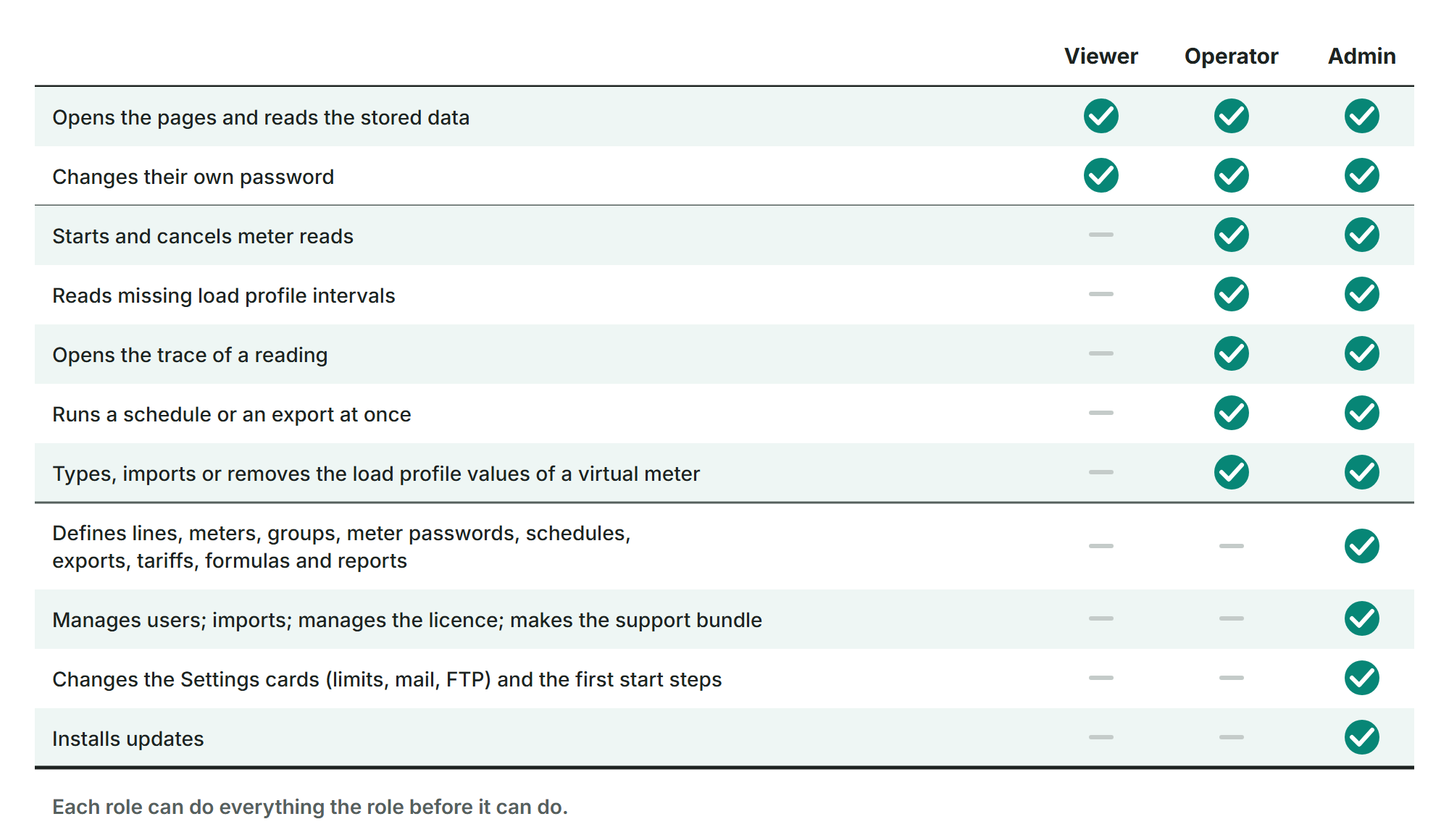
The user list
The table shows each user's User name, Role, State and Last sign-in. Your own user is marked you. The state is one of these:
| State | Meaning |
|---|---|
| Active | The user can sign in. |
| Must set password | The user has a one-time password, from an administrator or, for admin, the one made at the first start, and chooses their own at the next sign-in. |
| Locked | Five wrong passwords in a row, at sign-in or on My password, locked the user for 15 minutes. |
| Disabled | An administrator turned the user off. The user cannot sign in. |
Note
REDZ support's own user (see Support) is never in this list, cannot be changed here and does not count as one of your administrators. During a support session REDZ support can add users, Admins too, change their role, turn them on or off and reset a password, but not the password of the last enabled Admin. REDZ support types the one-time password. A user whose password is reset is signed out and must sign in with that one-time password, so ask REDZ for it; a user added this way signs in like any other user, sets an own password at the first sign-in, and stays after the session ends. REDZ support cannot change its own account.
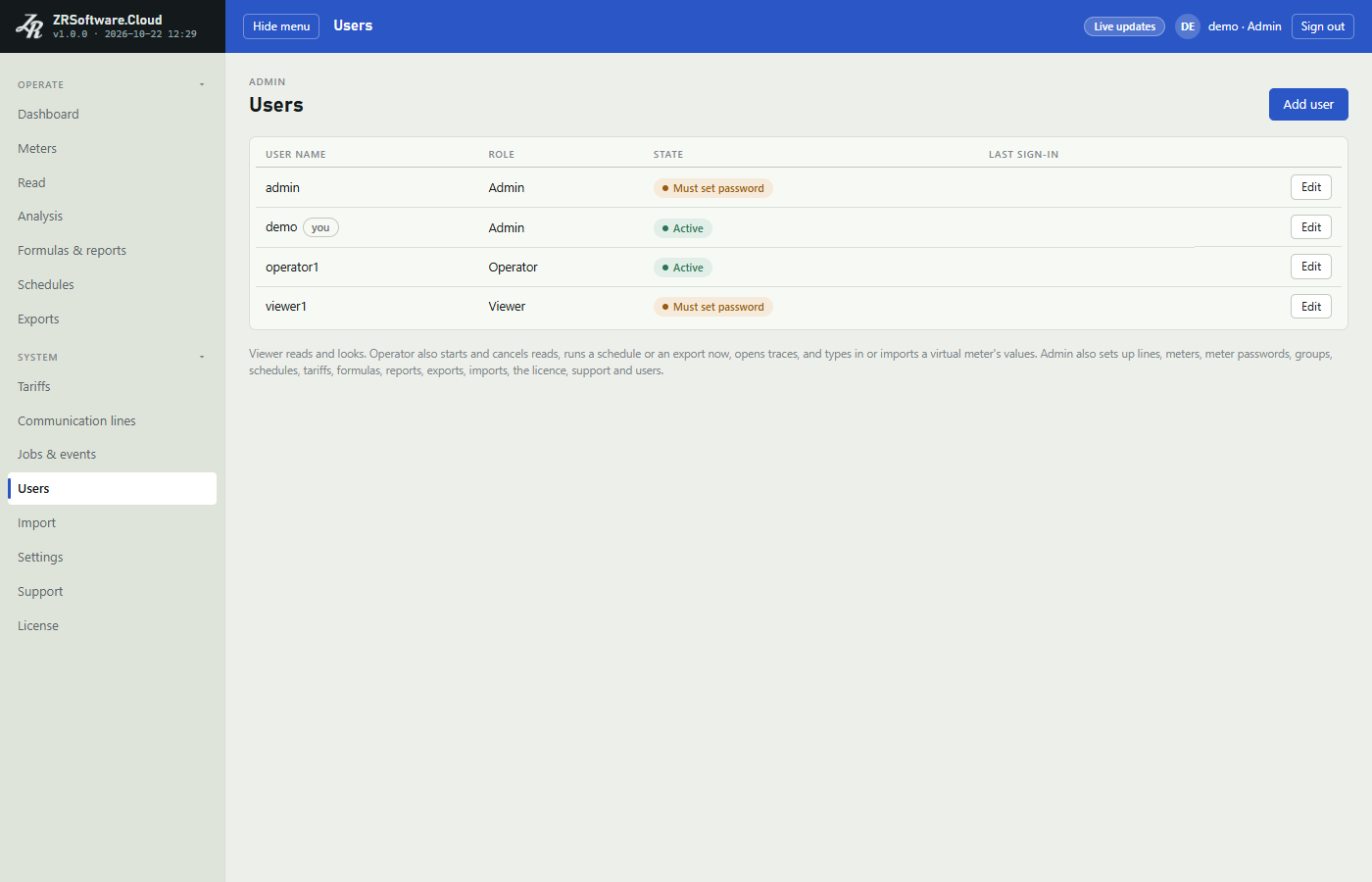
Adding a user
- Click Add user.
- Type the User name: 3 to 40 characters: the letters A to Z without accents, digits, dots, underscores or hyphens. Upper and lower case count as the same name. The name cannot be changed later.
- Choose the Role. A new user starts as Viewer.
- Type a One-time password: at least 10 characters and not the user name.
- Click Save.
A new user is always enabled. Give the one-time password to the user. At the first sign-in the program asks the user to choose their own password; see the next section.
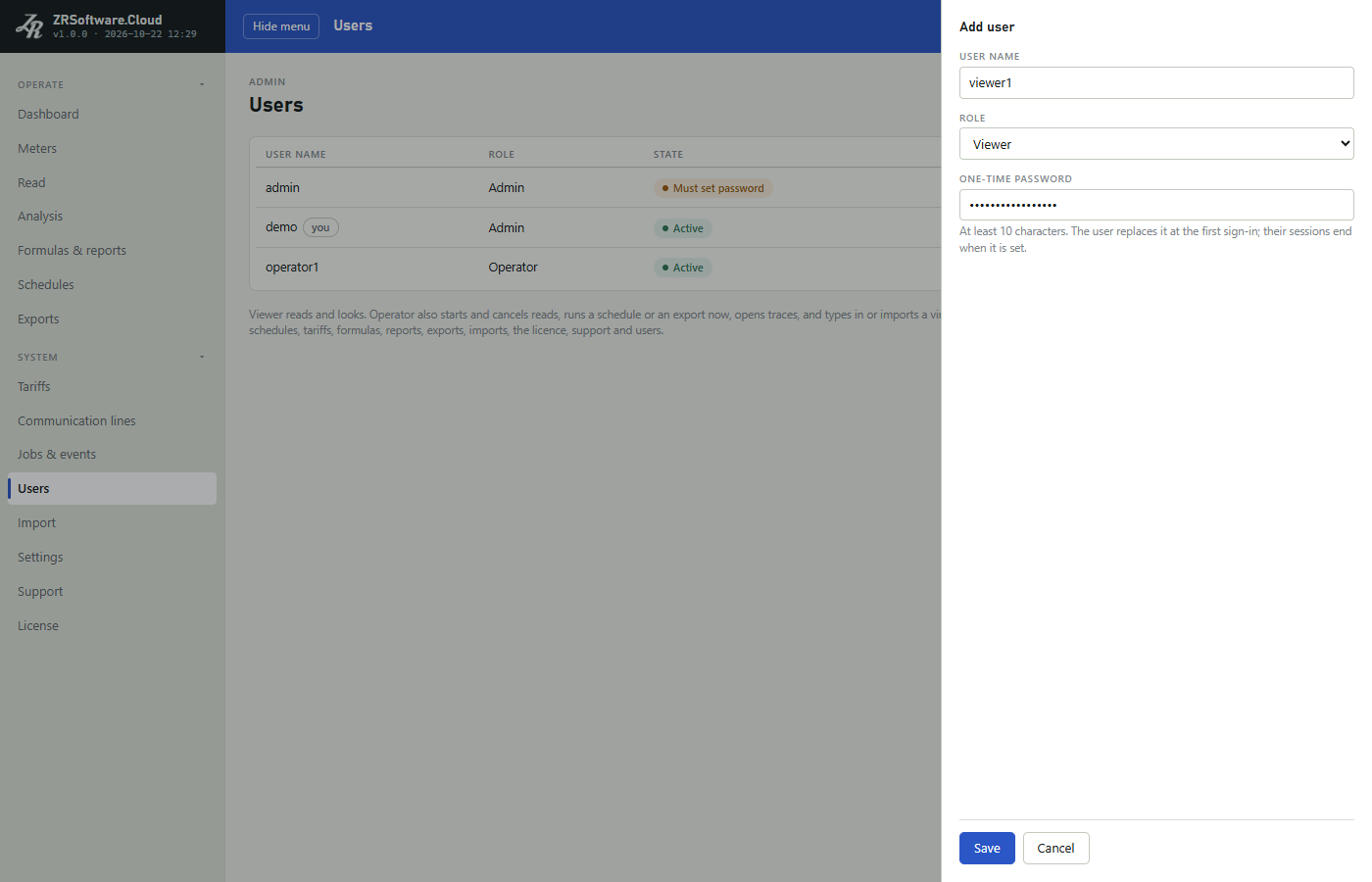
Changing a user
Click Edit in the user's row. You can change the role and Enabled, and give a new one-time password.
- New one-time password: leave it empty to keep the password. A password you type here is one-time again: the user chooses their own at the next sign-in. It also unlocks a locked user.
- Enabled: clear it to stop the user from signing in. Users cannot be deleted; a user who leaves is disabled.
- When you change the role, disable the user or set a new one-time password, the user's open sessions end at once.
The program keeps at least one enabled administrator of your own. It refuses with "the last enabled admin cannot lose the Admin role" or "the last enabled admin cannot be disabled".
User changes in the event list
Adding a user, changing a role, turning a user on or off and giving a new one-time password each write an event with the source Auth to Jobs & events: which user, what changed (the role before and after, on or off), and the user name of the administrator who made the change. The password itself is not written. A change the program refuses writes no such event (see Jobs & events).
Passwords and sign-in
A password has at least 10 characters and is not the user name.
- The user signs in with the one-time password on the Sign in page.
- The program shows Set your password.
- The user types the new password in New password and again in New password again. It must differ from the one-time password.
- The user clicks Save and sign in and is signed in.
For an existing user name, after a wrong password the sign-in page says how many attempts are left. After five wrong passwords in a row the user is locked for 15 minutes; the page says how many minutes are left, and the lock is written to the event list. An administrator can end the lock at once by giving a new one-time password.
Note
Every user changes their own password on the page My password, opened from the user name at the top right (see Signing in and the window). A one-time password from an administrator is needed only when the user has forgotten the password.
Settings
The Settings page is in the System group of the menu. Every user can open it and sees the cards Reactive ratio limits and Appearance. Administrators also see Updates and First start, and Mail and FTP when the licence includes exports (see License). Each card is saved on its own.
When meters are not read, for example after the trial or the licence has ended, the cards stay as they are: Mail and FTP stay for the exports you start yourself, while automatic exports do not run (see License).
Your own password is changed on the page My password, which opens from your user name at the top right (see Signing in and the window).
Reactive ratio limits
A meter whose reactive ratio since the last end of billing is above a limit is marked on the Meters page, on the Dashboard and on its detail page. The card has two limits, in percent. The defaults are the marks of the gauges of ZR Software 7:
| Box | Default | Meaning |
|---|---|---|
| Inductive limit, Ri / A (%) | 15 | Inductive reactive energy against active energy. |
| Capacitive limit, Rc / A (%) | 10 | Capacitive reactive energy against active energy. |
Type a value from 0.1 to 1000 in each box and click Save. The card shows Saved, and the change is written to the event list (see Jobs & events).
Every user sees the limits. Only an admin can change them; other users see the note "Only an admin changes these."
Appearance
Choose Light or Dark for the colours of the pages. The choice applies at once and is kept in this browser only; another browser keeps its own choice. Without a choice the pages are light.
The Mail card holds the mail server that automated exports use to send their files by e-mail (see Exports). Only an admin sees it, and only when the licence includes exports.
| Box | What to enter |
|---|---|
| SMTP server | The host name or address of the mail server, without spaces. |
| Port | 1 to 65535. The default is 587. |
| Security | STARTTLS (the default; the card pairs it with port 587), SSL/TLS (465) or None. Choosing one does not change the Port box. |
| User name | The account on the mail server. A name written as domain\user signs in with that domain. |
| Password | The password of that account. |
| From address | The sender address. When it is empty, the user name is used if it is an e-mail address. |
| Subject | The subject of the export e-mails; the test e-mail has its own subject. |
With None the password goes to the server without encryption; the program uses it only when you choose it. With the other two the server's certificate is checked.
Click Save. The password is never shown again: the password box only says whether a password is stored. Leave the box empty to keep the stored password, or type a new one to replace it. Remove password deletes only the stored password; the other boxes go back to their saved values. Every save is written to the event list.
The password is sealed with Windows on this PC; a copy of the database on another PC cannot read it. The database is in the data folder. Only the service, Windows itself and programs started with administrator rights can open the data folder; other Windows users of the PC cannot (see Installation and first start). If the database was moved from another PC, the password box says so; type the password again and save.
To check the settings, type an address in Send a test e-mail to and click Send test e-mail. The test uses the saved settings, so save first. Several addresses are separated by ; or , (at most 20). When the mail server accepts the e-mail, the page says so; that does not prove delivery, so look in the inbox and in the spam folder. When the server refuses, the page shows "Not sent:" with the reason.
FTP
The FTP card holds the server to which automated exports upload their files (see Exports). Like the Mail card, only an admin sees it, and only when the licence includes exports.
| Box | What to enter |
|---|---|
| Server | The host name or address of the server, without ftp:// and without spaces. |
| Port | 1 to 65535. Choosing a Type sets it to 21, or to 22 for SFTP; change it after choosing the type if your server uses another port. |
| Type | FTPS (explicit TLS) (the default), SFTP or FTP (not encrypted). |
| Folder on the server | The folder for the files, for example /meter-data. The program always uses it as a path that starts at /, and an empty box means /. Which folder / is depends on the server: ask its administrator which folder the account may write. Letters, digits, spaces and / _ . - are allowed; a \ is turned into /, and .. is refused. |
| User name | The account on the server. It is required: without a user name the FTP server counts as not set. |
| Password | The password of that account. With SFTP the program signs in with this password only, not with a key file. |
| Passive mode (usual behind a router or firewall) | Ticked by default. Not shown for SFTP. |
With FTPS (explicit TLS) the connection is encrypted and the server's certificate is checked: Windows on this PC must accept it, which means it comes from an issuer Windows trusts and is made for the server's name; otherwise the connection is refused and nothing is sent. The card has no way to accept a certificate that Windows does not accept. With SFTP the server's key must be trusted first (see below).
Warning
FTP (not encrypted) sends the password and the files in clear text; the program uses it only when you choose it. Choose it only on a network you trust.
Click Save; the card shows Saved. As on the Mail card, the password is never shown again: the password box only says whether a password is stored and whether this PC can read it. Leave the box empty to keep the stored password, or type a new one to replace it. The card has no button that removes the stored password. The password is sealed with Windows on this PC; a copy of the database on another PC cannot read it, and the password box then says so: type the password again and save. Every save is written to the event list.
When you save another Server, Port or Type and leave the password box empty, the stored password is removed, so the password of the old server never goes to the new one. The card then says "Saved. The stored password was removed because the server, port or type changed: enter the password for this server." Type the password of the new server in the same save to keep the card ready.
Test connection uses the saved settings, so save first; the button can be clicked once a server is saved. The service connects, writes a small text file whose name starts with .zrs-test- into the Folder on the server, creating that folder if it does not exist yet, checks its size and deletes it again. When that works, the card shows "Connected: a test file was written and removed". Otherwise it shows "Not connected:" and the reason (see Troubleshooting). Each test is written to the event list.
Every file, also the test file, is uploaded under a temporary name ending in .part first; its size on the server is compared with the file, and only then is it renamed. When a file of that name is already on the server, the earlier file first gets a temporary name ending in .old; the new file then takes the name, and the .old file is deleted. If the new file cannot take the name, the earlier file gets its name back. An SFTP server that can replace a file in one step does it in one step instead. When the upload, the size check or the rename fails, the test or the run fails.
Warning
When an upload fails, the service tries to delete the .part file on the server. A file ending in .part can stay on the server when the upload or the check after it fails. A file ending in .old that stays on the server is the earlier file of that name: it stays when it could not get its name back or could not be deleted, and also when the time limit ran out during the renaming. When no file of that name is on the server, the .old file is the earlier file: give it its name back or run the export again before you delete anything. The program does not look for such files on the server later.
A test whose last step, deleting the test file, fails leaves that file there.
With SFTP, the service sends files only to a server whose key you have trusted on this card:
- Choose SFTP, fill in the other boxes and click Save. The line Trusted server key says "none yet (shown by the connection test)".
- Click Test connection. The first test uploads no file: it shows "Not connected: the server's key is not trusted yet: check it and trust it in the FTP card in Settings", and under it the key the server showed, a text that starts with SHA256:.
- Compare that key with the one the server's administrator gives you. Only when they are the same, click Trust this key. The card shows "Server key trusted: test again".
- Click Test connection again.
From then on the service sends files to this server only while it shows the same key. If the key changes, the test and every export run fail with "the server's key changed: it is not the trusted one (nothing was sent)". Test connection then shows the new key with Trust this key; trust it only after the server's administrator has confirmed the change. Saving another server, another port or another type forgets the trusted key, and the key has to be trusted again. Trusting a key is written to the event list as a warning.
Note
While a REDZ support session runs (see Support), REDZ support works with the rights of an Admin. It cannot change or test the mail settings, its own account or the support session. On this page that means: REDZ support sees the Mail card but cannot save it, remove its password or send a test e-mail; it can change the FTP card, trust a server key and use the Updates card. An import during the session writes the meter passwords of a ZR Software 7 database or of an Excel file; only an import of a ZR Software 7 database during the session, also a copy that REDZ support uploads, can still set that database's mail server, with user name and password, when none is set here and the licence includes exports. Each change REDZ support makes or tries to make is a row in Jobs & events with the source REDZ support. Requests that only check or test leave such a row too, for example a check for updates or a test of the FTP connection.
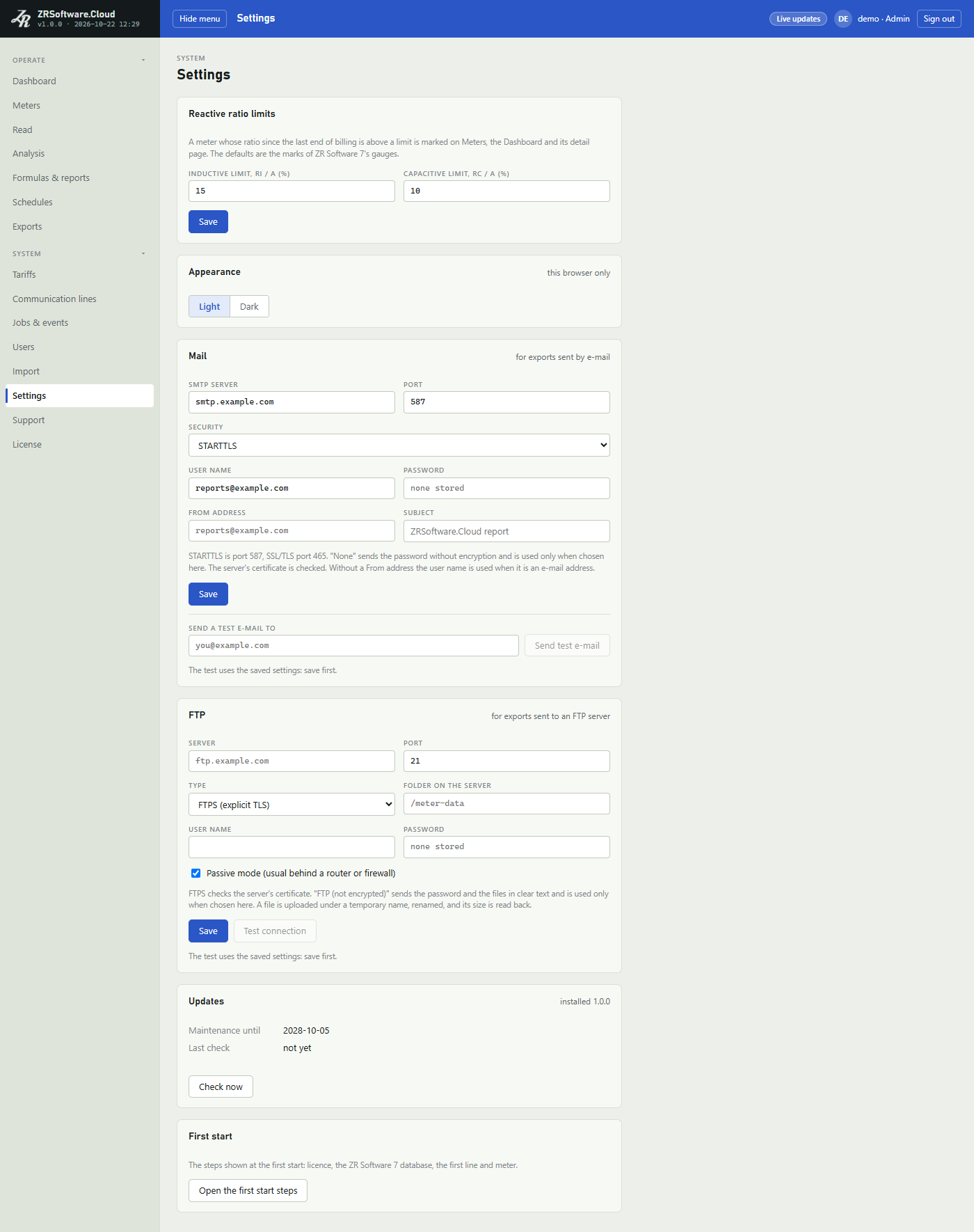
Updates
The Updates card is shown to administrators. Its title line shows the installed version. The card tells whether a newer version of ZRSoftware.Cloud is out and installs it when you ask. The list of versions comes from the REDZ licence server, the same server the online licence uses (see License), so this PC must be able to reach it.
An admin, or REDZ support during a support session, can download and install an update.
| Line | What it shows |
|---|---|
| Maintenance until | The last day of your licence's maintenance, or no end date when there is no licence with an end of maintenance, also during the trial. |
| Last check | When the program last asked for the list of versions, or not yet. After a check that failed, the reason follows. |
| Latest | Only when the last check found a newer version: its number, the day it was released, and whether it is included in your maintenance or came out after your maintenance. |
| What's new | What that version brings, as REDZ wrote it in the list. |
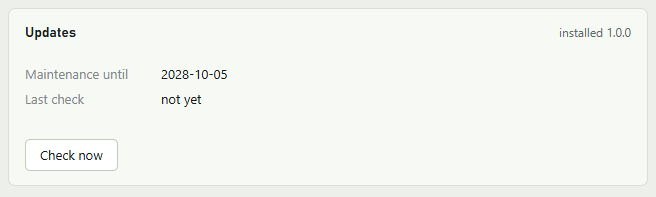
Check now fetches the list at once. The program also checks by itself when the last check is a day old or more: it looks five minutes after the service starts and then every hour. A check downloads and installs nothing.
REDZ signs the list. The program accepts it only when the signature matches a key built into the installed version, so a list that did not come from REDZ is refused and nothing changes; Last check then says "the update list was refused:" with the reason.
A version released on or before the last day of your maintenance can be installed. A version released after it is shown, but it cannot be installed: the card says so and asks you to contact REDZ. When an earlier newer version is still within your maintenance, the card offers that one instead. Without an end of maintenance (during the trial or after it, without a licence, or with a licence without one) every newer version can be installed. When there is nothing newer, the card says that the installed version is the latest version.
- When the card offers a version, click Download (the button names the version). The service downloads the setup of that version from the licence server and keeps it only when its size and checksum match the signed list; otherwise it deletes the file and the card shows why.
- Click Install (it names the version too). The card then says that the updater starts the setup of that version within 5 minutes, that the service stops for about a minute, that a backup is made first, and that the previous version comes back by itself if the new one does not start.
- Within 5 minutes the update task of Windows (see Installation and first start) checks the downloaded setup against the signed list once more and runs it without pages. The setup upgrades the program in the steps described in Installation and first start: it stops the service, copies the database, and starts the old version again if the new one does not answer.
The card then shows the time and the last result of the updater: that it started the setup, or why it refused to. The steps of the upgrade itself are in setup.log in the data folder. An update installed from the Updates card runs the setup without its pages; what it reports is in setup.log. The card does not say whether the upgrade itself worked: look at the installed version in the title line, and at setup.log.
When the updater refused to start the downloaded setup, the card shows why in the last result and offers Download again for the same version; Install is offered again once that version is downloaded again.
After an update, click Check now: until the next check the card still shows what the last check offered.
Every download and every install request is written to Jobs & events with the source Update, also when it is refused (see Jobs & events). A Check now that fails is written there too, as a warning with the source Update that starts "update check failed:" and gives the reason. A check that works, and the program's own check, leave no row of the source Update.
| Message | What to do |
|---|---|
| "no update list has been published yet" | REDZ has not published a version list. Nothing to install; check again later. |
| "check for updates first" | Click Check now, then Download. |
| "download the update first" | Click Download before Install. |
| "the licence server could not be reached" with a reason | This PC cannot reach the REDZ licence server at the moment, or, after Download, the file could not be written on this PC. Check the PC's internet connection, then click Check now or Download again (see Troubleshooting). |
First start steps
The card First start is shown to administrators. Open the first start steps opens the steps of the first start again (see Installation and first start).
License
The License page shows the licence of this PC. Everyone who signs in sees the status; only administrators see the cards that request, activate, load, move or remove a licence.
During the trial, when meters are not read because of the licence, after maintenance has ended, and in the seven days of reading described under Withdrawn below, a strip at the top of every other page shows the licence message and a License link to this page. The strip is red when meters are not read, and amber otherwise.
The status
The Status card shows the state of the licence, the program's message about it and these facts:
| Line | What it shows |
|---|---|
| Licence, Customer | The licence number and the customer, when a licence is loaded. |
| Valid until | The last day of the licence or the trial and the days left, or No end date for a licence without an end date. Without a licence or trial it shows a dash. A licence ends at the end of that day by the PC clock. |
| Meters | The number of active meters and the licence's meter limit, or "no limit". |
| Features | The parts of the program the licence includes, or All features. While meters are not read, only the parts that stay open then. |
| Maintenance until | The last day of maintenance, marked "ended" after that day. |
| Machine ID | A short code of this PC and how many of its three parts the program could read. On a virtual PC a virtual PC chip follows it. |
| Last check-in | When the program last asked the REDZ licence server about this licence, and the answer; for a licence file made for a PC without internet, that it is not checked online. |
| State | Meaning |
|---|---|
| Trial | The trial runs. Meters are read; every feature is open and there is no meter limit. |
| Licensed | A licence for this PC is loaded and valid. |
| Trial ended | The trial is over and no licence is loaded. Meters are not read. |
| Ended | The licence's last day has passed. Meters are not read. |
| Another PC | The licence is for another PC. Meters are not read once the trial is over. |
| Clock behind | Without a licence once the trial has begun on this PC, or with a licence that has an end date: the PC clock is more than 24 hours behind a time the program has already seen. Meters are not read; see The check-in below. The program also counts the time it has been running, so setting the clock back by less than 24 hours again and again adds up. |
| Version after maintenance | This version of the program was built after the maintenance of the licence ended. Meters are not read; install a version released by the last day of maintenance, or ask REDZ to extend the maintenance. |
| Withdrawn | The seven days of reading after one of the licence server's answers or the long time without it (see The check-in below) have passed, or the licence server said that this virtual PC is a copy, which stops reading at once. Meters are not read. |
| No licence | There is no licence and no trial on this PC. Meters are not read. |
On a physical PC a licence stays valid while at least two of its machine parts still match this PC: two of the three, or both when only two could be read. A licence needs at least two machine parts. On a PC where the program can read only one, the licence server refuses a key or a request and says to contact REDZ, and a licence file that knows fewer than two parts counts as one for another PC. On a virtual PC every part must match (see below).
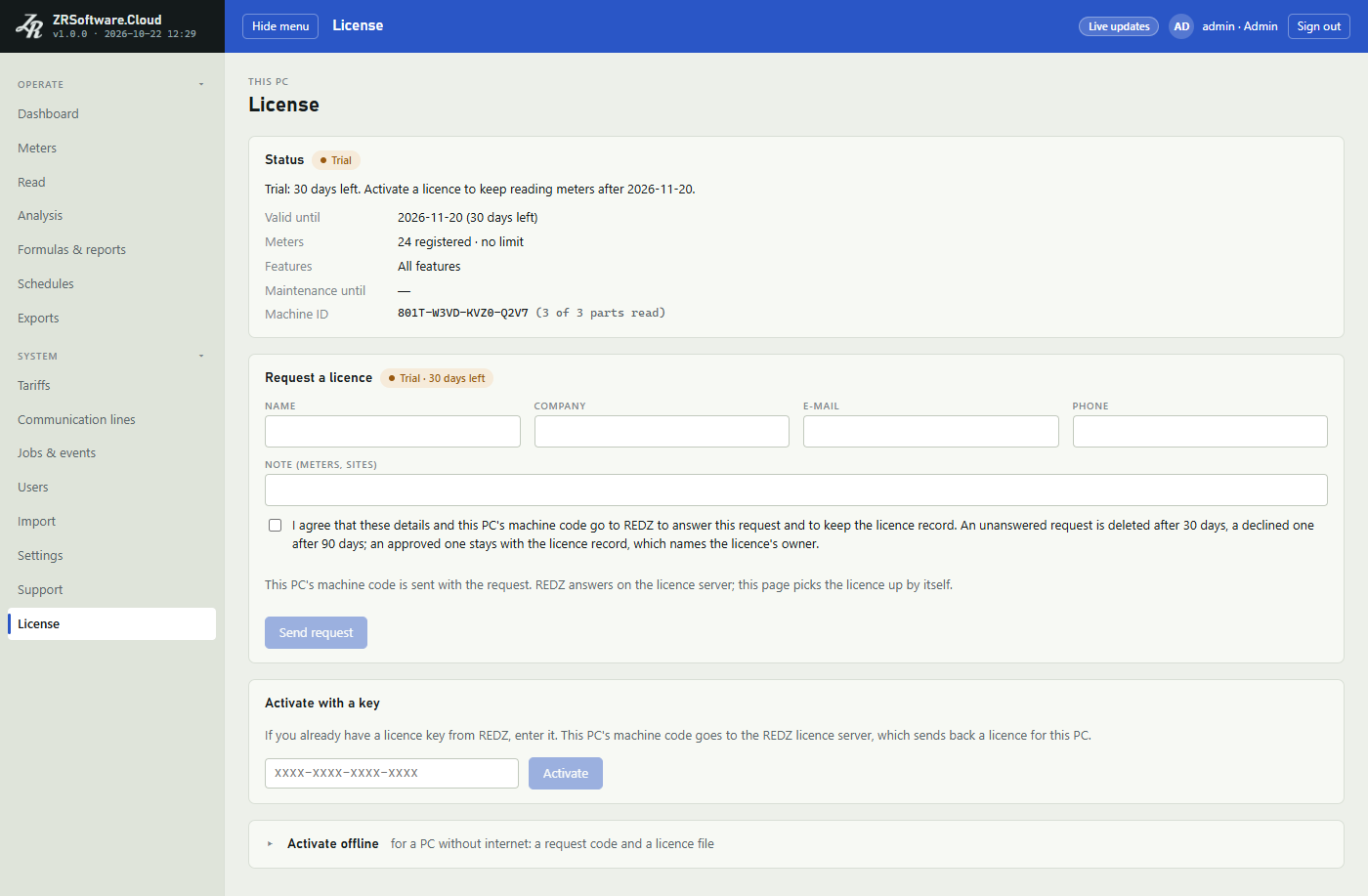
The trial
The program runs as a trial for 30 days, counting the day it first ran on this PC. During the trial every feature is open and there is no meter limit. The message shows the days left and the last day.
The 30 days count from that first day even when a licence is loaded from the start. Removing or moving the licence therefore does not start a new trial: without a licence, meters are read only while those 30 days still run.
The first day of the trial is kept so that removing the data folder or a part of it does not start a new trial. A data folder copied from another PC does not bring a new trial.
Ways to get a licence
A licence works only on the PC it was made for. A licence key can be in use on as many PCs at the same time as REDZ set for that licence, one unless REDZ set more. There are three ways to get a licence, all on this page:
- Request a licence: send your details to REDZ over the internet; the licence arrives by itself once REDZ approves it.
- Activate with a key: enter a licence key you already have from REDZ.
- Activate offline: for a PC without internet, exchange a request code for a licence file.
The first two need this PC to reach the REDZ licence server. Setup sets its address, so on an installed program without a licence both cards are on the page and Activate offline is folded below them; click its title to open it.
Requesting a licence
The Request a licence card is there while no licence is loaded. During the trial its title shows the days left.
- Fill in Name, Company and E-mail. Phone and Note (meters, sites) are optional; use the note to tell REDZ how many meters and which sites the licence is for.
- Read the agreement below the boxes and tick it. It says that the details and this PC's machine code go to REDZ to answer the request and keep the licence record, how long REDZ keeps an unanswered or a declined request, and that an approved request stays with the licence record.
- Click Send request. It is available once the agreement is ticked and the name, company and e-mail are filled in.
An approved request, with the details in it, stays on the licence server with the licence record, as the agreement says. A withdrawn request is deleted at once; unanswered and declined requests are deleted after the times the agreement names.
The request carries the details you typed, this PC's machine code and the program version. The machine code holds only codes made from the parts of this PC, never their serial numbers.
REDZ sees the request on its licence server and approves it with the terms of your licence, or declines it, with a note if REDZ writes one.
After sending, the card shows the request number, the time it was sent, your contact details and a chip that says it waits for REDZ.
- The page asks the licence server about the request every 30 seconds while it is open, and the program asks every 15 minutes without the page. Check now on the card asks at once.
- When REDZ approves, the licence loads by itself and the card goes away. If the page is open at that moment, a green banner names the licence received from REDZ; the event log has a line in any case.
- Change the contact details opens the boxes again while the request waits. Save the contact details corrects them on the licence server. The Note (meters, sites) box opens empty, and what it holds when you save replaces the note sent with the request: type the note again. Cancel closes the boxes without sending anything, but the card goes on showing what you typed until the page is opened again.
- Withdraw the request deletes the request on the licence server, and the form shows again.
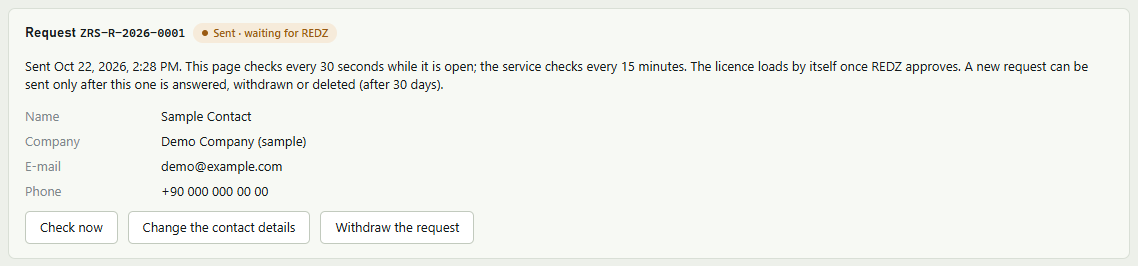
Note
This PC can have one request waiting at a time. A new one can be sent after it is answered, withdrawn, or deleted by the licence server after 30 days.
If REDZ declines the request, or the licence server no longer has it, an amber banner on the card says so, with REDZ's note if there is one. Click OK to clear it and send a new request.
What goes wrong with a request, for example when the licence server cannot be reached, is shown in red at the top right of the card itself.
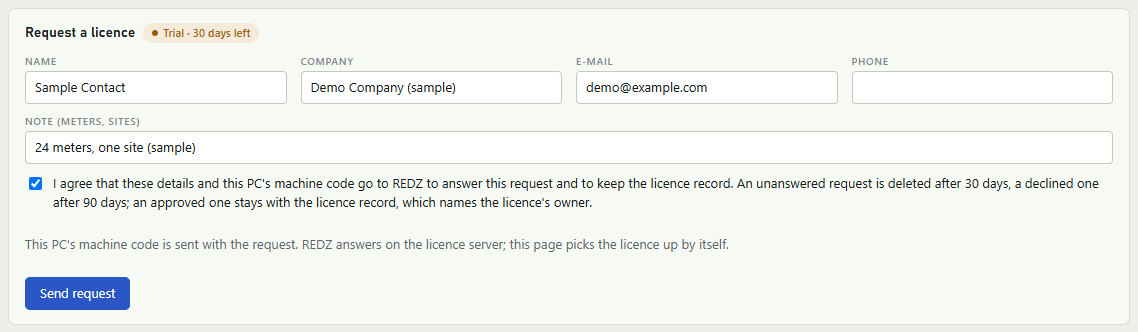
Activating with a key
- In Activate with a key, type the licence key: 16 letters and digits in four groups.
- Click Activate. The key, this PC's machine code and the program version go to the REDZ licence server, which sends back a licence for this PC.
A green banner names the licence activated online. If the server refuses, a red banner at the top of the page says why, for example: the key is not known, the licence was withdrawn or has ended, or it is in use on another PC and must be moved from there first.
The licence file
Without internet on this PC, you get the licence as a file from REDZ or from the partner you bought the program from, in exchange for this PC's request code.
- On the License page, open Activate offline (click its title if it is closed).
- Send the request code to REDZ or to your partner: click Copy request code and paste it into your message, or take a photo of the QR code next to it.
- REDZ or your partner sends back a licence file, license.zrl.
- Click Load licence file and choose the file.
When the file is accepted, a green banner names the licence number and the status changes at once. The program keeps the file as license.zrl in its data folder.
Note
Loading a licence file, or activating one online, replaces the licence in use: the new licence is written over license.zrl.
The program refuses a licence file and says why when:
- the file is not a licence file ("not a licence file");
- the file was changed after REDZ made it ("the signature does not match");
- the licence was made with a key this version of the program does not know;
- the licence is for another PC; the message says how many of the machine parts match, or why the licence fits no PC;
- the licence was removed from this PC before; ask REDZ or your partner for a new one;
- the file is larger than 64 KB;
- this PC is a virtual PC, which takes its licence online only (see below).
A licence file made for a PC without internet is not checked with the licence server; Last check-in says so.
The check-in
With a licence activated online or received through a request, the program checks in with the REDZ licence server once a week, and on a virtual PC once a day. The check-in sends the licence number, this PC's machine code, the program version and the number of active meters, and also the check-in counter the licence server gave this PC last. When the server cannot be reached, the program tries again after six hours; it also checks in every six hours while meters are not read and during the seven days of reading described below.
Only the REDZ licence server's own answer to this check-in counts; any other answer is taken as "the licence server could not be reached".
The licence server keeps each check-in with the licence record: its time, the program version and the number of meters. It keeps them with no time limit. With each check-in it also keeps, with no time limit, the record of this PC's seat: a code made from parts of the PC, the last version and the number of meters.
Administrators can check in at once with Check now under the facts of the Status card.
If the PC clock was set forward and then put right, the state becomes Clock behind and meters are not read. With a licence that is checked online, a good check-in puts it right. Otherwise contact REDZ. A clock that was set back and is then put right does not stop the reading.
When the licence server says that the licence was withdrawn or moved, or that it does not know it on this PC, the program goes on reading meters for seven days and then stops (the state Withdrawn); a copy of a virtual PC stops at once. On a physical PC the same seven days follow when the licence server says that this PC checked in with an old counter: a copy of this PC, a second installation on it, or one put back from a backup. From that answer on, the licence server gives the same answer to every check-in of this PC's licence, also to the installation that was there first, until REDZ accepts the PC again; activating the licence again does not change it.
The message on the Status card and the strip at the top of the other pages then say so and until when meters are read; go by that message. The seven days count from the day the licence server gives for that change, or else from its first such answer. Contact REDZ. When the server later answers that the licence is fine again, the seven days are cancelled.
An online licence also needs the licence server now and then. If this PC has not reached it for more than 60 days, on a virtual PC for more than 7 days, the message and the strip say so and the seven days of reading begin, counted from the day that time ran out. As the message says, "let this PC reach the licence server (a good check-in reads meters again), or contact REDZ." A licence file made for a PC without internet is not counted this way.
Virtual PCs
When the firmware of this PC names a virtual machine maker, the program treats it as a virtual PC and shows the virtual PC chip next to the Machine ID. On a virtual PC:
- the licence is activated online only, with a key or a request; a licence file is refused and Activate offline says so. A licence file that reaches the data folder another way is not used either: the message begins "The licence file was not accepted: on a virtual PC the licence is activated online";
- a licence made for a physical PC does not fit: the message says "it was made for a physical PC and this is a virtual PC";
- the licence fits only while every part of the virtual PC still matches, a fourth part that tells virtual PCs apart included;
- the program checks in every day;
- if a copy of the virtual PC, or one put back from a snapshot, checks in, the licence server marks the licence of this virtual PC as copied: from then on it answers "copied" to the original as well as to the copy. From that answer the state is Withdrawn and meters are not read, without the seven days; the message on the Status card says so. Contact REDZ: when the licence server answers that the licence is fine again, reading starts again;
- if the virtual PC has not reached the licence server for more than seven days, the message and the strip say so and the seven days of reading begin; let the PC reach the internet again: a good check-in reads meters again.
Features and the meter limit
A page whose feature the licence leaves out is not in the menu, and the program refuses its actions.
| Feature | Pages |
|---|---|
| Analysis and tariffs | Analysis, Tariffs; also the analysis of a formula or a custom report |
| Formulas, Custom reports | Formulas & reports |
| Schedules | Schedules |
| Exports and e-mail | Exports; on Settings, the cards Mail and FTP are shown only with it |
| Import | Import |
| Manual edit | No page of its own: typing in, importing and removing the load profile values of a virtual meter on Analysis. Without it these tools are not on the page, and a note says that the licence does not include Manual edit. |
An export of a formula or a custom report needs that feature as well as Exports and e-mail; without it the run is skipped and says that the licence does not include it.
The meter limit counts active meters. Virtual meters count toward the meter limit too. When the limit is reached, no meter can be added or brought back from the archive, and the program says how many meters the licence allows; archive a meter or ask REDZ or your partner for a larger licence.
When more meters are registered than the licence allows, the meters registered first are read, as many as the limit, virtual meters among them; a virtual meter is never read, and its place does not go to another meter. The others, for example meters added during the trial, keep their data but are not read. Read now and Read the missing profile refuse them with the reason, a schedule counts them as not read in its event log row, which is then a warning, and a job queued for them ends with the same reason. Archive meters, or ask REDZ or your partner for a larger licence.
When the licence ends
When the trial or the licence ends, the PC clock is behind, the version was built after maintenance, the licence is for another PC, or the licence is withdrawn, the program stops reading meters, and schedules and automatic exports stop too; the import and the manual edit tools close as well. Your data stays.
The message on the License page and in the strip says so, for example: "Meters are not read and automatic exports do not run."
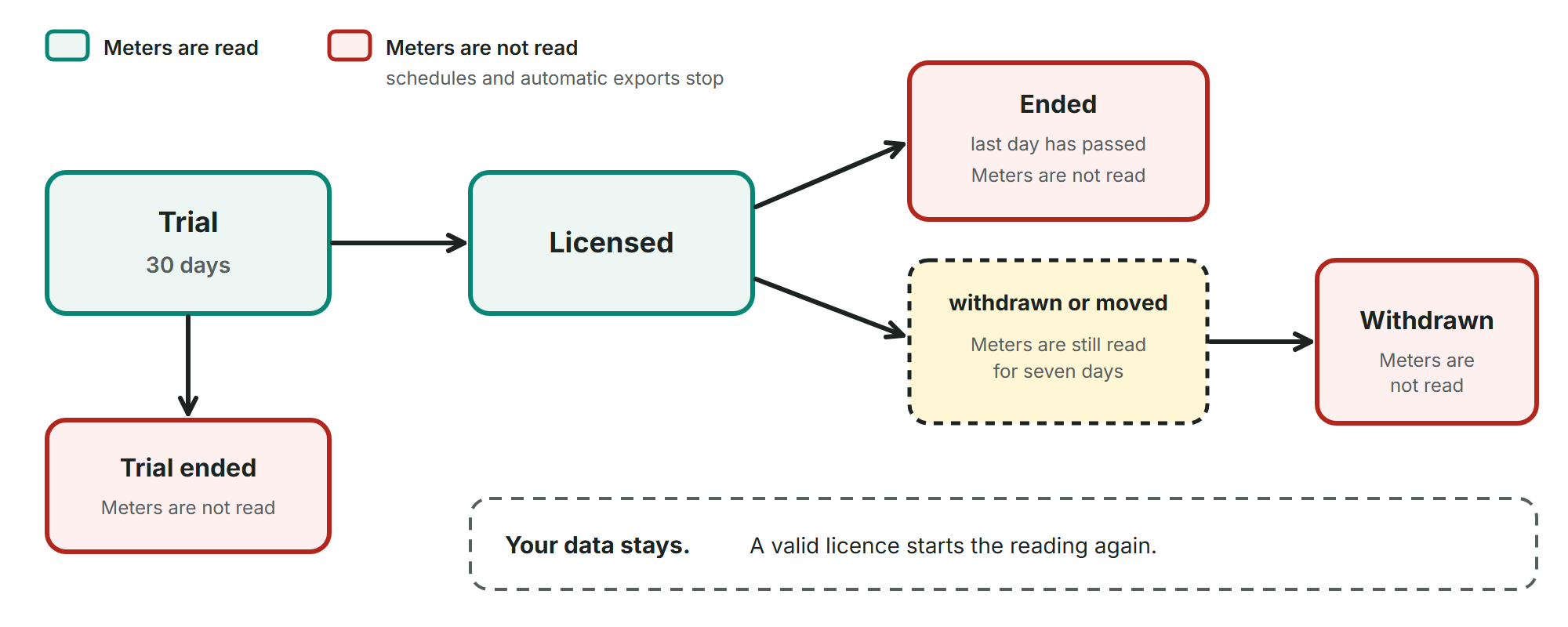
| Stops | Stays open |
|---|---|
| Reading meters, also reading missing load profile intervals and jobs already queued | The stored data, the meter pages and the analysis |
| Schedules: the Schedules page leaves the menu | Tariffs, Formulas & reports and their analysis, when the licence includes them |
| Automatic exports | Running an export at once with Run now |
| The Import page and the manual edit tools of Analysis | Adding and changing meters and lines |
A run of a schedule or an automatic export that was skipped is not made later: the next run is at its next planned time. Each skipped run writes a warning to the event log; see Jobs & events. A valid licence starts the reading again.
Note
When maintenance ends, the licence keeps working and meters are still read; the strip at the top shows the message about maintenance. Maintenance decides which updates this PC can install: the Updates card offers the newest version released by the last day of maintenance; a later one is named but not installed; see Settings. A version built after maintenance ended, also one installed by hand, does not read meters with this licence: the state is Version after maintenance.
Moving the licence to another PC
Before this PC is replaced, move a licence that was activated online, so it can be activated on the new PC.
- In Move licence to another PC, type the licence key.
- Click Move licence, then confirm with "Move", or click "Keep it here" to keep the licence on this PC.
- The licence leaves this PC and the page shows a Removal code. On the new PC, activate the licence with the same key.
Note
A licence received through a request comes without a key, so it cannot be moved with this card: ask REDZ for a key, or remove it from this PC (below), which also frees this PC's seat on the licence server.
Removing the licence
Before this PC is replaced, the licence can also be removed from it. This is the way for a licence loaded from a file, so that REDZ or your partner can make a licence for the new PC.
- In Remove the licence, click Remove licence.
- Confirm with Remove, or click "Keep it" to keep the licence.
- The page shows the Removal code with a note. Click Copy removal code if the note asks you to give the code to REDZ, and give it to REDZ or to your partner.
Before removing, the program asks the REDZ licence server to free this PC's seat. It sends the licence number, this PC's machine code and the licence file loaded here, which the licence server compares with the file it gave this PC. The note on the Removal code card says what happened:
- "The licence server freed this PC's seat: the licence can be activated on another PC now. Keep the code for your records." This is the answer for a licence the licence server gave this PC: activated with a key, received through a request, or a licence file REDZ made on its licence server.
- Otherwise the note says that the licence server did not free the seat, and why, for example when it cannot be reached or does not know the licence. The licence is still removed from this PC; give the removal code to REDZ or to your partner.
The event log has a line with the licence number, whether the seat was freed, and the removal code.
Warning
Removing cannot be undone. The licence file is deleted and the same file cannot be loaded on this PC again. After removing or moving the licence, meters are read only while the 30 days of the trial of this PC still run.
Note
During a REDZ support session REDZ support can also do what this page offers administrators, for example load, move or remove the licence; each such change leaves a line in Jobs & events. See Support.
Support
The Support page is where you get help from REDZ support, or from the partner you bought the program from. It is in the System menu for administrators and has two cards: Request REDZ support, and Diagnostics with the support bundle.
Requesting REDZ support and sending the bundle to REDZ need this PC to reach REDZ over the internet; setup sets the address. Downloading the bundle works without the internet.
Requesting REDZ support
When REDZ support needs to look at this program, for example at a meter that is not read, ask for it here. REDZ support can then work in this program through REDZ's connection for the time you choose. As the card says: "Nothing on this network is opened, and nothing needs to be set up."
- Choose how long: 4, 12 or 24 hours. 12 hours is chosen first.
- Under What is the problem?, say what REDZ support should look at. Fill in Name and E-mail; Phone is optional.
- Read the agreement and tick it. It says: "I agree that REDZ support may reach this program through REDZ's connection for the time chosen, with the details above. Every change REDZ makes and every file or reading trace it takes is in Jobs & events (the pages it only looks at are not); I can end it at any time."
- Click Request support. It is available once the agreement is ticked and the name and e-mail are filled in.
The request sends the time chosen, the problem, your name, e-mail and telephone number, this PC's machine code, the licence number if there is one, and the program version to REDZ.
If REDZ cannot open the connection, or cannot be reached, a red banner on the card says so; try again in a few minutes or call REDZ.
The card then turns into REDZ support is connected, with the time it ends and its number. A green banner says until when REDZ support can reach this PC. The card repeats that every change REDZ makes and every file or reading trace it takes is in Jobs & events, and that the pages it only looks at are not.
- It ends by itself at that time.
- End now ends it; a green banner says "REDZ support ended."
- When REDZ ends it, the program notices within about 70 seconds while this PC reaches the REDZ licence server; if it cannot reach it, the session runs until its time. End now here always ends it: the program first tells the licence server, and when that server does not answer, the end can take up to about 40 seconds.
When you or REDZ end the session, the program also removes the details of REDZ's connection that the session brought; the next request brings them again.
If REDZ's connection cannot be made while the session runs, Jobs & events gets a warning with the source REDZ support: "REDZ support could not connect; ask REDZ".
While REDZ support is connected
While a REDZ support session runs, every user who signs in sees a small green window at the top right of every page. It says until when REDZ support is connected, and "REDZ is working in the program now." while REDZ support has used the program, or had it open, in the last two minutes.
For an administrator the window opens with a click on its title. Closed, its title offers the chat and End now, or says how many new messages from REDZ wait; open, it shows Chat with REDZ and End now, and its title says Hide. When REDZ writes a new message, the window opens by itself. Other users see only the line, without the chat.
The Support page says so too: "The chat with REDZ is in the green window at the top right of every page."
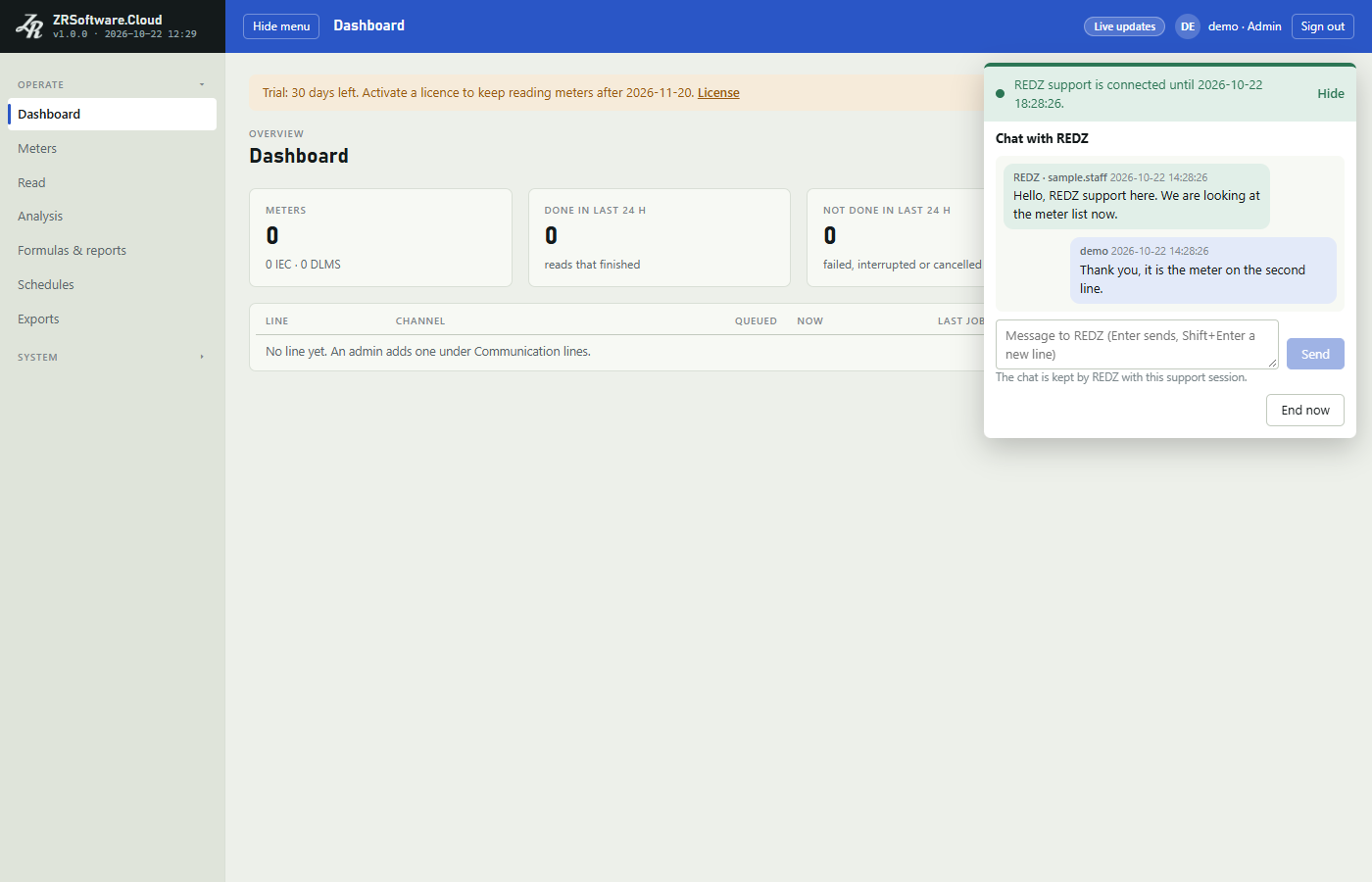
- Type your message in the box at the bottom of Chat with REDZ, at most 2000 characters. Enter sends it; Shift+Enter starts a new line.
- Or click Send.
Each message shows who wrote it and when: your messages carry the user name you signed in with, and REDZ's carry REDZ and the user name of the REDZ staff member. The messages from this program are on the right, REDZ's on the left. While the window is open, it asks for new messages every 5 seconds.
If the licence server cannot be asked for a moment, the window says "REDZ could not be asked just now" with the reason, and tries again.
End now in the window ends the session like the button on the Support page. When the session ends, by you, by REDZ or by its time, the green window goes away, and Jobs & events has the row that says how it ended.
What REDZ support can do
REDZ support signs in with its own user, which is not in your Users list. That user can sign in only while the time runs. When it ends, the user is turned off.
While a REDZ support session runs, REDZ support works with the rights of an Admin. It cannot change or test the mail settings, its own account or the support session; only an import of a ZR Software 7 database during the session, also a copy that REDZ support uploads, can still set that database's mail server, with user name and password, when none is set here and the licence includes Exports and e-mail.
REDZ support can add users, Admins too, change their role, turn them on or off and reset a password, but not the password of the last enabled Admin. REDZ support types the one-time password. A user whose password is reset is signed out and must sign in with that one-time password, so ask REDZ for it; a user added this way signs in like any other user, sets an own password at the first sign-in, and stays after the session ends. Each of these changes leaves a row with the source Auth that names REDZ support's user; see Users.
Warning
Everything else an administrator may do stays open while the time runs, also what cannot be undone: for example loading, moving or removing the licence, changing the FTP settings and meter passwords, deleting lines, schedules, exports, tariffs, formulas, reports and groups, removing the values of a virtual meter, adding an export that e-mails data to any address, installing an update, importing, or sending the support bundle. An import during the session works as it does for you: the passwords in an Excel file and the meter passwords of a ZR Software 7 database are saved, and the old database's mail server comes in as said above. End the session with End now when the work is done.
What the event log shows
During a REDZ support session, Jobs & events gets a row with the source REDZ support for each change REDZ support makes or tries to make, and for each file or reading trace it takes: what was done, on which page, and the answer. A change that was refused or failed is a warning. What was typed, for example a password, is not in the row. Pages that REDZ support only looks at leave no row.
When REDZ support saves the chart as a picture or prints a page, the program tells the service and Jobs & events gets a row.
A change of REDZ support's own password or of the support session is named "a closed setting"; a refused change of the mail settings or of a user names the page and item like any other row. Requests that only check or test leave such a row too, for example the preview of an import, a check of the licence or for updates, or a test of the FTP connection; while a licence request waits, the License page asks about it every 30 seconds and each time leaves a row. Saving an opened reading trace as a text file leaves no row of its own: opening the trace already did.
Rows with the same source also say when a session starts, with the user who asked for it, and when it ends: ended early by you, ended by REDZ, its time ran out, or it is over on the licence server. A row with the source Auth says when REDZ support signs in through REDZ's connection, with the session number; see Jobs & events. The chat messages are not in Jobs & events.
Note
Your details and the problem are seen by REDZ staff on the REDZ licence server. The licence server keeps the record of each support session and support bundle (who sent it, contact details, note) with no time limit; a support bundle's file is deleted after 90 days. The chat lines (time, who wrote it - the user name in the program or of the REDZ staff member - and the text) are kept on the licence server with the support session, with no time limit. The program keeps only the lines of the running session while it runs. The chat says so in short: "The chat is kept by REDZ with this support session." The name you type in the first request and the licence number become the name of this PC's connection at REDZ; later requests keep it.
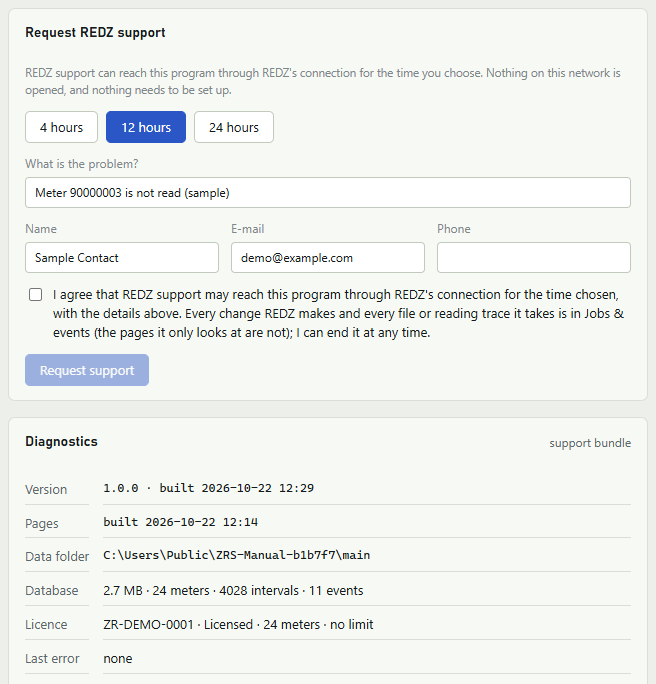
Diagnostics
The Diagnostics card shows the facts support asks for first:
| Line | What it shows |
|---|---|
| Version | The program's version and build date. |
| Pages | When the pages in the browser were built. |
| Data folder | The folder that holds the program's database, logs and licence. |
| Database | The size of the database and how many meters, profile intervals and events it holds. |
| Licence | The licence number, its state in the words of the License page, the number of meters and the meter limit. |
| Last error | The time, source and text of the latest error in the event log, or "none". |
What is in the support bundle
Below the facts, the table In the support bundle lists every file of the bundle with its Size and What it holds, before you download or send anything. The list is made the same way as the bundle itself.
| File | What it holds |
|---|---|
| about.json | Version, build, Windows and .NET version, the PC name, the data folder, the database size and counts, the licence (number, customer, partner, state, features, limits, dates, machine ID), the last error, and what setup recorded: the version, the program and data folders, the port, the path of a ZR Software 7 database, the times of install and upgrade, and setup's options. |
| config.json | Lines, meters, schedules, exports, tariffs, formulas, reports, users and settings, without passwords. |
| events.csv | The event log of the last 90 days. |
| jobs.csv | The reading jobs of the last 30 days: meter, kind, state, times, outcome and message. |
| logs/ | The service's daily log files (the program keeps 14 days, at most 50 MB). |
| setup.log | What setup did: install, upgrade, uninstall. |
| README.txt | What is in the bundle and what is not. |
What stays out
The lists in the bundle are built field by field; only the service log files and setup.log are copied whole. These stay out:
- the database and its backups, and imported old databases;
- passwords in the lists: meter passwords (config.json says only whether a meter has one), the mail password, the FTP password and user passwords;
- keys and tokens: a setting whose name contains password, secret, key, token or hash never goes into the bundle, even when it is not marked secret (the fingerprint of a trusted SFTP server key, which is not secret, is in the event log);
- the licence file;
- meter readings and load profile values.
Note
config.json holds meter serial numbers and locations, the addresses of the lines (IP address, COM port), user names, the targets of the exports (folders and e-mail addresses) and the settings that are not secret, among them the mail and FTP servers with their user names, and the port, type and folder of the FTP server. The event log in the bundle also names the FTP server and the fingerprint of a trusted SFTP server key. Support needs them to look at a problem.
Downloading the bundle
- Click Download support bundle.
- The browser saves the zip as a download. The name has the PC name and the time, for example ZRSoftware_support_OFFICE-PC_20261017-1430.zip; the green banner shows the name.
- Send the file to REDZ support, or to the partner you bought the program from.
Each download writes a line to the event log with the file name, its size and the user who made it; see Jobs & events.
Sending the bundle to REDZ support
The part Send to REDZ support of the Diagnostics card, below the download button, sends the same bundle straight to REDZ support.
- Under What happened? (optional), describe the problem.
- Fill in Name, E-mail and, if you like, Phone, so REDZ can answer you. The bundle can also be sent without them.
- Read the agreement and tick it. It lists what the package holds, the mail and FTP server and user names among them, and says that REDZ uses it only to answer this request, keeps it for 90 days and deletes it earlier on request.
- Click Send. It is available only while the agreement is ticked; nothing is sent without it, and it must be ticked again for every bundle.
With the bundle go the licence number, this PC's machine code, the program version, your text and your contact details. A green banner shows the ticket number REDZ gave the bundle, its size and how many days REDZ keeps it, and a line goes to the event log with the ticket and the user who sent it.
REDZ takes a bundle of at most 30 MB. It is kept on the REDZ licence server for 90 days, where REDZ staff can open it, and then deleted. The ticket stays there with its number, your text and your contact details.
If REDZ refuses the bundle, for example when it is larger than 30 MB, or REDZ support cannot be reached, a red banner says so; download the bundle and send it by e-mail instead.
Note
The program remembers the name, e-mail and telephone number you type on this PC and fills them in the next time you request support, send a bundle or request a licence. Emptying a box does not make the program forget what it remembered; the details stay in the program's data folder on this PC.
Troubleshooting
This chapter lists the messages the program itself shows, why they appear and what to do. The service's messages appear in a banner on the page or under a form; the result of a meter read appears on the Read page and in the Message column of Jobs & events (see Jobs & events). A message that contains a name, a number or a time is described here in words, not quoted.
Signing in
| What you see | Why | What to do |
|---|---|---|
| "Wrong user name or password", sometimes with the number of attempts left or with the news that the account is now locked | The user name is unknown or the password is wrong. On My password the Current password is wrong. | Type both again. After five wrong passwords in a row the account is locked for 15 minutes (see Signing in and the window). |
| A message that there were too many wrong passwords, with the minutes to wait, or "The account is locked" | The account is locked after five wrong passwords in a row, also when they were typed as the Current password on My password. | Wait the minutes the message names, at most 15, or ask an admin for a new one-time password (see Users). |
| "The account is disabled" | An admin has disabled the account. | Ask an admin to enable it on the Users page (see Users). |
| "The two new passwords are not the same." | New password and New password again differ. | Type the same password in both boxes. Show the password shows what you typed. |
| "The password must be at least 10 characters" | The new password is too short. | Choose a password of 10 characters or more. |
| "The password must not be the user name" | The new password is the user name. | Choose another password. |
| "The new password must differ from the current one" | The new password is the same as the current one, or as the one-time password. | Choose another password. |
| The sign-in page appears while you work, with "The session has ended. Sign in again." | A session lasts 8 hours. It also ends when an admin changes your role or password or disables the account, and when your password is changed in another sign-in. | Sign in again (see Signing in and the window). |
| "The setup link is used or expired. Sign in as admin with the one-time password." | The setup link of the setup's Finish page works once and for 15 minutes. | Sign in as admin with the one-time password (see Installation and first start and Signing in and the window). |
Note
On My password the same messages of the service start with a small letter, for example "wrong user name or password".
A user who still knows the password changes it on My password (click your user name in the top bar). A user who has lost the password gets a new one-time password from an admin (see Users).
When no admin can sign in, because the admin password is lost, the account admin is disabled, or the account admin is locked and you cannot wait for the 15 minutes of the lock to end, an administrator of the PC gives the account admin a new one-time password:
- Open Windows PowerShell started as administrator: right-click it and choose Run as administrator.
- Run the program's file with the switch
--reset-admin-password: in PowerShell type & "C:\Program Files\REDZ\ZR Software\ZRS.Service.exe"--reset-admin-passwordand press Enter (in a Command Prompt started as administrator the same line without the & at the start). - The command shows the user name admin and a new one-time password, and, in lines that start with "Also:", anything else it changed. Its last line names the file admin-initial-password.txt in the data folder, where it also writes the user name and the password.
- Sign in as admin with that password. The page Set your password opens; set your own password (see Signing in and the window).
Note
If PowerShell or the Command Prompt was not started as administrator, the command changes nothing, shows "Run this in a PowerShell (or Command Prompt) started as administrator" and ends with the exit code 5. Close it and open it again with Run as administrator.
The command also enables and unlocks the account admin and ends its open sessions; the old admin password no longer works. The Event log on Jobs & events keeps a warning that starts with "admin password reset from the command line" and names the Windows account that ran the command.
Warning
The command always makes the account admin an enabled administrator again: if an admin had disabled it or changed its role, it is enabled and gets the role Admin; the lines "Also:" and the warning in the Event log say so. If the account should stay disabled, an admin disables it again on the Users page (clear Enabled) after signing in with another admin account.
The pages do not open
The pages come from the Windows service of the program, not from files on the desktop. When the browser cannot open http://127.0.0.1:5080, check these points in this order:
- Is the service running? Its name in Windows is ZRSoftware.Cloud (service name ZRSoftware); Installation and first start lists how it is set up. If it is stopped, start it and open the address again.
- Is it the right port? If a port other than 5080 was chosen during the setup, the address uses that port. The desktop shortcut ZRSoftware.Cloud, if the setup made one, opens the port the setup used.
- Is the address typed on this PC? The service answers at 127.0.0.1, the PC itself.
- If the service stops again by itself, look at the newest file in the folder Logs of the data folder (C:\ProgramData\REDZ\ZR Software when Windows is on drive C). The service writes its warnings and errors there, one file per day, named zrs- and the date. What the setup did is in setup.log in the same data folder. Only the service, Windows itself and programs started with administrator rights can open the data folder; other Windows users of the PC cannot. If the service runs, the support bundle contains these files (see Support); otherwise send the files themselves to REDZ support, or to the partner you bought the program from; like the bundle, they can hold line addresses.
After a crash, Windows starts the service again after one minute, for the first two crashes; after a third crash it stays stopped until it is started again. The count starts again after a day without a crash (see Installation and first start).
When the pages are open but the top bar shows Not live instead of Live updates, the live connection to the service is down; the page then changes only when you act. If it stays Not live, check that the service runs, as above.
Reading a meter
A read that fails ends with an outcome such as No answer or Login failed, shown in the job's chip (see Reading meters), and a message. The messages below are the most common. The Line log on the Read page, and Trace on Jobs & events, show what went to the meter and what came back; both are there for operators and administrators.
Note
When a read was tried more than once, its message starts with the number of the attempt and ends, in brackets, with what the attempt before gave (see Jobs & events). The messages below are the part in the middle.
| What you see | Why | What to do |
|---|---|---|
| A message that the line is disabled (Error), for a read that a schedule or Read the missing profile on Analysis started | The meter's line is switched off. Nothing was sent. The Read page does not start a read on such a line; it shows a banner (see the next table). | An admin ticks On for the line on Communication lines (see Communication lines), or takes the meter out of the schedule. |
| A message that starts with "cannot open", followed by the COM port or the IP address and port and the reason | The service could not open the line; the reason follows the channel. For a TCP line one reason is that the address did not answer within 5 seconds. | For a TCP line check the IP address and TCP port of the line and that the gateway or modem is switched on. For a serial line check that the COM port is still in the line's list; a port that Windows no longer lists is shown with (not present). |
| A message that the port or the host is not allowed on this service | The service is set up with a list of allowed COM ports or networks, and the line is outside it. | Use a port or an address from the list the message names, or ask whoever set up the PC. |
| A message that starts with "LineBusy" and says the meter is still sending | Before the sign-on the service heard the meter still sending on the line. Nothing was sent. | Read again when the meter has stopped sending. A scheduled read tries again by itself when its Attempts are more than 1. |
| "The meter did not answer (check the probe alignment and the address)" (No answer) | No identification came back after the IEC sign-on. | On an optical line, check that the probe sits on the meter's optical port. Check also the meter's Physical address and the line (see Meters and groups). |
| A message that the probe is in a mode that does not make the IEC opening (No answer) | The REDZ BT probe is set to a mode in which it does not open the meter. | Set the probe to IEC auto or command mode, as the message says, and read again. |
| "The meter did not answer the IEC sign-on" (No answer) | The service sent the IEC opening first (an optical line, or a TCP line with the IEC opening box ticked) and the DLMS meter did not answer it. | Check the probe and the line's Interface: an optical line opens the meter first, an electrical line talks DLMS directly; on a TCP line the box IEC opening before DLMS (Landis+Gyr over TCP) decides (see Communication lines). |
| A message that there was no answer at a server address and that the physical address may be wrong (No answer) | The DLMS meter did not answer at any address the service tried. | Check the meter's Physical address (see Meters and groups). |
| "the meter record has no HDLC physical address (1..16383)" (Not supported) | The DLMS meter needs an address, and the service has none it can use. | Type the address in the meter's Physical address (see Meters and groups). |
| "The answer is not an identification message" (No answer) | Something answered the sign-on, but not with a meter identification. | Look at the Line log to see what came back, and check the line and the meter's settings. |
| "no password is stored for this meter; nothing was sent" (Login failed) | The DLMS meter needs a password and none is stored. | Type the password in the meter's Meter password (see Meters and groups). |
| "the meter refused the association" (Login failed) | The DLMS meter refused the sign-in (with the stored password, where the meter type uses one). | Where the meter type uses a password, check it and type it again in Meter password. The job does not try a refused sign-in again. |
| A message that the meter refused every password candidate, or that no Itron password could be used because the serial number is not 8 digits (Login failed) | When the registers of an Itron meter are read, the service tries the stored password and, when it is refused, passwords made from the serial number; the meter refused them all. When the serial number is not 8 digits, no password is sent. A password made from the serial number that the meter accepts replaces the stored password, and Jobs & events says so. | Check the meter's Serial no. and Meter password (see Meters and groups). |
| "the stored password cannot be opened on this machine; enter it again" (Login failed) | The password was stored on another PC, for example in a copied database. | Type the password again in the meter's form (see Meters and groups). |
| "The data block ended without ETX and BCC" or "BCC does not match; the block is not trusted"; for a load profile "The profile block ended without ETX and BCC" or "BCC does not match; the profile block is not trusted" (Bad checksum) | The meter's answer arrived incomplete or damaged; the values are not stored. | Read again. A scheduled read tries again by itself when its Attempts are more than 1. |
| "No data block after the option select (speed switch?)" or "No profile block after the request" (No answer) | The meter answered the sign-on but sent no data after it. | Read again. If it keeps coming back, send the trace to REDZ support, or to the partner you bought the program from, as described below. |
| "The meter answered P.01(ERROR) (no profile in the range, or the request is not accepted)" or "The meter refused the profile request (NAK)" (No data) | The meter holds no load profile for the days asked, or does not accept the request. | Choose days for which the meter keeps a profile. |
| A message that the meter type is not read through the REDZ BT probe (Not supported) | Only IEC 62056-21 meters are read through the REDZ BT probe. Nothing was sent. | Read a DLMS meter on a line without the probe (see Communication lines). |
| A message that the type, or this kind of read for the type, is not read by the service yet (Not supported) | The program does not read this meter type, or this kind of read for it. | Check the meter's Type (see Appendix: supported meters). |
| A message that starts with "licence:" (Error) | The job was queued before the licence stopped the reading, or the meter is over the licence's meter limit: the message then says that the licence allows a number of meters, how many are registered and that only that many of the meters registered first are read. Virtual meters count toward the limit too. Under a meter limit, the queued job of a meter that was archived in the meantime also ends so. | See the License page and License. For the meter limit, archive a meter you no longer read, or ask REDZ or your partner for a larger licence. |
| A message that ends with "timed out after", a number of seconds and "(the longest a job may run)" (Cancelled) | The job ran longer than the service lets one job run, and was stopped there. | Read fewer days of load profile at a time, then read again. |
| A message that ends with "cancelled: the service stopped" (Cancelled) | The service was stopped while the job ran. | Read the meter again. |
| "the service stopped while this job was running" (Interrupted) | The service ended while the job ran, before the job was closed. | Read the meter again. |
Some reads are refused before they start, and the Read page shows the reason in a banner:
| What you see | Why | What to do |
|---|---|---|
| "That meter is archived or virtual, so it is not read. Choose a meter above." | The page was opened for an archived meter, or for a virtual meter, which has no line. | Choose another meter. An archived meter is read again after an admin restores it; a virtual meter's values are entered or imported (see Meters and groups and Analysis). |
| A banner that the meter's line is turned off, and Read now is unavailable | An admin has switched the line off. | An admin ticks On for the line on Communication lines (see Communication lines). |
| A banner that the service does not read meters of the meter's type yet, and Read now is unavailable | The program does not read this meter type. | Check the meter's Type (see Appendix: supported meters). |
| "a profile read needs from < to (meter calendar)" | The To day is not after the From (meter calendar) day. | Choose a To day after the From (meter calendar) day. |
| "a profile window is at most 31 days" | The load profile days are more than 31 days apart. | Read the days in parts of 31 days or less. |
| The licence message, for example that the trial has ended | The licence does not allow reading now. | See License and the licence messages below. |
| A message that the licence allows a number of meters and that only the meters registered first are read | The licence has a meter limit and this meter is not among the meters registered first, as many as the limit. Virtual meters count toward the limit too; a virtual meter among the first takes a place but is not read. Its data stays; it is only not read. | Archive a meter you no longer read, or ask REDZ or your partner for a larger licence (see License). |
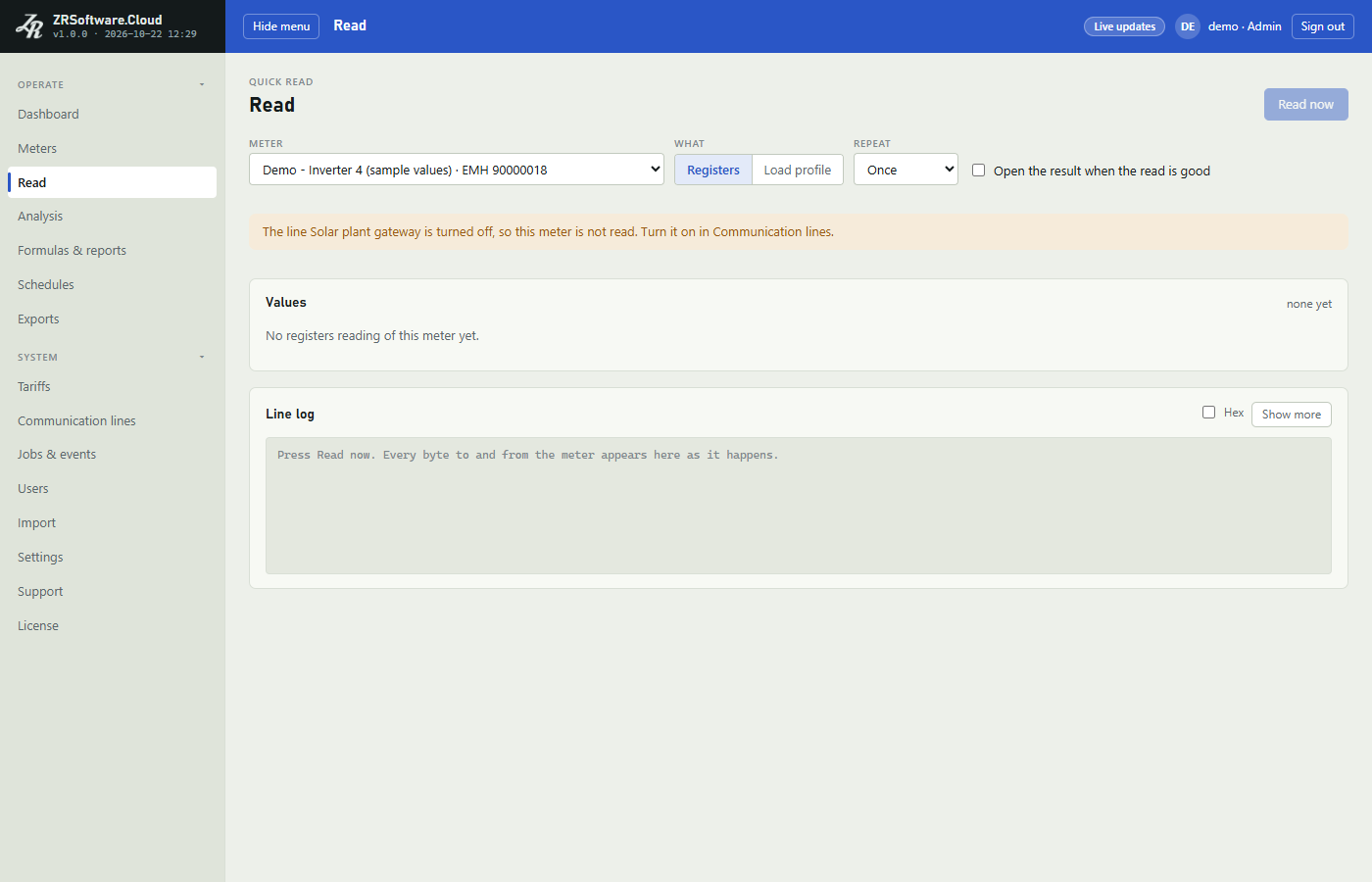
If a message keeps coming back, save the trace of the job with Save as .txt on Jobs & events and send it, together with the support bundle, to REDZ support or to the partner you bought the program from. The bundle itself does not hold the trace. An admin can also send the bundle straight to REDZ support from the Diagnostics card of the Support page (see Support); the saved trace then still goes separately.
Lines and meters
| What you see | Why | What to do |
|---|---|---|
| After Delete on Communication lines, a message that a number of meters use the line, archived ones included | A line is deleted only when no meter uses it, also no archived meter, which keeps its history. | Move the meters to another line with Move to line on Meters first (tick Show archived to choose the archived ones too), or keep the line and clear its On box (see Communication lines). |
| After Delete, a message that the line has a job waiting or running | A job of the line is still queued or running. | Delete the line when the job has finished. |
| Under the meter form, a message that the meter is already on the list, with that meter's location | Another active meter has the same type and serial number. | Open the meter that is already on the list and change it there (see Meters and groups). |
| Under the meter form, "this meter has read values: a read meter does not become virtual (its read values would be open to hand edits). Add a virtual meter instead." | The meter was given the type Virtual, but it has been read; its read values stay as they were read. | Keep the meter's type, and add a new meter of the type Virtual for the values you want to enter (see Meters and groups). |
| After Restore, a message that the licence allows a number of meters | A restored meter counts against the licence's meter limit again, and the limit is reached. | Archive a meter you no longer read first, or ask REDZ or your partner for a larger licence. |
Schedules and exports
| What you see | Why | What to do |
|---|---|---|
| A schedule does not run; its row has the chip off | The schedule is turned off. | An admin edits it and ticks On (see Schedules). |
| A schedule or an export brought in by Import does not run; its row has the chip off | New schedules and every export that the import adds come in turned off, so that meters are not read twice and files are not sent twice while ZR Software 7 still does it. The import from an Excel file says so in its notes; the import of the ZR Software 7 database does not. | When ZR Software 7 no longer reads the meters or sends the exports, an admin edits each one and ticks On (see Import). |
| On the Event log tab of Jobs & events, a warning of the source "Schedule" that a schedule was skipped | The licence does not allow reading, or does not include schedules. The run is not made later. | See License. |
| A meter of a schedule gets no job | The meter is archived or has no line, or it still has a queued or running job from the same schedule, or, for a schedule that reads only what is missing, nothing is missing, or it is over the licence's meter limit. For a meter whose job is still open, the Event log has a warning of the source "Scheduler" that meters were skipped; for meters over the limit, the warning says how many meters were not read and that the licence reads only the meters registered first. | Check the meter on Meters and the open jobs on Jobs & events. For the meter limit, see License. |
| After Run now on Schedules, "the licence does not include Schedules" | The licence leaves schedules out, or meters are not read now (see the note below the licence table): while meters are not read, the Schedules page leaves the menu, and a page that was still open gives this message also when the licence includes schedules. | See the state on the License page and License. |
| A job that fails with a message that starts with "the meter's clock is not known" | The registers read made first to learn the meter's clock failed. | Solve the reason given in the brackets of the message, as in the reading table above. |
| "this month never has that day" | The fields name a date that never occurs, such as day 30 of month 2. | Change the day or the month. |
| "the folder is required" | An export to a folder has no folder. | Type a folder. |
| "the folder must be a full path (D:\Exports or \\server\share\folder)" | The folder is not a full path. | Type the full path, with the drive or the server. |
| A message that the folder is a file, not a folder | The path names an existing file. | Type the path of a folder. |
| A message that starts with "the service cannot write to" and the folder | The service could not write a test file to the folder, for example because its account has no right to write there or the drive or share cannot be reached; the reason follows. | Give the service's account the right to write there, or choose another folder (see Exports). |
| "set the mail server and the From address in the Mail card in Settings first", when you save an e-mail export | The mail settings are missing. | An admin fills in the card Mail on Settings. |
| A run with the result Failed and an error that starts with "mail:" | The file was written, but the e-mail was not sent; the reason follows. | Check the mail settings with Send test e-mail (see Exports). |
| "Not sent:" and a reason, after Send test e-mail | The test e-mail was not sent: a mail setting is missing ("no mail server" or "no From address"), the stored mail password cannot be read on this PC, or the mail server refused it. The reason follows. | An admin checks the server, port, security, user name and password of the card Mail on Settings. |
| A run with the result Skipped and "the meter is archived" or "the meter does not exist" | The export's meter is archived or was removed. | Edit the export or delete it. |
| A run with the result Skipped and a message that the formula or report no longer exists | The export's source was deleted. | Edit the export or delete it. |
| A run with the result Skipped and "the licence does not include formulas" or "the licence does not include reports" | The export's source is a formula or a custom report, and the licence leaves that part of the program out. | Ask REDZ or your partner for a licence with that feature. |
| On the Event log tab of Jobs & events, a warning of the source "Export" that an export was skipped | The licence does not allow reading, or does not include exports. Run now still works while only reading is stopped. | See License. |
| A run with the result Failed and another error | Making or writing the file failed; the error gives the reason. | Try Run now after the reason is solved. |
FTP
The same reasons appear in two places: after "Not connected:" when an admin clicks Test connection on the card FTP of Settings, and after "ftp:" in a failed run of an export with the target FTP server. When a run fails, an admin can repeat the connection with Test connection (see Settings).
| What you see | Why | What to do |
|---|---|---|
| "the server is a host name or address, without ftp:// and without spaces" | The Server box holds more than a host name or address. | Type only the name or address, for example ftp.example.com, and save again. |
| "a folder on the server is letters, digits, spaces and / _ . - (no \ and no ..)" | The folder holds another character, or a .. part. | Use only letters, digits, spaces and / _ . - in the folder. |
| "set the FTP server and user in the FTP card in Settings first", when you save an export with the target FTP server | The card FTP has no saved server or no saved user name. | An admin fills in Server and User name on the card FTP and saves. |
| "no FTP server: set it in the FTP card in Settings" | The server or the user name is not saved on the card FTP. | Fill in both and click Save. |
| "the stored FTP password cannot be read on this PC: enter it again in the FTP card in Settings" | The password was stored on another PC, for example in a database moved from there. | Type the password again on the card FTP and save. |
| A reason that starts with "sign-in:" | The server did not accept the user name or the password, or, with SFTP, the server accepts only key files; the reason follows. After another Server, Port or Type was saved without a password, no password is stored any more. | Check User name and Password, save, and test again. |
| A reason that starts with "TLS: the server's certificate is not trusted", or another reason after "TLS:" | With FTPS (explicit TLS) the server's certificate is not from an issuer this PC trusts or does not match the server's name, or the encrypted connection could not be made. Nothing was sent. | Use the server name the certificate is made for, or ask the server's administrator about the certificate. |
| "the server's key is not trusted yet: check it and trust it in the FTP card in Settings" | With SFTP, the server's key has not been trusted on this PC yet. Nothing was sent. | Click Test connection on the card FTP; compare the key it shows with the one from the server's administrator and click Trust this key (see Settings). |
| "the server's key changed: it is not the trusted one (nothing was sent)" | With SFTP, the server showed a key other than the trusted one. | Ask the server's administrator. Trust the new key with Trust this key, after Test connection shows it, only when the change is confirmed. |
| A reason that starts with "SSH:" and says that the key exchange negotiation failed | With SFTP, setting up the secure connection with the server failed. | Ask the server's administrator which methods the server allows for the connection. |
| "no answer within the time limit" | Connecting and uploading together took longer than the service's limit of 90 seconds, for example with a large file on a slow connection. | Check Server, Port and Type, and test again. |
| A reason that starts with "upload:" or "size check:" | The server took the connection but refused the file, or holds a file of another size than the one sent. The service then tries to delete the .part file on the server. | Ask the server's administrator whether the account may write, rename and delete files in that folder, then run the export again. |
| Another reason: a technical name, a colon and a text | The connection or the transfer failed for another reason, which the text gives. A refused upload, or a refused rename of the .part file to the file's name, also comes this way; the message names what failed. | Check Server, Port and Type on the card FTP, and test again. If the server refused the file or the rename, ask the server's administrator whether the account may write, rename and delete files in that folder. |
Note
When an upload fails, the service tries to delete the .part file on the server. A file ending in .part can stay on the server when the upload or the check after it fails. A file ending in .old that stays on the server is the earlier file of that name: it stays when it could not get its name back or could not be deleted, and also when the time limit ran out during the renaming. When no file of that name is on the server, the .old file is the earlier file: give it its name back or run the export again before you delete anything. The program does not look for such files on the server later (see Exports).
Updates
The Updates card on Settings is for admins (see Settings). When a check fails, its reason stands after the time of Last check; after Check now the Event log of Jobs & events also gets a warning of the source "Update" that starts with "update check failed:". When a download or an install is refused, the reason appears in a banner on the card, and the Event log gets a warning of the source "Update" that starts with "update download refused:" or "update install refused:". What the updater did last is a line on the card, above the buttons.
| What you see | Why | What to do |
|---|---|---|
| "Updates come from the REDZ licence server; this PC has no address for it.", and Check now is unavailable | The service on this PC has no address of REDZ's licence server; the setup gives it this address. | Ask REDZ support, or the partner you bought the program from. |
| After Last check, or in a banner after Download, a reason that starts with "the licence server could not be reached" | This PC did not reach REDZ's licence server, or, after Download, the file could not be written on this PC; the reason follows in brackets. | Check the PC's internet connection and click Check now or Download again. |
| After Last check, "no update list has been published yet" | REDZ's licence server has no list of versions yet. | Nothing; try again later. |
| A reason that starts with "licence server:" and gives an HTTP number | The licence server answered the check or the download with an error. | Try again later; if it comes back, contact REDZ. |
| After Last check, a reason that starts with "the update list was refused:" | The list that came from the licence server did not pass the program's check of REDZ's signature, or is not a list for this program. Nothing is offered. | Contact REDZ. |
| A note that a version was released after your maintenance ended, and the chip "after your maintenance" | The licence's maintenance ended before that version came out, and no newer version than the installed one came out before the end. Download is not offered. | Contact REDZ about the maintenance (see License). |
| A note that one version is included in your maintenance and a later one came out after it | The later version came out after the licence's maintenance ended. The card offers the included version. | Download and install the included version if you want it, and contact REDZ about the maintenance for the later one (see License). |
| In a banner, "check for updates first" or "download the update first" | The step before was not done, or its file is gone. | Click Check now, then Download, then Install. |
| In a banner after Download, a reason that starts with "the downloaded setup does not match the signed update list" | The file that arrived is not the one the signed list names. It was deleted; nothing is installed. | Click Download again; if it comes back, contact REDZ. |
| On the card, above the buttons, a line with a date and time and "update refused:" and a reason | The updater checks the downloaded setup once more before it runs it, and refused it. Nothing was installed. | Click Download again, then Install; if the line comes back, contact REDZ. |
| On the card, above the buttons, a line that the setup of a version was started and "see setup.log for the upgrade" | The updater started the setup of the new version. What the setup then did is not on the card. | Look at setup.log in the data folder (see Installation and first start). |
REDZ support
While a REDZ support session runs, REDZ support works with the rights of an Admin. It cannot change the mail settings, its own account or the support session, and it cannot reset the password of the last enabled Admin (see Support).
| What you see | Why | What to do |
|---|---|---|
| On the Event log tab of Jobs & events, a warning of the source "REDZ support" that names what REDZ support changed, deleted or used and on which page, followed by refused and the session number | The service refused a change REDZ support tried: one that is closed to it, such as the mail settings or the password of the last enabled Admin, or one with a value the service does not take from any user. What was refused is named by its page, for example Settings for the mail settings and Users for a user; a change of REDZ support's own password or of the support session is named only "a closed setting". What was typed, for example a password, is not in the row. | Nothing. If the change is needed, an admin of this PC makes it on this PC. |
| The same kind of warning, followed by failed and the session number | The change REDZ support tried failed in the service itself. | Tell REDZ support. |
| A warning of the source "REDZ support": "REDZ support could not connect; ask REDZ" | During a REDZ support session, REDZ's connection to this program could not be made. | Ask REDZ, as the message says. |
| In the green window of the support session, "REDZ could not be asked just now:" and a reason | The program could not get the chat from REDZ just then; the lines already shown stay. | Nothing at first: the window asks again every 5 seconds. If the message stays, check the PC's internet connection. |
| After Send in the green window, a message that starts with "REDZ support could not be reached" | The program could not reach REDZ just then; the line was not sent. | Check the PC's internet connection and click Send again. |
| After Send in the green window, a message that the session already has 500 messages | One support session keeps at most 500 chat lines. A line holds at most 2000 characters; the box takes no more. | Call REDZ, as the message says. |
| After Send, "no REDZ support session is running" or a message that the support session has ended | The session ended, by its time or because you or REDZ ended it, before the line was sent. The line was not sent. | If you still need REDZ, request a new session on the Support page (see Support). |
Licence
| What you see | Why | What to do |
|---|---|---|
| "There is no licence on this PC. Activate one on the License page." | No licence is loaded and no trial runs on this PC. Meters are not read. | Activate a licence on the License page (see License). |
| A message that the trial ended on a date, followed by "Meters are not read and automatic exports do not run. Your data stays here: open License to activate." | The 30 days of the trial, counted from the program's first start on this PC, are over and no licence is loaded. A data folder copied from another PC does not start a new trial. | Activate a licence (see License). |
| A message that the licence ended on a date and that meters are not read and automatic exports do not run | The licence's last day has passed. | Ask REDZ or your partner for a new licence and activate it. |
| The state Version after maintenance and a message that this version was built after the maintenance of the licence ended, followed by "Meters are not read and automatic exports do not run." | The installed version of the program was built after the licence's maintenance ended. The licence reads meters only with a version built by the maintenance end; the day of the build is in the program, not taken from the PC clock. | Install a version released by the day the message names, or ask REDZ to extend the maintenance (see License). |
| A message that the licence is for another PC, with how many machine parts match | The licence was made for another PC, or too many parts of this PC changed. | Ask REDZ or your partner for a licence for this PC (see License). |
| A message that the licence is for another PC because "it was made for a physical PC and this is a virtual PC" | The licence was made for a physical PC. On a virtual PC only a licence made for that virtual PC is valid. | Ask REDZ for a licence for this PC: on a virtual PC it is activated online (see License). |
| A message that the licence is for another PC because it knows fewer than 2 machine parts | A licence must be bound to at least two parts of a PC; this licence was made with fewer. | Ask REDZ for a new licence for this PC. |
| A message that starts with "licence server: this PC gives" and says that a licence needs at least 2 machine parts | The program could read fewer than two machine parts of this PC (Windows, the main board serial, the serial of the system disk, and on a virtual PC its virtual part), so the licence server cannot make a licence for this PC. | Contact REDZ, as the message says. |
| "The PC clock is behind a time this service has already seen. Meters are not read until the clock is right." | The PC clock is more than 24 hours behind a time the program has already seen. Setting the clock back by less than that again and again adds up while the service runs. If the PC clock was set forward and then put right, the state becomes Clock behind and meters are not read. With a licence that is checked online, a good check-in puts it right. Otherwise contact REDZ. | Set the PC's date and time right. If the clock had only been set back, meters are read again once it is right. With a licence that is checked online, the program tries a check-in every 6 hours while meters are not read. If the clock had been set forward during the trial or with a licence file, contact REDZ. |
| A message that the licence does not include a feature, for example "the licence does not include Exports and e-mail" | The licence leaves out that part of the program; the message names it as the License page does. While meters are not read (see the note below the table), import, manual edits and schedules are left out too and their pages leave the menu; a page that was still open then names the part also when the licence includes it. The analysis of a formula or a custom report also needs Analysis and tariffs. | Ask REDZ or your partner for a licence with that feature, or activate a licence that reads meters. |
| When you add or restore meters, a message that the licence allows a number of meters and how many are registered | The meter limit is reached. Virtual meters count toward the limit too. | Archive a meter you no longer read, or ask REDZ or your partner for a larger licence. |
| A message that starts with "the licence server could not be reached" | This PC did not reach REDZ's licence server over the internet; the reason follows in brackets. A check-in whose answer does not carry the licence server's signature for this request is shown on the License page as not reached too. | Check the PC's internet connection and try again. A PC without internet access takes a licence file with Activate offline (see License). |
| A message that starts with "licence server:" | The licence server refused the request; its reason follows, for example about the licence key. | Check the Licence key and try again, or ask REDZ. |
| "the licence server does not take this request yet (HTTP 404): it is older than this program. Try again later or contact REDZ." | REDZ's licence server does not know this kind of request yet. | Try again later, or contact REDZ. |
| After Remove in Remove the licence, a note that the licence server did not free the seat, with the reason in brackets | The licence server was not reached or refused to free this PC's seat. The licence is removed from this PC all the same. | Give the removal code shown with the note to REDZ (see License). |
| A message that the licence server said on a date that this licence was withdrawn or moved to another PC, or that it does not know it on this PC | At a check-in, REDZ's licence server answered so. When the licence server says that the licence was withdrawn or moved, or that it does not know it on this PC, the program goes on reading meters for seven days and then stops (the state Withdrawn); a copy of a virtual PC stops at once. The seven days count from the day the licence server gives; the message and the strip at the top of the pages say until when meters are read. After them automatic exports do not run either. | Contact REDZ. Your data stays on this PC. |
| A message that the licence server said this PC checked in with an old counter: "a copy of this PC, a second installation on it, or one put back from a backup" | The licence server saw a check-in from this PC with an older counter than the last one, so it takes this installation as a copy. Meters are read for 7 more days from that day; the message and the strip at the top of the pages say until when. Then the state is Withdrawn. Activating the licence again does not change this answer; only REDZ can. | Contact REDZ. Your data stays on this PC. |
| A message that this PC had not reached the licence server for more than 60 days and that meters are read until a date | A licence activated online is checked with REDZ's licence server; a PC that is not virtual checks in every 7 days. This PC has not reached the server for more than 60 days, so meters are read for 7 more days, counted from the end of the 60 days; then the state is Withdrawn. A licence file that REDZ made for a PC without internet access is not checked online and does not count these days. | Let the PC reach the licence server, for example by opening its internet access. After a good check-in, meters are read again. |
| "on a virtual PC the licence is activated online (a licence key or a licence request), not from a file: a file cannot tell a copy of this virtual PC from it" | This PC is a virtual machine (the License page marks it virtual PC). A virtual PC does not take a licence file, also not one put into the data folder; the licence message then starts with "The licence file was not accepted:". | Activate the licence with Activate with a key or Request a licence (see License). |
| On a virtual PC, a message that the licence server said this virtual PC checked in with an old counter | The licence server takes this as a copy of the virtual PC, or as a virtual PC put back from a snapshot. From its first answer the state is Withdrawn: meters are not read and automatic exports do not run. | Contact REDZ to use the licence on this virtual PC again. Your data stays on this PC. |
| On a virtual PC, a message that this virtual PC had not reached the licence server for more than 7 days and that meters are read until a date | A virtual PC checks in with REDZ's licence server every day, and it has not reached the server for more than 7 days. Meters are read for 7 more days; the message and the strip at the top of the pages say until when. After them the state is Withdrawn, meters are not read and automatic exports do not run. | Let the PC reach REDZ's licence server, for example by opening its internet access. After a good check-in, meters are read again. |
Note
While meters are not read - there is no licence, the trial or the licence has ended, the licence was withdrawn, is for another PC or does not cover this version, or the clock is behind - automatic exports do not run either. Analysis, formulas, custom reports and Run now on Exports stay open when the licence includes them; import, manual edits and schedules are closed until a licence reads meters again. Your data stays on this PC.
The reasons why a licence file is refused are listed in License.
Import
| What you see | Why | What to do |
|---|---|---|
| "the file is empty" | The chosen file has no content. | Choose the right file. |
| "the file is not an Excel (.xls, .xlsx) or CSV file" | The contents of the file are not Excel or CSV, whatever its name. | Save the list from Excel as .xlsx or .csv and choose that file. |
| "the file is larger than 2 MB" | The file is over the limit. | Split the list into smaller files. |
| "the CSV file ends inside a quoted field" | A quotation mark in the CSV file is not closed. | Correct the file in Excel and save it again. |
| Import stays unavailable after you choose the file, and a banner says that rows have an error and nothing is saved, or "nothing to save: every row is already there" | At least one row is marked error, or no row is new or changed. | Correct the rows marked error in the file and choose it again (see Import). |
| "Line is empty: give the name of a line (Communication lines page)", or a message that no line has that name or uses that port or address | A meter row must name a line that exists; the import never adds a line. | Add the line on Communication lines first, or correct the row (see Communication lines). |
| "Serial no. is empty" or "Type is empty" | A required cell of the row is empty. | Fill in the cell. |
| A message that the path is not a file on this PC | The path is not a full path of an existing file. | Type the full path of zrs.s3db. |
| "the file is not a SQLite database", or a message that the path is not a SQLite database | The file is not a database. | Choose the database file of ZR Software 7, zrs.s3db. |
| A message that starts with "this is not a ZR Software 7 database" | The file is a database, but not one of ZR Software 7. | Choose the database file of ZR Software 7. |
Appendix: supported meters
The table lists the meter types that have been read on real meters with the program's meter drivers, with the protocol the program uses for each and what was read: the registers (the meter's values) and the load profile.
| Meter type | Protocol | Registers | Load profile |
|---|---|---|---|
| EMH | IEC | Yes | Yes |
| Landis & Gyr (IEC) | IEC | Yes | Yes |
| Iskra (IEC) | IEC | Yes | No |
| Itron (Actaris) | DLMS | Yes | Yes |
| Iskra (DLMS) | DLMS | Yes | Yes |
| Cewe (Secure Meters) | DLMS | Yes | Yes |
| Landis & Gyr (DLMS) | DLMS | Yes | Yes |
For the load profile of an Iskra meter that also speaks DLMS (such as the MT880), choose the type Iskra (DLMS); it needs the meter's password.
The meter form offers more meter types than the table shows. This manual describes the types in the table and the virtual meter, whose values are typed in or imported (see Meters and groups).
Appendix: version history
This appendix lists, for each published version of ZRSoftware.Cloud, what changed for the people who use it. The version of the program is shown at the top left of the window, under the program's name (not in a very narrow window), on the sign-in page and in the Diagnostics card of the Support page (see Support).
Version 1.0.0
The first version of ZRSoftware.Cloud. It includes:
- reading the meters of Appendix A over optical probes, serial and RS-485 lines and TCP gateways (see Appendix: supported meters and Communication lines);
- meters and groups, and reading billing values and the load profile on the Read page (see Meters and groups and Reading meters);
- the load profile analysis, tariffs, formulas and custom reports (see Analysis, Tariffs and Formulas & reports);
- schedules that read meters by themselves, and exports to a folder, by e-mail or to an FTP, FTPS or SFTP server (see Schedules and Exports);
- the list of reading jobs and the event log (see Jobs & events);
- the import of meters, schedules and exports from Excel or CSV files, and of a whole ZR Software 7 database (see Import);
- users with roles, and the settings of the program (see Users and Settings);
- updates of the program from REDZ on the Settings page (see Settings);
- a 30-day trial and a licence by request, by key or as a file (see License);
- REDZ support for a chosen time, with a green window on every page while it is connected and a chat with REDZ for administrators, and the support bundle (see Support).