Introduction
ZRSoftware.Mobile is the mobile client of a ZRSoftware.Cloud site: the service on your own PC that reads your energy meters, keeps their load profiles and makes your reports. The app does not replace that service. It reaches it, from wherever the phone is.
Use it when you are away from the site PC: to see whether the site's reads ran, what a meter's latest values are and how its load profile went, to get the site's Excel and PDF files, and, as an Operator or an Admin, to have meters read now.
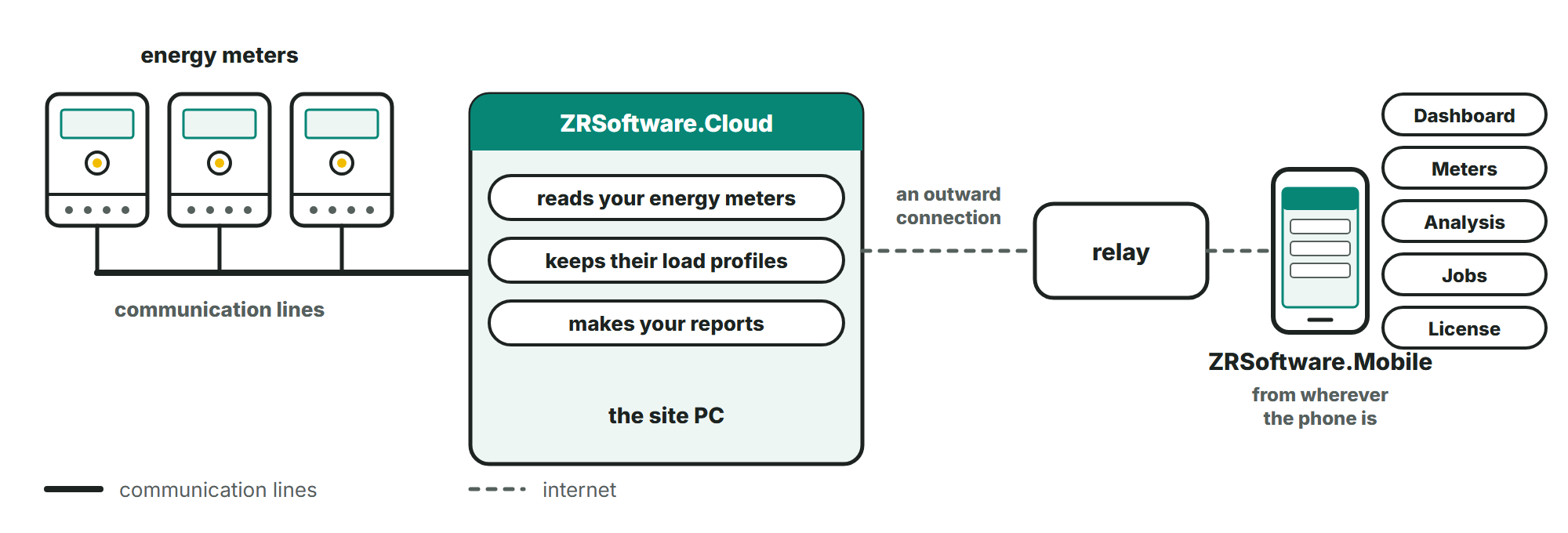
On the phone you see the site's dashboard, its meters and their latest values, a meter's load profile in the analysis, the site's jobs, events and exports, and its license. The Excel and PDF files the site makes download to the phone. An Operator or an Admin can also have meters read now and run an export.
The app shows what the site has read. It does not show live values and it sends no notifications.
What you need
- An Android phone or tablet with Android 7.0 or newer.
- A ZRSoftware.Cloud site of version 1.1.0 or newer with remote access turned on, and an account on it. Turning it on is described in the ZRSoftware.Cloud manual.
- An internet connection on the phone.
Without a site
The built-in demo shows every page with sample values, without a site and without an account (chapter Installing and the demo).
Language
The app is in English.
Installing and the demo
Install ZRSoftware.Mobile from Google Play: https://play.google.com/store/apps/details?id=com.redzsc.zrsoftware (opens in a new tab)
On Google Play and on the phone the app is called ZRSoftware.
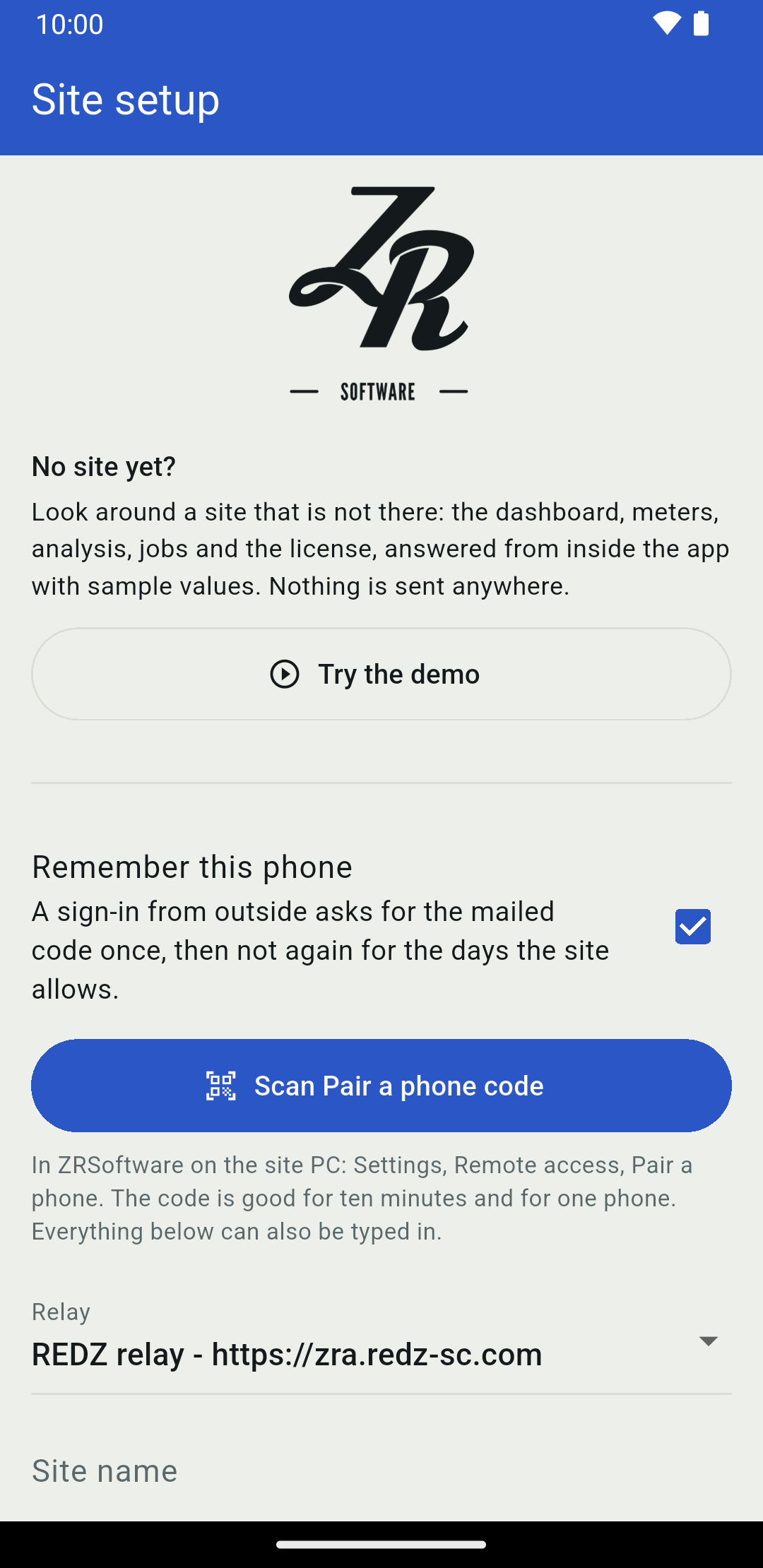
The first time it opens, the app shows the Site setup page. It pairs the phone with your site (next chapter), or opens the demo.
The demo
Try the demo opens a site that is not there: "Look around a site that is not there: the dashboard, meters, analysis, jobs and the license, answered from inside the app with sample values. Nothing is sent anywhere." The demo signs in by itself as an Operator, so the buttons for reading meters and running an export are there too.
While the demo is open, a strip at the top of every page says Demo site (sample values). The pictures in this manual are taken in the demo.
This video is in the online version of this manual.
To leave the demo, open the menu at the top right of any page and tap Leave the demo. The app goes back to Site setup.
Pairing the phone with your site
The phone reaches your site through a relay. Your site makes an outward connection to the relay and the app meets it there, so no port is opened at the site and nothing is forwarded.
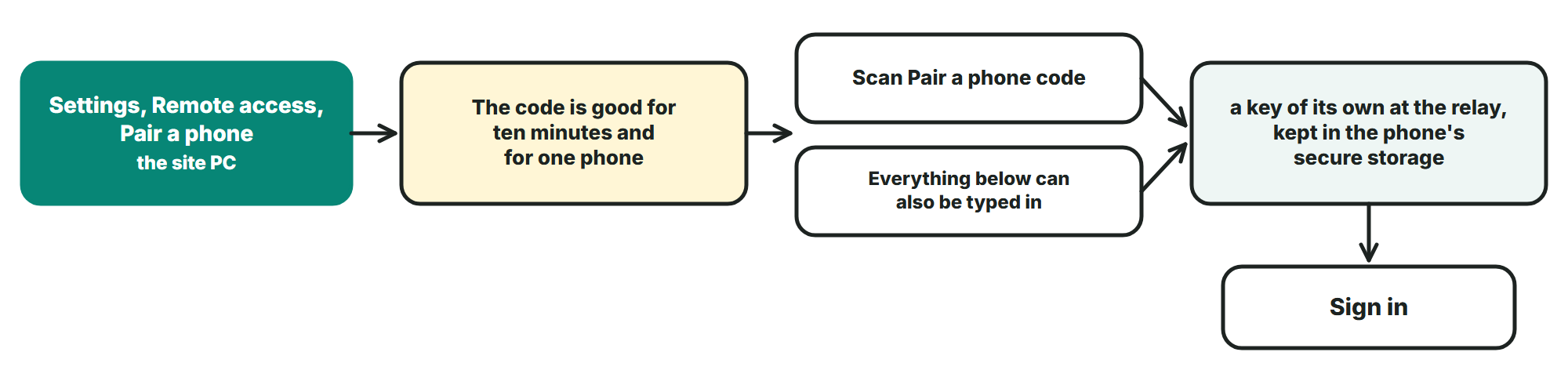
Before the first sign-in, the phone is paired with the site once. Pairing gives the phone a key of its own at the relay, kept in the phone's secure storage. The key lets the phone reach the site; your account still signs in.
The setup code
The site shows the setup code. The Site setup page says where: "In ZRSoftware on the site PC: Settings, Remote access, Pair a phone. The code is good for ten minutes and for one phone. Everything below can also be typed in." Turning on remote access and showing the code are described in the ZRSoftware.Cloud manual.
Scanning the code
- On Site setup, leave Remember this phone as you want it (below).
- Tap Scan Pair a phone code. The first time, Android asks whether the app may use the camera.
- Point the camera at the code on the site PC. Other codes the camera sees are ignored.
- When the code is read, the app trades it at the relay for the phone's key and saves the settings at once. The sign-in page follows.
If the camera cannot be opened, the page says "The camera could not be opened:" followed by the reason. The code can then be typed in, as below.
Typing it in
- Under Relay, choose the relay address the site PC shows, or choose Other address... and type it in Relay address.
- Type the Site name and the Setup code exactly as the site PC shows them. The setup code is 8 letters and digits.
- Tap Save.
The app talks to a relay only over https://. An address that starts with http:// is refused before anything is sent, with a sentence that says so.
Remember this phone
Remember this phone decides how often a sign-in from outside asks for a code mailed to you: "A sign-in from outside asks for the mailed code once, then not again for the days the site allows." The box starts ticked; the choice is saved with the pairing.
Signing in
After pairing, and whenever the phone has no session, the app shows Sign in with the site's name and relay address under the logo. Sign in with the user name and password of your account on the site.
The eye at the end of the password field shows what you typed (Show password) and hides it again (Hide password).
The code mailed to you
The phone signs in from outside, through the relay, so the site sends a code to the account's e-mail address unless it already remembers this phone. The first time this can take a few seconds while the site waits for its mail server. The page then says "A sign-in code was sent to" your address and asks for the code.
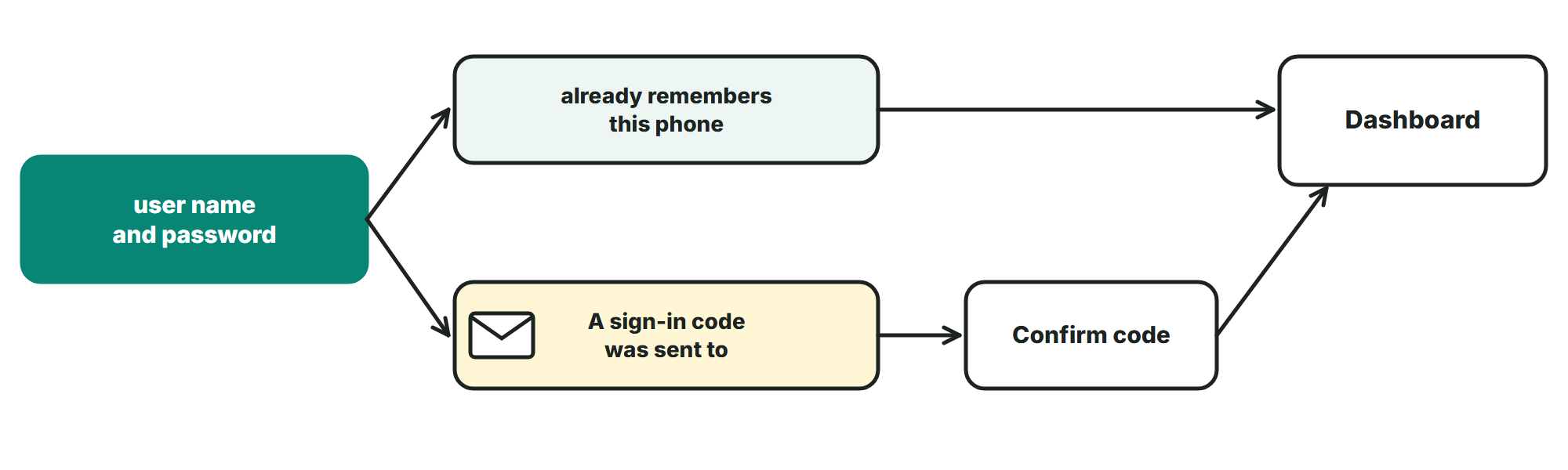
- Type the code from the mail in Sign-in code and tap Confirm code.
- If no mail came, wait until Send a new code appears, then tap it. Until then the page counts down the seconds.
- To sign in with another account instead, tap Use another account.
If a code was sent less than a minute earlier, no new one is sent and the page says so: use the code from the newest mail.
With Remember this phone ticked at pairing, the code is asked once and then not again for the days the site allows.
When the site starts remembering a phone, it mails the account's address a notice that a new device was remembered. If that was not you, change the password of the account and tell whoever runs the site.
Keep me signed in
Keep me signed in is off until you tick it: "On a remembered phone the password is not asked again until the site stops trusting this phone." On a phone that is not remembered, and on a site that does not offer it, a session lasts eight hours.
When the session ends
When the site ends the session, the app goes back to Sign in and says "The session has ended. Sign in again."
When an administrator changes the account's role or the meters it sees, the site ends the account's sessions and no longer remembers its phones: the next sign-in asks for a mailed code again.
The gear at the top right of Sign in (Site setup) opens the pairing page again, for example to pair the phone anew or to forget the site.
Dashboard
After sign-in the app opens on Dashboard. The five pages of the site are the tabs at the bottom: Dashboard, Meters, Analysis, Jobs and License.
Every page asks the site when you open it. Pull a page down to ask again.
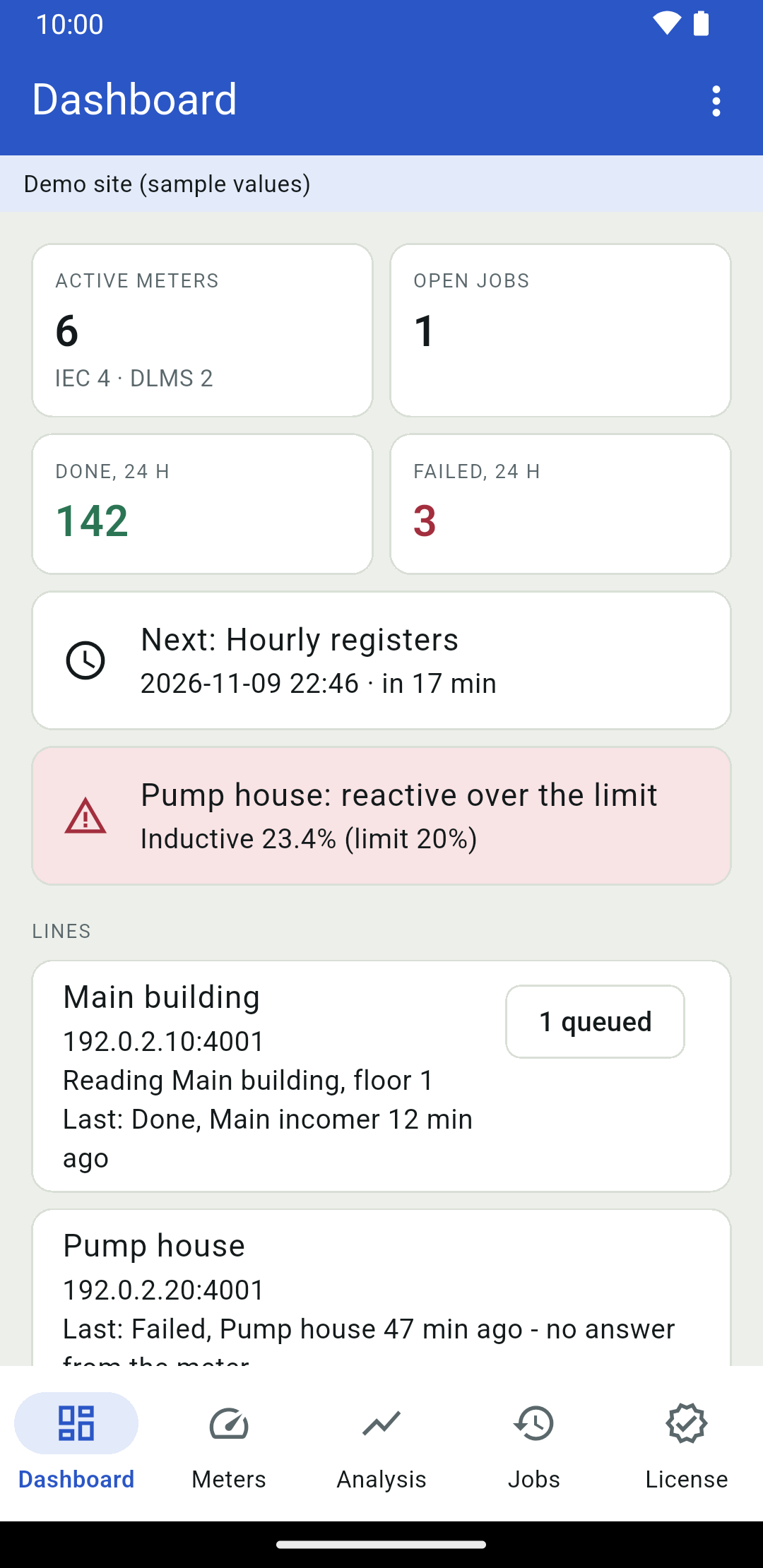
What the Dashboard shows
- "Active meters", with how many of them are IEC and how many DLMS meters, and "Open jobs".
- "Done, 24 h" and "Failed, 24 h": the reads finished and failed in the last 24 hours.
- The next schedule, by name, with when it runs.
- A red card for each meter whose reactive energy is over the limit, with its ratios.
- The site's communication lines: for each, its state, the meter it is reading now, how many reads wait in its queue, and its last read with the result.
A line's text can be long, for example the message of a failed read. The card shows its first lines; tap the card to read all of it, and tap again to close it.
The menu at the top right shows who is signed in and with which role: Viewer, Operator or Admin.
Meters
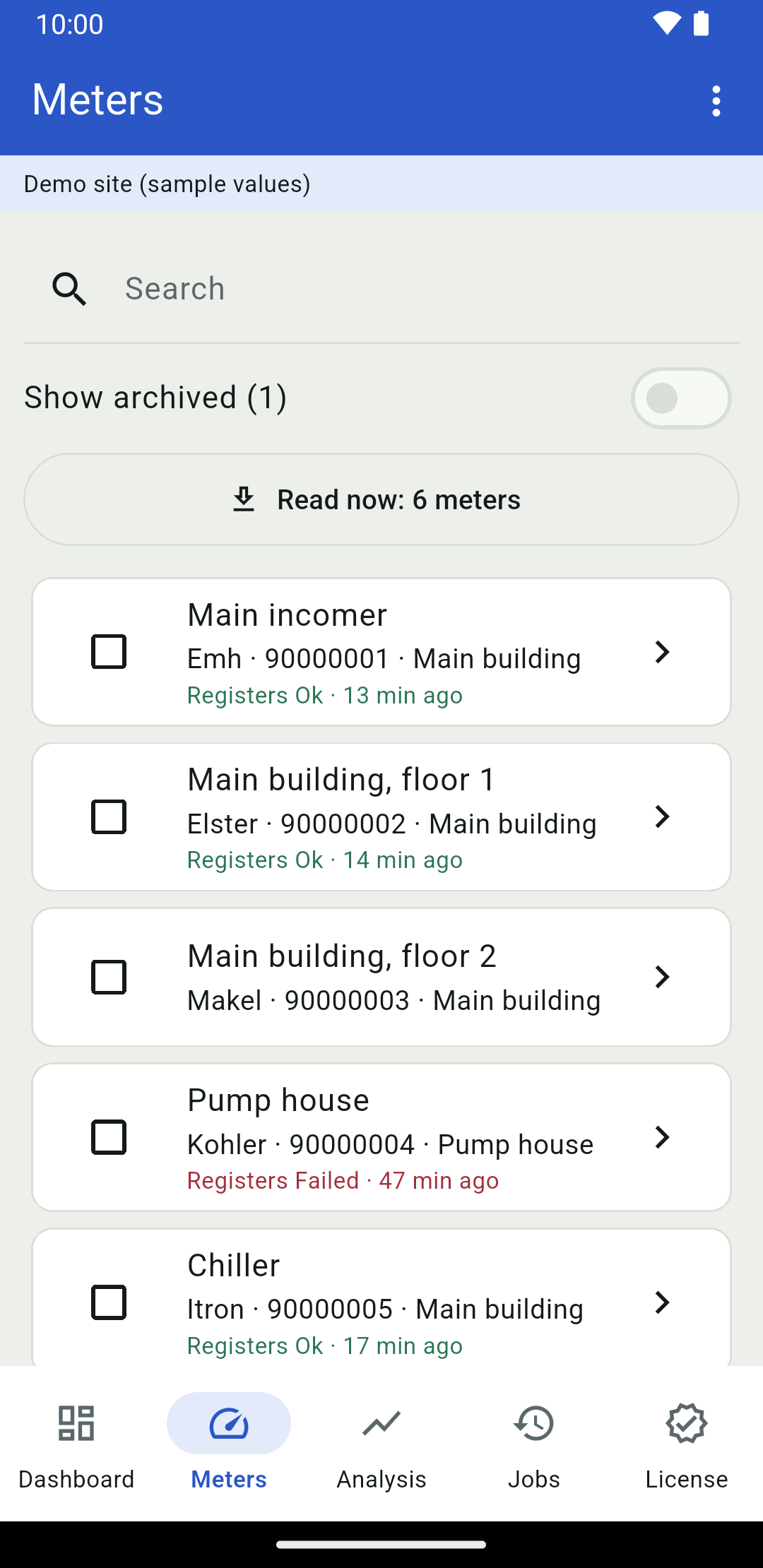
Meters lists the site's meters. Each one shows its type, serial number and line, and its last reading of any kind with its result and how long ago it was: green when it went well, red when it did not.
Type in Search to find a meter by "Location, serial number, type or line".
Archived meters are hidden. When the site has any, a switch above the list shows them, with their number.
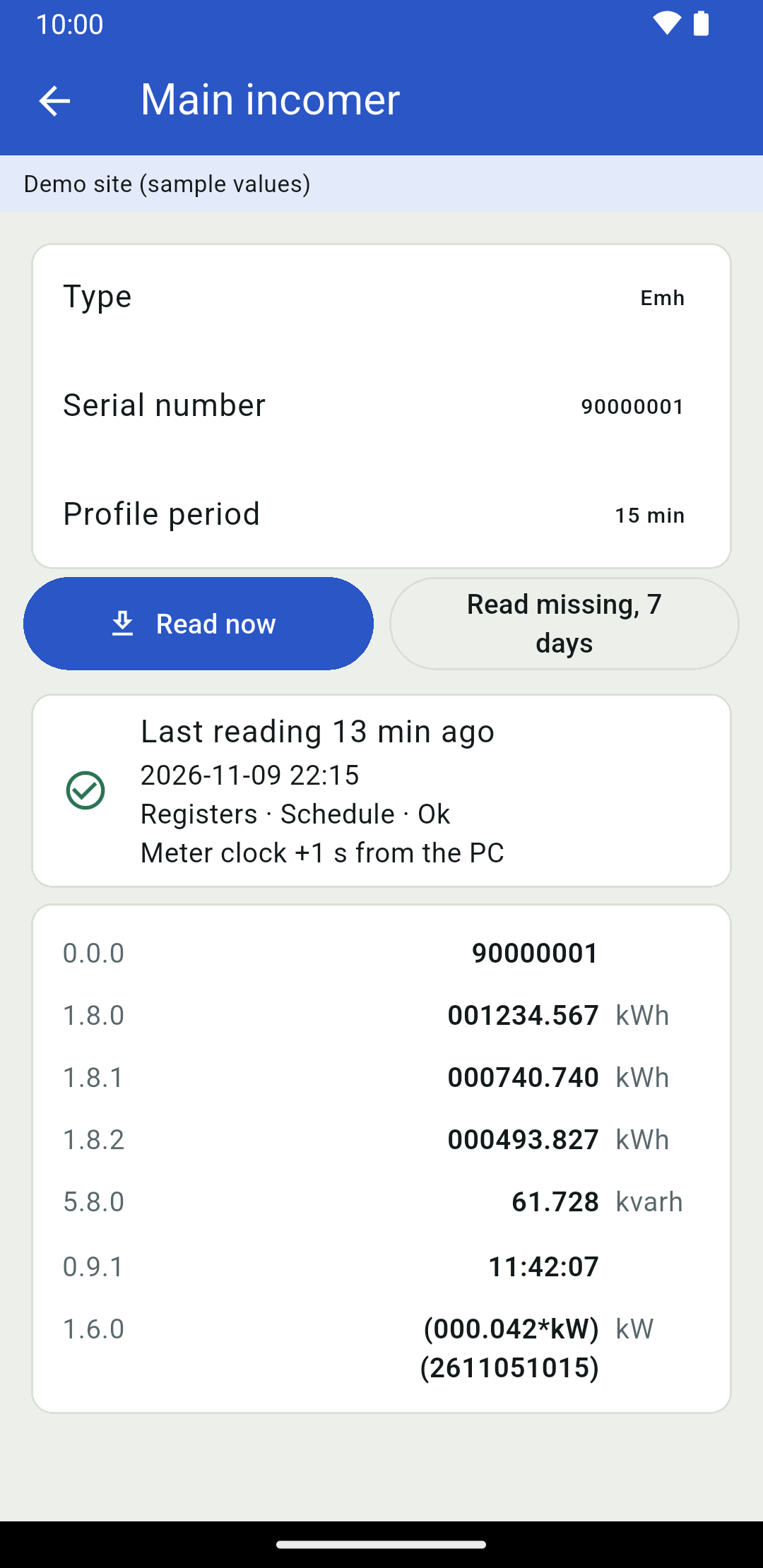
A meter's page
Tap a meter to open its page. At the top are its Type and Serial number, its Multiplier when it is not 1, and its Profile period when the site knows it.
Below them is the meter's Last reading of its registers: when it was taken, what started it and how it ended, how far the meter's clock was from the site PC's, and any message. Then come the values, grouped as the site groups them, each with its OBIS code and unit.
A value is shown as a plain number with its unit beside it. A value the meter sends in several parts is shown as it came.
When the meter's clock is more than a year away from the site PC's, the page says "Meter clock not known" instead of a number.
A meter the site has not read yet says "No registers reading of this meter yet."
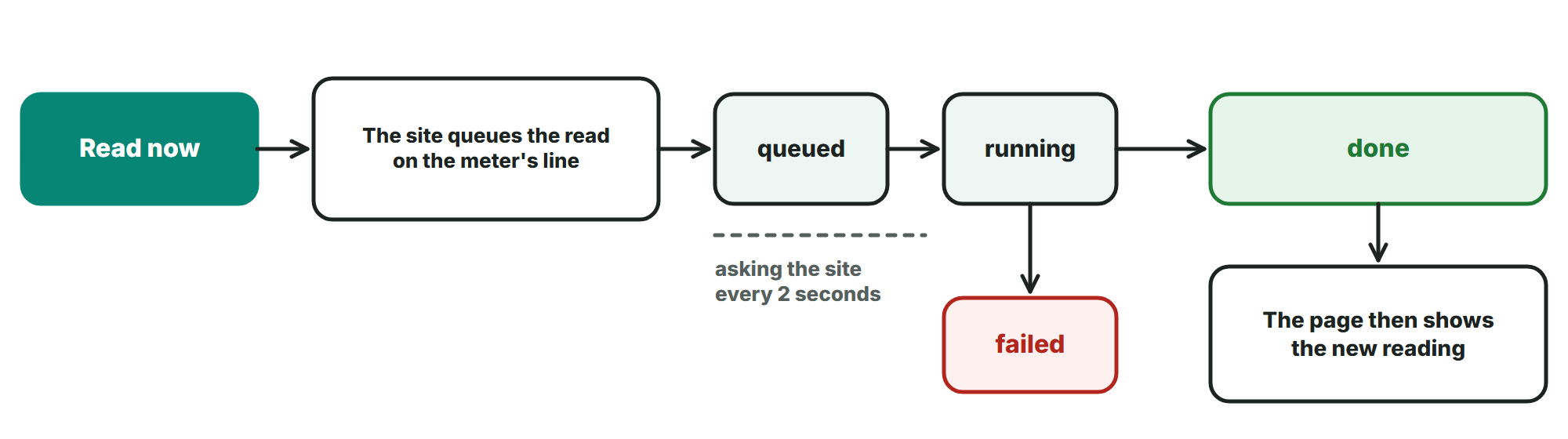
Reading a meter now
An Operator or an Admin sees two buttons on the page of a meter the site can read. A Viewer does not.
- Read now reads the meter's registers now.
- Read missing, 7 days reads the load profile intervals the site is missing from the last seven days, today included.
The site queues the read on the meter's line. A card on the page follows it, asking the site every 2 seconds, and shows its state and progress until it ends, then the site's message. The page then shows the new reading.
In the demo the reads are played by the app itself, with sample values; no meter is read.
Reading several meters
An Operator or an Admin also sees a check box on each meter the site can read, and a Read now button above the list that says how many meters it will read. With no box ticked, it reads the meters the list shows; with boxes ticked, only those. Ticks stay while you search, so meters that no single search finds can be read together. Clear removes the ticks.
One request reads at most 200 meters. The app asks first: "Their registers are read on their lines, one after another. The lines are busy until the reads are done." Tap Read to start, or Cancel.
A card titled Reads then counts the finished reads. A read that failed, was cancelled or was interrupted is named with its meter; the reason is on Jobs.
An account that sees only some meters
An administrator can let a Viewer or an Operator see only the meters of some meter groups, in ZRSoftware on the site PC under Users. The app then shows that account only those meters: in the meter lists, in the Dashboard's meter counts, and in the jobs, readings and events. An Admin always sees all of them.
A formula, a report or an export is listed only when the account sees every meter it uses.
License still counts all the site's meters.
Analysis
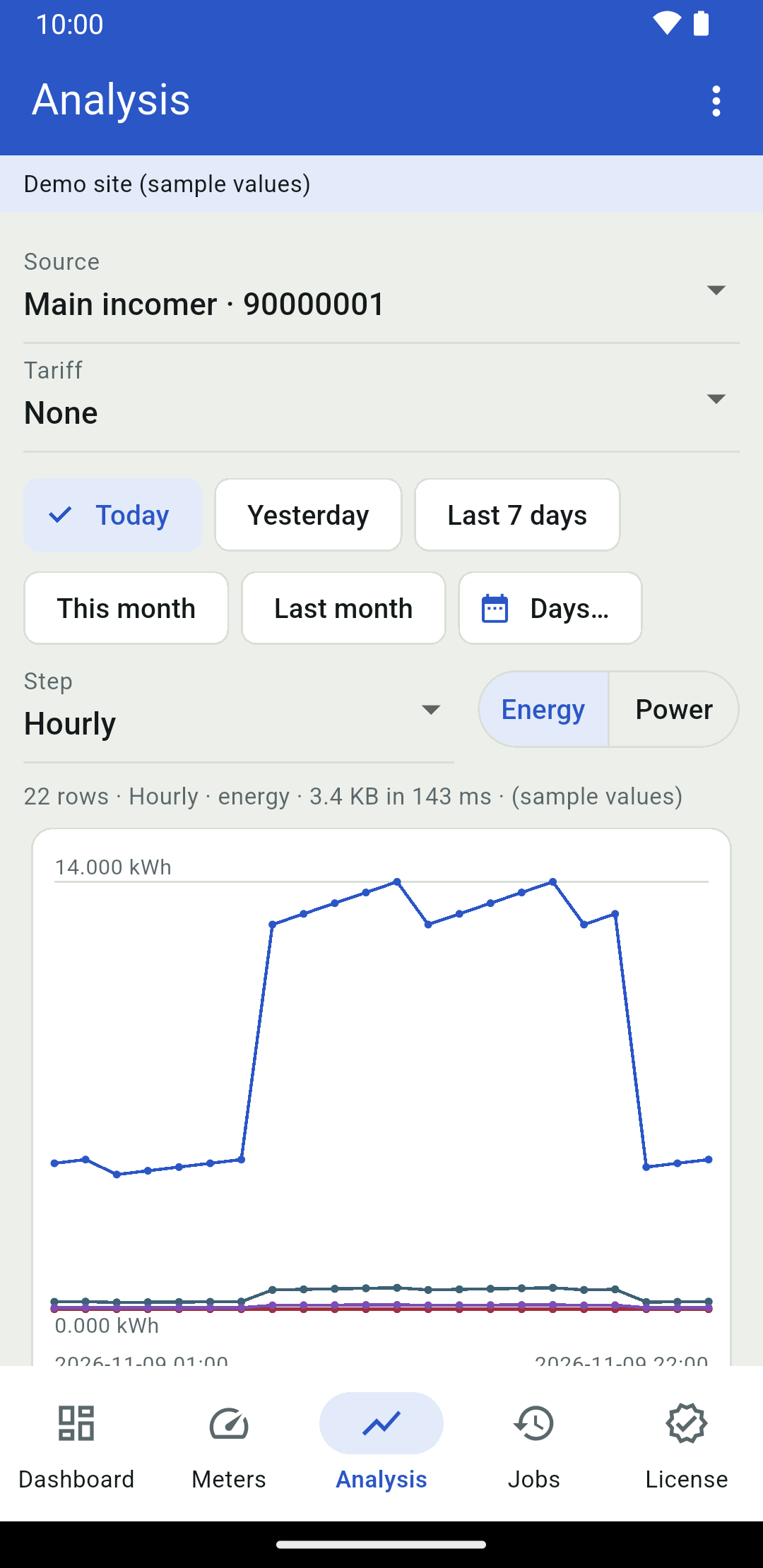
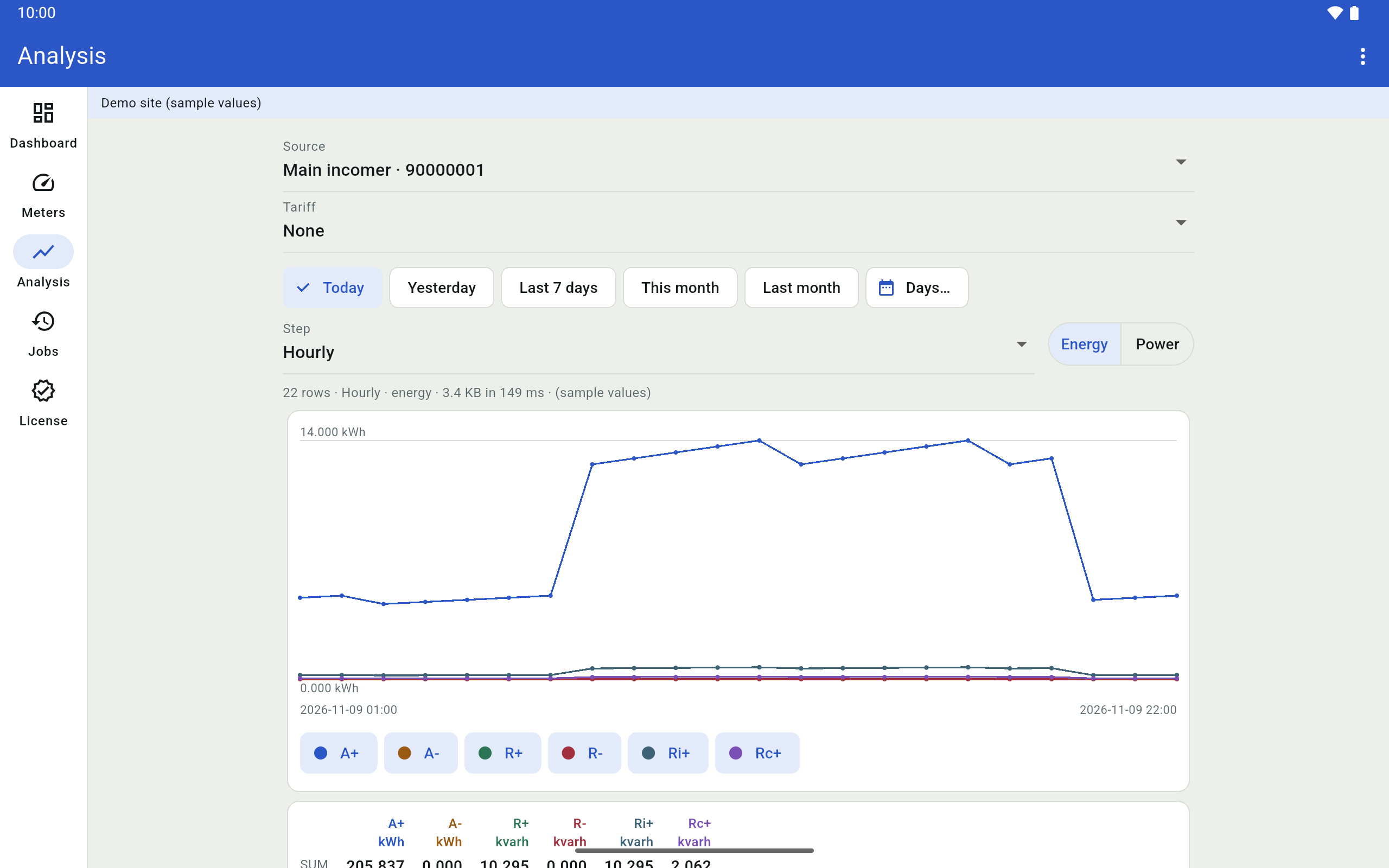
Analysis shows a meter's load profile over a range of days, as a chart, totals and a table. It opens on the first meter, for today, hourly, as energy.
Choosing what to show
Choose the meter under Meter. When the site has formulas or custom reports, the list is called Source and offers them after the meters.
When the site has tariffs, Tariff adds each tariff zone's totals; None leaves them out.
Choose the days with Today, Yesterday, Last 7 days, This month or Last month, or tap Days... to pick a first and a last day; the chip then shows the two days. A range holds up to 366 days.
Step is Detailed (the intervals as the meter stored them), 15 min, 30 min, Hourly or Daily. Energy and Power choose what the values are.
Every change asks the site again.
Reading the result
A line above the chart says how many rows came, at which step and unit, how large the answer was and how long it took.
The chart draws a line for each channel that has values, in the site's colours. Tap a channel's chip under the chart to hide its line or show it again.
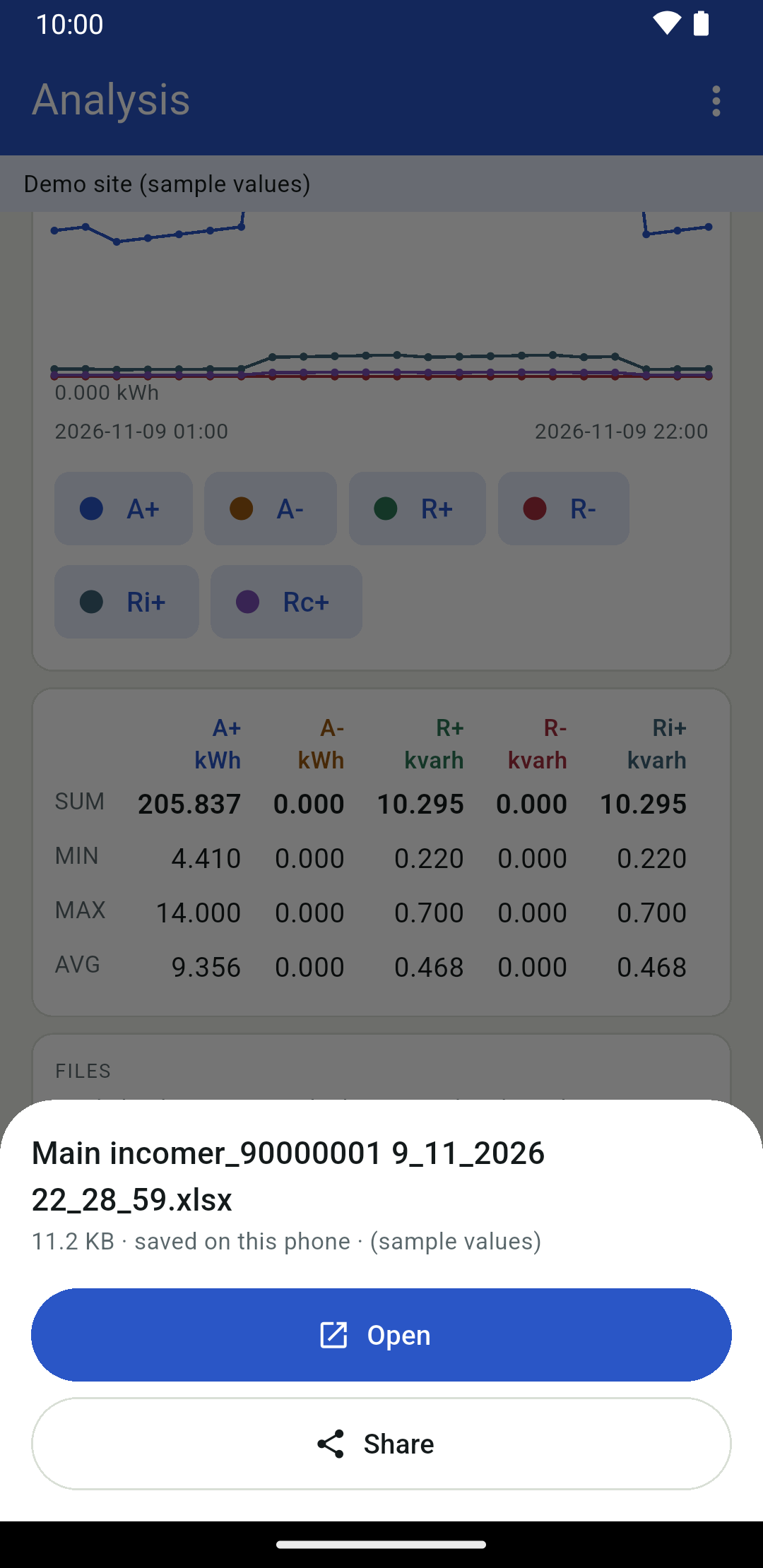
The totals give the MIN, MAX and AVG of each channel, and the SUM for energy. A wide table scrolls sideways.
With a tariff chosen, a card gives each zone's totals.
The table lists the rows, oldest first. It shows the first 500 rows of a longer answer and says so; the chart and the totals use all of them.
A row that holds fewer intervals than its step should is marked, and a line above the chart counts them. In a formula or report, a value that is incomplete or divides by zero is marked with a star in the table, or the reason is written in its place.
When the answer is too large
The relay carries an answer of about 3.7 MB at most, which a long range at a fine step can exceed. The page then says so, and a button offers the next coarser step. A shorter range works too.
Files
Under the totals on Analysis, a card offers the files the site makes for what is shown: "Made by the site, as in the browser. The phone keeps a copy to open or share."
- Excel and PDF: the analysis of the chosen range, step and unit.
- Monthly table and Monthly table (PDF), for energy: the month of the last chosen day, a row per hour and a column per day, for the channel chosen beside them.
Open and share
When the file has come, a panel shows its name and size. Open opens it in an app of the phone that shows that kind of file; Share hands it to another app, for example mail.
If no app on the phone opens it, the card says "No app on this phone opens" that kind of file; share it instead.
The files the phone keeps
The phone keeps the last 20 files in the app's own storage and deletes older ones. A file with the same name replaces the earlier one. The app needs no permission to the phone's storage.
Forgetting the site deletes the files too (chapter Signing out and forgetting the site).
A file passes through the relay like any answer, so a very large one is refused; choose a coarser step or a shorter range.
In the demo the app makes the files itself from the sample values, and each file says so.
Jobs and events
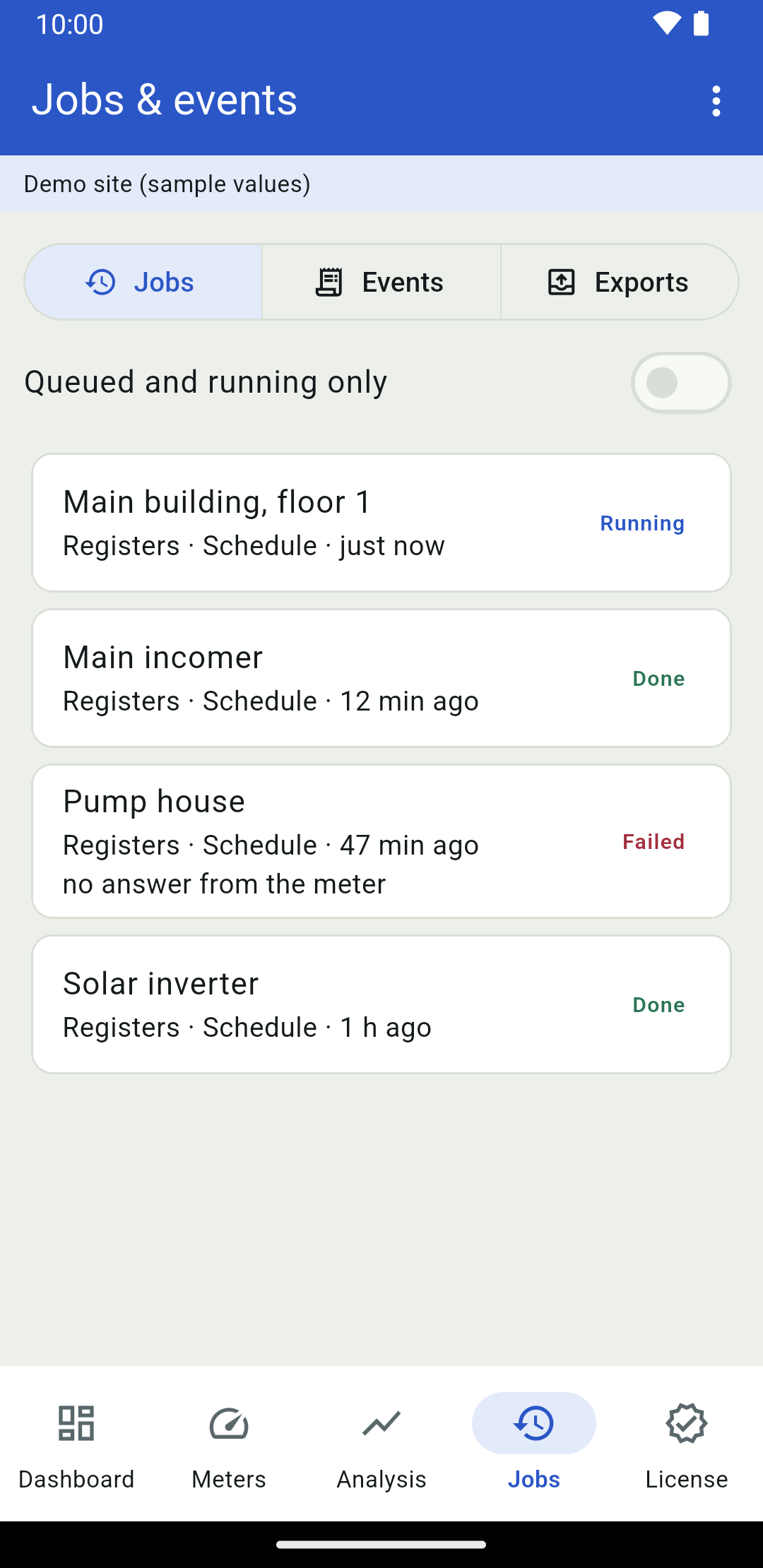
The tab Jobs opens Jobs & events: the site's work in three parts, Jobs, Events and Exports.
Jobs
The newest 100 jobs, newest first: each with its meter, what kind of job it is and what started it, when, its progress while it runs, and its message. The state is on the right: done in green, running and queued in their colours, failures in red.
Queued and running only leaves out the jobs that have ended.
A long message shows its first lines; tap the card to read all of it.
Events
The site's newest 200 events: errors, warnings and information, each with where it came from, its meter if it has one, and when.
Exports
The site's automated exports: what each one exports and for which period, where it goes (e-mail, FTP or a folder), its last run and its next one. An export that is turned off is marked. A site without any says "This site has no automated exports. They are set up in the browser."
An Operator or an Admin sees Run now on each export. The app first asks whether to run it: the site then writes the file, and mails it or puts it on the FTP server if the export says so, as it does on its schedule. Tap Run to go ahead, or Cancel.
The page then says how many rows were written to which file, or why the run failed. A long run can outlast the relay's wait: the page then says the export may still be running on the site; pull the page down later to see its last run.
In the demo, Run now answers as a site would, but nothing is written or sent.
License
License shows the site's license as the site reports it: its state and message, how many meters are used of how many allowed, and, where the license has them, its "License number", the day it "Ends on", the "Days left", "Maintenance until" and its "Features".
The license is managed on the site PC; the phone only shows it.
Signing out and forgetting the site
Signing out
Open the menu at the top right and tap Sign out. The app goes back to Sign in. The pairing stays, and so does the site's memory of this phone: the next sign-in does not ask for a mailed code while the site still remembers the phone.
Forgetting the site
Forget this site is in the same menu, and on Site setup under the line that names the paired site, so it can be used without signing in.
The app asks first. Forget deletes what the phone keeps for the site: the relay address and site name, the phone's key, the sign-in, the site's token for this remembered phone, the last user name, the relay addresses used before and the downloaded files. Cancel keeps everything.
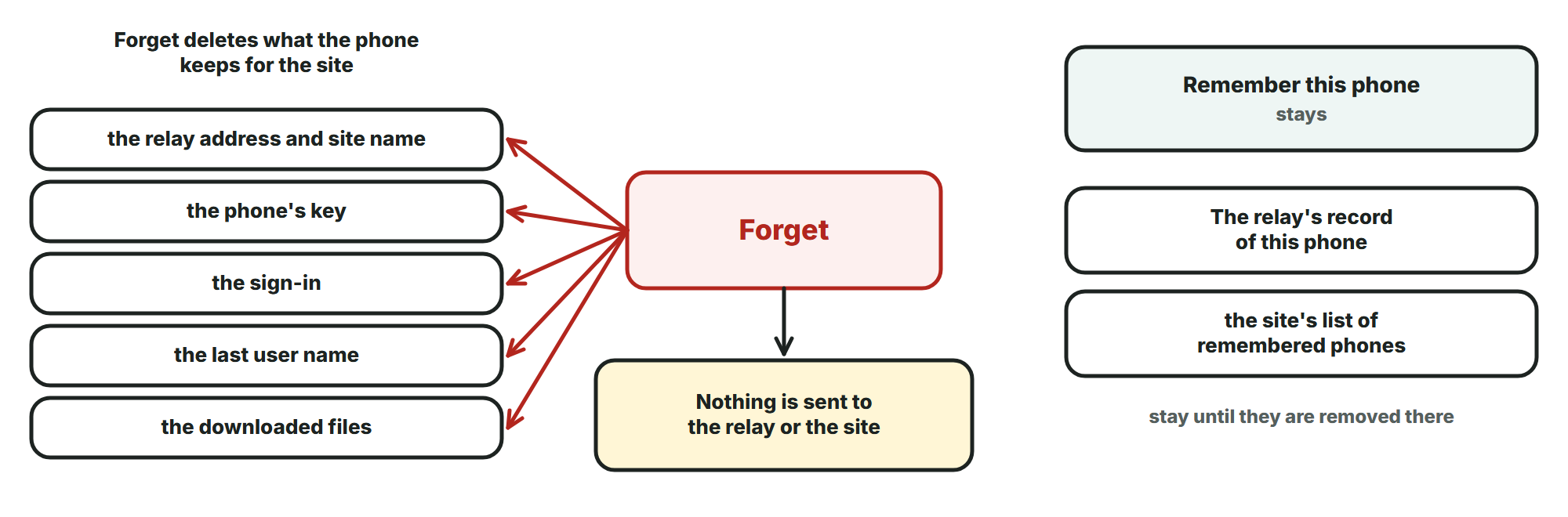
Only the choice of Remember this phone stays: it is a setting of the app, not the site's data.
Nothing is sent to the relay or the site. The relay's record of this phone and the site's list of remembered phones stay until they are removed there; the site stops remembering a phone by itself after the days it allows. To use the site again, pair the phone with a new code.
The privacy policy says what the app keeps and how to have it deleted: https://redzsoftware.com/mobile-apps/privacy/#zrsoftware (opens in a new tab)
In the demo the menu has Leave the demo instead.
Tablets
On a tablet the five tabs sit in a rail at the left side instead of at the bottom, in either orientation. A phone keeps them at the bottom, also when it is held sideways.
On a wide screen the pages and the confirmation dialogs keep a readable width in the middle.
On phones and tablets alike, the app follows the system's light or dark setting.
Troubleshooting
The app says what went wrong in a sentence. The most common ones, and what to do:
Pairing
- "That setup code is not valid any more. It is good for ten minutes and for one phone - make a new one in ZRSoftware: Settings, Remote access, Pair a phone."
- "This relay does not know that site name." Check the relay address and the site name against the site PC.
- "This app talks to a relay only over https://. The address starts with http://, so nothing was sent. Ask for the relay's https:// address."
- "The address could not be looked up. This phone has no network connection, or the address is wrong."
Signing in
- "That code is wrong or has expired. Attempts are limited, as with a password." Use the code from the newest mail.
- "Remote sign-in is off for this account. An administrator can turn it on in ZRSoftware on the site PC: Users."
- "This account has no e-mail address, so it cannot sign in from outside. An administrator can add one on the site PC."
- "The site could not send the code. Its Mail settings need attention." An administrator checks the mail settings on the site PC.
- "A one-time password is still in place. Set your own password in ZRSoftware on the site PC first."
- "Too many sign-in attempts. Wait a minute and try again."
- "The relay refused this phone's key, or does not know this site name. Pair the phone again from the site setup."
While you work
- "The session has ended. Sign in again." A session lasts eight hours unless it is kept; the site can also end it.
- "The site is not reachable through the relay right now." The site PC may be off, or its service not connected to the relay. Try again later.
- "The site is connected but not ready yet. Try again in a moment."
- "The site did not answer in time." The phone waits 35 seconds for an answer.
- "This account may not see this." The account's role does not allow it.
- "Not found on this site." The account does not see it, or the site no longer has it.
- "The relay did not carry this answer. It is probably larger than the tunnel carries (about 3.7 MB): try a coarser step or a shorter range."